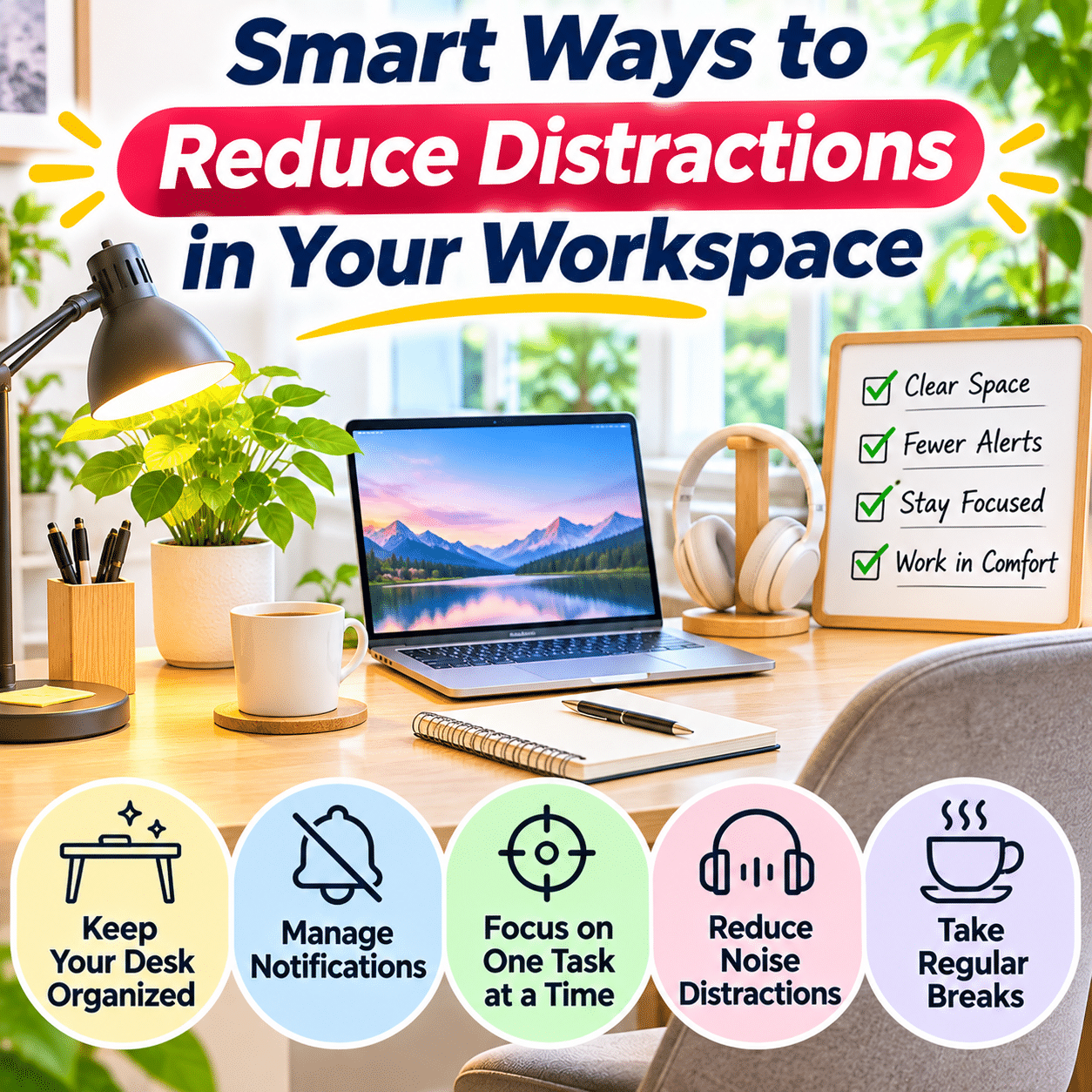
A productive workspace is not necessarily the largest, most expensive, or most beautifully decorated room in a home. It is a space that supports concentration, makes everyday tasks easier to complete, and helps you direct your attention toward the work that matters most.
Whether you work remotely, study online, manage personal projects, or pursue creative hobbies, distractions can interrupt your progress in surprisingly subtle ways. A notification appears on your phone, an unrelated browser tab catches your attention, a household conversation becomes difficult to ignore, or a cluttered desk reminds you of unfinished tasks.
Individually, these interruptions may seem insignificant. However, when distractions occur repeatedly, they can make it harder to maintain concentration, complete demanding activities, and feel satisfied with your progress.
The challenge is that distractions do not come from a single source. Some are physical, such as noise, uncomfortable furniture, or unnecessary objects. Others are digital, including messages, notifications, and competing online activities. Internal distractions, such as fatigue, stress, uncertainty, or the urge to multitask, can also affect attention.
Creating a more focused workspace does not require eliminating every sound, removing all personal belongings, or following a rigid productivity routine. In fact, an overly restrictive environment may feel uncomfortable and difficult to maintain.
A more practical approach is to identify the interruptions that affect you most, reduce unnecessary friction, and arrange your environment around the activities you regularly perform.
Small improvements in desk organization, lighting, technology settings, daily routines, and household communication can make a workspace more comfortable and supportive of sustained attention.
This guide explores practical ways to reduce distractions in your workspace, manage interruptions, organize digital and physical environments, and develop sustainable habits that make focused work easier without sacrificing comfort or flexibility.
1. Understand What Actually Distracts You
Before rearranging your workspace or changing your routine, identify the distractions that most frequently interrupt your attention.
Different people experience different challenges.
A quiet room may be ideal for one person but uncomfortable for someone who prefers gentle background sound. A completely clear desk may help one individual concentrate, while another works better with a few visible reference materials.
The goal is not to create a universally perfect workspace. It is to understand what interferes with your own activities.
Identify External Distractions
External distractions originate from the surrounding environment.
Common examples include:
- Conversations in nearby rooms
- Television or music playing in the background
- Street noise
- Phone notifications
- Visual clutter
- People entering the workspace
- Pets seeking attention
- Uncomfortable temperatures
- Poor lighting
- Frequently used household pathways
Some of these interruptions can be eliminated, while others require practical compromises.
Recognize Internal Distractions
Not every interruption comes from the environment.
Internal distractions may include:
- Thinking about unfinished responsibilities
- Worrying about upcoming deadlines
- Feeling uncertain about where to begin
- Mental fatigue
- Hunger or thirst
- Boredom
- The urge to switch tasks
- Difficulty prioritizing activities
A well-organized desk cannot solve every internal distraction, but a clear working process can reduce some of the uncertainty that contributes to them.
Observe Your Attention Patterns
For several work sessions, notice when your concentration becomes interrupted.
Ask yourself:
- What was I doing before the interruption?
- What caused me to stop?
- Was the interruption necessary?
- How difficult was it to return to the task?
- Does this distraction happen repeatedly?
- Could a simple environmental change reduce it?
Avoid turning this exercise into constant self-monitoring.
A few brief observations are usually enough to reveal useful patterns.
Create a Distraction Inventory
| Distraction | Possible cause | Practical improvement |
|---|---|---|
| Frequent phone checking | Visible notifications | Silence nonessential alerts |
| Difficulty finding supplies | Poor desk organization | Create designated storage |
| Household interruptions | Unclear work boundaries | Communicate focus periods |
| Too many browser tabs | Unstructured digital workflow | Keep task-related tabs open |
| Background conversations | Shared living space | Use suitable headphones or relocate |
| Constant task switching | Unclear priorities | Define one next action |
| Physical discomfort | Poor workstation setup | Adjust seating and equipment |
Once you identify the most disruptive patterns, prioritize improvements that are simple and realistic.
2. Give Your Workspace a Clear Purpose
A workspace becomes easier to use when its primary purpose is obvious.
This does not mean the area must serve only one function. Many homes require desks to support work, studying, hobbies, and everyday household administration.
However, defining the main activities performed in the space helps determine what should remain visible and accessible.
Identify Your Primary Activities
Consider whether your workspace is mainly used for:
- Computer-based work
- Reading and studying
- Writing
- Video meetings
- Creative projects
- Administrative tasks
- Online learning
- Planning and organizing
- A combination of activities
Each activity has different requirements.
A writing workspace may benefit from a simple desk surface and reference materials, while a creative workspace may need accessible tools and additional storage.
Keep Frequently Used Items Close
Arrange the workspace so that essential items are within comfortable reach.
Examples include:
- Computer or laptop
- Keyboard and mouse
- Notebook
- Pen
- Task-related documents
- Water bottle with a secure lid
- Frequently used reference materials
Items used only occasionally can be stored elsewhere.
Avoid Turning the Desk Into General Household Storage
A desk can easily become a temporary home for mail, receipts, shopping bags, and unrelated objects.
When these items accumulate, they compete for space and attention.
Create separate locations for household belongings that do not support your current work.
Allow for Multipurpose Use
If the desk serves several purposes, use a simple transition routine.
For example, after completing computer work, put away the keyboard accessories or paperwork needed only for that activity before beginning a craft project.
The objective is to make each activity feel intentional rather than allowing several unfinished tasks to compete for attention.
3. Reduce Visual Clutter Without Making the Space Feel Empty
Visual clutter is one of the most noticeable distractions in a workspace.
A desk filled with unrelated objects may create additional decisions whenever you begin a task.
However, a completely bare desk is not necessary.
The goal is to keep useful objects visible while reducing unnecessary competition for attention.
Start With the Main Working Surface
Remove everything from the central area that is not required for your current activities.
Then return essential items one at a time.
Ask whether each object:
- Supports regular work
- Needs to remain immediately accessible
- Has a clear storage location
- Makes the space more comfortable
- Creates unnecessary distraction
Use Small Organizational Zones
Divide the desk into practical areas.
Primary work zone: Computer, keyboard, mouse, or writing surface.
Reference zone: Notebook, documents, or materials needed for the current task.
Accessory zone: Pens, chargers, headphones, and other supporting equipment.
Personal zone: A small plant, photograph, or decorative object if desired.
These zones do not need physical dividers.
Their purpose is to create a predictable arrangement.
Keep Decorative Objects Intentional
Personal decorations can make a workspace feel welcoming.
The key is moderation.
Choose items that contribute to comfort without obstructing work or creating unnecessary maintenance.
Clear Unfinished Tasks From View
Visible reminders of unrelated responsibilities can pull attention away from current work.
Instead of leaving every unfinished project on the desk, record the next action in a trusted task list and store the associated materials.
This preserves the reminder without requiring the objects to remain visible.
4. Organize Desk Supplies for Easy Access
Searching for a pen, charging cable, or document can interrupt concentration.
A simple storage system reduces the need to make repeated decisions about where things belong.
Assign Permanent Locations
Give commonly used supplies predictable storage locations.
For example:
- Pens in one holder
- Notebooks in one drawer
- Charging cables in one organizer
- Reference documents in one tray
- Headphones on a suitable stand or hook
Group Similar Items
Store related accessories together.
Avoid mixing stationery, electronic adapters, receipts, and unrelated household items in the same small compartment.
Keep Storage Simple
Complex organizational systems can create more work than they save.
A few clearly defined containers are often easier to maintain than numerous specialized compartments.
Use Vertical Space Carefully
Shelves, wall organizers, and monitor risers may provide additional storage without occupying the central desk surface.
Install equipment securely and avoid creating unstable arrangements.
Establish a Quick Reset Routine
At the end of each work session, return supplies to their designated locations.
A short reset can make the next session easier to begin.
5. Position Your Desk to Minimize Unnecessary Interruptions
Workspace placement influences what you see, hear, and experience while working.
A thoughtful desk position can reduce distractions without requiring major renovations.
Consider Visual Activity
A desk facing a busy hallway or television may expose you to frequent movement.
If possible, position the desk so that unnecessary activity remains outside your main field of view.
Evaluate Window Placement
Natural light can make a workspace more pleasant.
However, direct sunlight may cause glare, reflections, or uncomfortable heat.
Position the screen and desk to balance daylight with visual comfort.
Avoid High-Traffic Areas When Possible
Household pathways can create repeated interruptions.
If your workspace must be located in a shared room, consider using furniture placement to establish a recognizable work area.
Maintain Comfortable Access
Do not position furniture where it blocks doors, walkways, ventilation, or emergency exits.
A focused workspace should also remain safe and practical.
Test Before Rearranging Everything
Small adjustments may be enough.
Try changing the desk angle, moving a lamp, or repositioning a monitor before purchasing new furniture.
6. Manage Noise According to the Type of Work
Noise affects people differently.
Some tasks require quiet concentration, while others can be completed comfortably with background sound.
Identify Which Sounds Interrupt You
Common sources include:
- Conversations
- Television
- Traffic
- Construction
- Household appliances
- Pets
- Music
- Notification sounds
Not all noise needs to be eliminated.
Focus on sounds that consistently interfere with your activities.
Use Headphones When Appropriate
Comfortable headphones may help reduce exposure to surrounding sounds.
Noise-canceling models can be useful for certain types of steady background noise, although their effectiveness varies.
Keep listening levels comfortable and remain aware of important safety sounds.
Consider Gentle Background Sound
Some people find low-volume instrumental music or consistent ambient sound helpful.
Others prefer silence.
Experiment with different environments rather than assuming one approach works for everyone.
Reduce Noise at the Source
When practical:
- Close doors during focused activities.
- Move noisy equipment away from the desk.
- Schedule loud household tasks outside important work periods.
- Use suitable furnishings to reduce echoes.
- Communicate with others about predictable quiet periods.
Avoid Complete Isolation When Safety Matters
Maintain awareness of alarms, household emergencies, and other important signals.
Noise reduction should not compromise safety.
7. Improve Lighting to Reduce Visual Discomfort
Poor lighting can make reading, writing, and computer work less comfortable.
Discomfort may become an additional reason to interrupt tasks.
Make Use of Natural Light
Daylight can create a pleasant working environment.
Position the desk to avoid direct glare on screens or work surfaces.
Add Task Lighting
A desk lamp can provide focused illumination for reading, writing, and detailed activities.
Choose lighting appropriate for the task.
Avoid Strong Reflections
Check whether windows or lamps create reflections on your monitor.
Adjust screen position, blinds, or lighting placement when necessary.
Balance Screen Brightness
A screen that appears excessively bright or dim compared with the surrounding environment may feel uncomfortable.
Adjust display settings to suit the room.
Consider Different Lighting Needs
Detailed craftwork may require stronger task illumination than casual computer browsing.
Use adjustable lighting when several activities share the same workspace.
8. Create a Comfortable Workstation That Supports Attention
Physical discomfort can compete with mental concentration.
A workspace should support comfortable movement and suitable posture rather than forcing the body into one rigid position.
Adjust Your Chair
Choose a stable chair that supports your working position.
Where possible, adjust seat height and support to suit your body and desk.
Position Your Screen Comfortably
Place the screen at a comfortable viewing distance and height.
Avoid positions that require prolonged awkward neck movement.
Arrange Keyboard and Mouse Placement
Keep frequently used input devices within comfortable reach.
Avoid unnecessary stretching or sustained awkward wrist positions.
Allow Space for Movement
Keep the area beneath the desk free from unnecessary storage that restricts leg movement.
Change Positions Periodically
Even a well-arranged workstation does not eliminate the need to move.
Stand, stretch, or change position regularly according to your comfort and abilities.
Manage Room Temperature
Excessive heat or cold may make concentration more difficult.
Use suitable ventilation, clothing, or temperature adjustments to maintain comfort.
9. Reduce Smartphone Distractions
Smartphones are useful work tools, but they can also introduce frequent interruptions.
Messages, social applications, news alerts, and entertainment notifications may compete for attention.
Turn Off Nonessential Notifications
Review which applications are allowed to interrupt you.
Consider disabling alerts that do not require immediate attention.
Use Focus or Do Not Disturb Modes
Many devices offer settings that silence selected notifications during designated periods.
Configure exceptions for important contacts or urgent communications when necessary.
Move the Phone Outside Your Immediate View
If you do not need the phone for the current task, place it in a designated location away from the central desk surface.
Even a small change in accessibility may make habitual checking less convenient.
Create Specific Checking Times
Instead of responding to every nonurgent notification immediately, review messages at suitable intervals.
This may not be appropriate for jobs requiring continuous availability, so adapt the approach to your responsibilities.
Separate Work and Personal Notifications
Where supported, use notification profiles or application settings to distinguish work-related communication from personal activity.
Avoid Overly Restrictive Rules
The objective is to reduce unnecessary interruptions, not make important communication impossible.
Choose settings that support your real needs.
10. Organize Your Computer Desktop and Digital Files
Digital clutter can be just as distracting as physical clutter.
A computer desktop filled with unrelated files, open windows, and notifications may make it harder to locate important information.
Keep the Desktop Manageable
Move completed files into appropriate folders.
Avoid using the desktop as permanent storage for every document.
Create a Simple Folder Structure
For example:
Work
- Active Projects
- Reference Materials
- Completed Projects
- Templates
Personal
- Household Documents
- Learning
- Creative Projects
- Travel
The exact categories should reflect how you actually use your computer.
Use Clear File Names
Descriptive file names reduce unnecessary searching.
Choose naming conventions that are easy to understand and maintain.
Archive Completed Work
Move finished projects out of active working folders when appropriate.
This keeps current materials easier to locate.
Maintain Backups
Organizing files is not a substitute for backing them up.
Use a suitable backup approach for important information.
Avoid Constant Reorganization
A functional folder system should save time.
Do not repeatedly reorganize files simply to make the structure appear perfect.
11. Control Browser Tabs and Online Distractions
Web browsers can become crowded with open pages.
Some tabs are essential to a task, while others represent unrelated interests or unfinished activities.
Keep Task-Related Tabs Together
When beginning focused work, identify the websites and documents you actually need.
Close or temporarily set aside unrelated pages.
Use Bookmarks for Later Reading
Instead of keeping every interesting article open, save useful resources in an organized bookmark system.
Separate Research From Execution
Researching a topic and completing a task are not always the same activity.
For example, when writing a report, gather the necessary references before entering a focused drafting period.
Return to additional research when a genuine information gap appears.
Avoid Unnecessary Automatic Media
Autoplay videos and constantly updating content can create unexpected interruptions.
Adjust website or browser settings when appropriate.
Use Browser Profiles When Helpful
Separate profiles may help distinguish work and personal browsing.
However, multiple profiles are useful only when they simplify your workflow.
Close the Loop on Unfinished Browsing
If a page is important for later, save it with a clear reason for returning.
This reduces the need to keep unrelated tabs open indefinitely.
12. Manage Email and Messaging Interruptions
Email and messaging tools are essential for many activities, but constant checking can fragment work.
Distinguish Urgent From Routine Communication
Not every message requires an immediate response.
Identify which contacts, projects, or responsibilities genuinely need rapid attention.
Schedule Communication Windows
When your work allows it, review routine messages during planned intervals.
This creates longer periods for uninterrupted tasks.
Use Notification Filters
Configure important alerts to remain visible while reducing less urgent interruptions.
Communicate Response Expectations
If you collaborate with others, clarify when you are generally available and how urgent issues should be handled.
Avoid Treating Every Message as a New Task
When a message requires substantial work, record the action in your task system rather than immediately abandoning the current activity.
Maintain Flexibility
Some roles require real-time communication.
In those situations, focus on reducing unnecessary alerts rather than attempting to eliminate all interruptions.
13. Use Focused Work Sessions Instead of Constant Multitasking
Switching repeatedly between unrelated tasks can make demanding work harder to complete.
A practical alternative is to organize activities into manageable periods.
Choose One Main Task
Before beginning, identify the most important activity for the session.
For example:
- Draft a report section
- Review a set of documents
- Complete a lesson
- Edit a photograph
- Organize project notes
- Prepare a presentation
Define a Clear Next Action
A vague goal such as “work on the project” may create uncertainty.
A more specific goal might be “outline the first three sections of the project.”
Clear actions make it easier to begin.
Choose a Realistic Work Period
Some people prefer shorter sessions, while others benefit from longer periods.
Experiment with a duration that suits the task and your attention.
Take Breaks When Needed
Breaks can provide opportunities to move, rest your eyes, drink water, or reset attention.
The appropriate frequency depends on the individual and the activity.
Resume With a Clear Starting Point
Before ending a session, note where to continue.
This can reduce the effort required to restart later.
14. Create Boundaries in Shared Living Spaces
Not everyone has a separate home office.
Many people work at dining tables, in bedrooms, or in living rooms shared with others.
A focused workspace can still be created within these limitations.
Establish Visible Work Boundaries
A desk lamp, folding divider, or consistent furniture arrangement can help define the work area.
Communicate Focus Periods
Explain when you need fewer interruptions and when you will be available.
Keep expectations realistic and respectful of shared household needs.
Use Simple Signals
A closed door or agreed-upon visual signal may help indicate that you are concentrating.
Avoid relying on signals that other household members have not agreed to recognize.
Prepare for Necessary Interruptions
Family responsibilities, caregiving, and household needs cannot always be postponed.
Plan important work around predictable obligations when possible.
Create a Portable Workspace Kit
If your work area must be cleared regularly, keep essential supplies in one portable container.
This makes setup and cleanup faster.
Focus on Consistency Rather Than Perfection
A shared space may never be completely quiet.
Aim to reduce the most disruptive interruptions while maintaining a practical household routine.
15. Manage Distractions From Household Tasks
Working from home can make unfinished chores unusually visible.
Laundry, dishes, cleaning, and other responsibilities may compete for attention.
Separate Work Tasks From Household Tasks
Keep a simple list for household responsibilities.
When a chore comes to mind during work, record it rather than immediately switching activities.
Schedule Routine Chores
Assign household tasks to suitable periods.
This reduces the need to decide repeatedly whether to complete them immediately.
Avoid Using Chores to Delay Difficult Work
Sometimes a small household task feels easier than beginning a demanding project.
Recognize this pattern without treating every break as a failure.
Prepare the Workspace Before Starting
If a cluttered desk or nearby mess consistently distracts you, spend a few minutes addressing the immediate issue before beginning.
Avoid turning preparation into an extended cleaning session.
Accept That Some Tasks Can Wait
A functional home does not need to be perfectly organized at every moment.
Prioritize activities according to actual importance.
16. Use a Simple Task Management System
Unfinished tasks can become mental distractions when there is no reliable place to record them.
A straightforward task management system can help.
Capture Tasks in One Main Location
Use a notebook, digital application, or other method that you find convenient.
Avoid scattering reminders across numerous unrelated places.
Separate Projects From Individual Actions
A project may contain several steps.
For example:
Project: Prepare a home office.
Actions:
- Measure desk space
- Review lighting
- Organize cables
- Adjust monitor position
- Create supply storage
Breaking a project into actions makes it easier to identify what to do next.
Prioritize Realistically
Choose a manageable number of important tasks for the day.
An excessively long daily list can become discouraging.
Review Tasks Periodically
A short review helps keep the list current.
Remove completed items and clarify vague tasks.
Avoid Overcomplicated Productivity Systems
The best system is one you can maintain consistently.
A simple list used regularly may be more helpful than an elaborate application that requires constant management.
17. Reduce Cable Clutter Around Your Desk
Cables can create both visual distraction and practical inconvenience.
A tangled collection of charging cords and device connections may make the workspace feel crowded.
Identify Essential Connections
Check which cables are actually required.
Remove unused or obsolete accessories.
Route Cables Along Suitable Paths
Use cable clips, sleeves, or organizers to keep cords away from the main working surface.
Avoid Excessive Cable Tension
Leave enough slack for safe movement and equipment adjustments.
Keep Power Equipment Accessible
Do not conceal electrical equipment in ways that restrict ventilation or prevent safe disconnection.
Separate Cables From Moving Furniture
Avoid routing cords where they may be crushed by drawers, chairs, or adjustable desks.
Inspect Cables Periodically
Replace damaged electrical cables rather than attempting unsafe repairs.
A tidy cable arrangement should improve safety and convenience as well as appearance.
18. Use Visual Reminders Without Overloading Your Workspace
Reminders can support productivity, but too many visible notes may become distracting.
Choose a Limited Number of Important Reminders
Keep only the information needed for current priorities in prominent locations.
Use One Main Planning Area
A notebook, whiteboard, or digital task list can serve as a central planning tool.
Remove Outdated Notes
Old reminders may remain visible long after they stop being useful.
Review them periodically.
Distinguish Reference Information From Tasks
Reference information may belong in a document or folder.
Actionable tasks should be recorded in a way that makes the next step clear.
Keep the Main Visual Field Calm
Avoid placing numerous competing messages directly around the monitor.
Use a small number of meaningful reminders instead.
19. Design a Workspace That Supports Different Energy Levels
Concentration is not identical throughout the day.
Some activities require sustained mental effort, while others can be completed with less demanding attention.
Identify Your More Focused Periods
Notice when you tend to feel most alert.
Schedule demanding activities during those periods when your responsibilities allow.
Match Tasks to Available Energy
Examples of demanding activities include:
- Complex writing
- Analytical work
- Problem-solving
- Learning difficult material
- Detailed planning
Lower-demand activities may include:
- Routine filing
- Organizing supplies
- Reviewing simple notes
- Preparing materials
- Administrative cleanup
Prepare for Difficult Tasks
Before beginning a demanding session, gather the necessary materials.
This reduces the need to interrupt work to search for information.
Allow for Natural Variability
Sleep, health, workload, and personal circumstances can influence attention.
Avoid expecting identical productivity every day.
Use Breaks Constructively
A short walk, gentle movement, or a change of activity may help you return with a fresh perspective.
20. Make Your Workspace Comfortable Without Overstimulating It
A workspace should feel inviting enough to use regularly.
However, excessive decoration, strong sensory stimulation, or constant visual activity may become distracting.
Choose a Balanced Color Palette
Colors can influence the appearance and atmosphere of a room.
Select combinations that feel comfortable and support the intended activities.
There is no single color scheme guaranteed to improve concentration for everyone.
Include Natural Elements When Practical
A small plant or a view of greenery may make the space feel pleasant.
Choose plants that suit the available light and maintenance conditions.
Keep Scents Subtle
Strong fragrances may be distracting or uncomfortable for some people.
Avoid assuming that scented products are necessary for focus.
Manage Decorative Lighting
Use decorative lights only when they do not create glare or interfere with work.
Prioritize Function Over Appearance
A beautiful workspace that lacks adequate lighting, storage, or comfortable equipment may not support everyday productivity.
Choose practical improvements first.
21. Reduce Distractions During Video Meetings
Video meetings introduce specific workspace requirements.
Visual and audio interruptions can affect both your concentration and the experience of other participants.
Prepare the Background
Choose a background that is reasonably tidy and free from unnecessary movement.
A simple background often works well.
Check Lighting
Position lighting so your face is visible without excessive glare.
Test Audio Equipment
Confirm that microphones and headphones function properly before important meetings.
Silence Unnecessary Notifications
Close unrelated applications and reduce audible alerts.
Keep Meeting Materials Ready
Open relevant documents before the meeting begins.
This reduces searching during discussions.
Avoid Unnecessary Multitasking
When participating in a meeting, focus on the discussion and any genuinely relevant supporting materials.
Prepare for Household Interruptions
If working from home, communicate meeting times when practical.
Unexpected interruptions may still occur, so maintain reasonable flexibility.
22. Create a Distraction-Reduction Plan for Small Workspaces
Limited space does not prevent effective organization.
A small desk can support focused work when its layout is intentional.
Use Compact Storage
Choose organizers that fit the available surface without overcrowding it.
Keep Only Active Materials Visible
Store supplies for unrelated activities elsewhere.
Consider Monitor Risers or Shelves
Suitable vertical storage may free desk space.
Ensure that equipment remains stable and properly supported.
Use Portable Accessories
A compact notebook, foldable stand, or small organizer may help when the workspace serves multiple purposes.
Maintain Clear Movement Space
Avoid placing boxes or cables where they obstruct walking or comfortable seating.
Reset the Space After Each Session
A brief cleanup is particularly useful in small areas because clutter accumulates quickly.
23. Common Workspace Distraction Mistakes
Mistake 1: Trying to Eliminate Every Distraction
Why it causes problems: A completely controlled environment may be unrealistic.
Better approach: Reduce the interruptions that most significantly affect your work.
Mistake 2: Keeping Every Supply on the Desk
Why it causes problems: Excessive objects compete for space and attention.
Better approach: Keep essential supplies accessible and store occasional-use items elsewhere.
Mistake 3: Checking Messages Constantly
Why it causes problems: Repeated interruptions make sustained attention more difficult.
Better approach: Use appropriate notification settings and communication routines.
Mistake 4: Opening Too Many Browser Tabs
Why it causes problems: Unrelated pages encourage task switching.
Better approach: Keep active task resources visible and save other pages for later.
Mistake 5: Working Without a Clear Next Step
Why it causes problems: Uncertainty can encourage avoidance or unrelated activity.
Better approach: Define a specific action before beginning.
Mistake 6: Ignoring Physical Discomfort
Why it causes problems: Poor workstation conditions can interrupt attention.
Better approach: Adjust seating, lighting, equipment placement, and movement habits.
Mistake 7: Overcomplicating Organization
Why it causes problems: Maintaining the system becomes another task.
Better approach: Use simple arrangements that are easy to repeat.
Mistake 8: Skipping Breaks Indefinitely
Why it causes problems: Prolonged work without suitable rest can contribute to discomfort and fatigue.
Better approach: Include reasonable opportunities to move and recover.
Mistake 9: Using Productivity Tools Without a Purpose
Why it causes problems: Applications and systems can become distractions themselves.
Better approach: Choose tools that solve a specific problem.
Mistake 10: Expecting the Same Routine to Work Every Day
Why it causes problems: Tasks, energy levels, and household circumstances change.
Better approach: Maintain a flexible system that supports different needs.
24. Troubleshooting Common Workspace Distractions
Problem: I Keep Checking My Phone
Possible causes: Habitual checking, visible alerts, or concern about missing important messages.
Practical solutions:
- Silence nonessential notifications.
- Move the phone away from the central desk area.
- Configure important contact exceptions.
- Establish reasonable checking intervals.
Problem: I Cannot Concentrate in a Shared Room
Possible causes: Conversations, movement, television, or unclear boundaries.
Practical solutions:
- Adjust desk orientation.
- Use suitable headphones.
- Communicate focus periods.
- Schedule demanding tasks during quieter times when possible.
Problem: My Desk Becomes Cluttered Every Day
Possible causes: Insufficient storage, unclear item locations, or unrelated household objects.
Practical solutions:
- Assign storage locations.
- Keep only frequently used supplies visible.
- Add a short end-of-session reset.
- Review whether the desk is being used for unrelated storage.
Problem: I Constantly Switch Between Tasks
Possible causes: Unclear priorities, interruptions, or overly broad task definitions.
Practical solutions:
- Select one main task.
- Define the next action.
- Record unrelated thoughts for later.
- Use manageable focused work periods.
Problem: Background Noise Interrupts My Work
Possible causes: Household activity, traffic, or nearby equipment.
Practical solutions:
- Reduce noise at the source when possible.
- Change workspace location.
- Use comfortable headphones.
- Experiment with suitable background sound.
Problem: I Spend Too Much Time Organizing Instead of Working
Possible causes: Perfectionism, complicated systems, or unclear task priorities.
Practical solutions:
- Set a reasonable limit for preparation.
- Organize only what interferes with current work.
- Begin the main task once essential materials are ready.
Problem: I Feel Distracted Even in a Quiet Room
Possible causes: Fatigue, uncertainty, stress, discomfort, or competing responsibilities.
Practical solutions:
- Clarify the next task.
- Check physical comfort.
- Take an appropriate break.
- Record unrelated responsibilities.
- Adjust workload expectations when necessary.
Problem: Video Meetings Are Frequently Interrupted
Possible causes: Notifications, background activity, poor preparation, or equipment problems.
Practical solutions:
- Prepare documents in advance.
- Test audio and video.
- Silence unnecessary alerts.
- Communicate meeting times when practical.
Problem: My Workspace Feels Too Small
Possible causes: Excessive supplies, poor layout, or insufficient storage.
Practical solutions:
- Remove unrelated items.
- Use suitable vertical storage.
- Choose compact accessories.
- Keep the central working area clear.
Problem: I Lose Focus After Working for a While
Possible causes: Mental fatigue, physical discomfort, or prolonged attention demands.
Practical solutions:
- Take suitable breaks.
- Change position.
- Review task difficulty.
- Divide demanding work into manageable stages.
25. Build a Sustainable Daily Focus Routine
A distraction-resistant workspace becomes more effective when supported by simple habits.
Before Starting Work
- Clear unnecessary objects from the desk.
- Check lighting and physical comfort.
- Gather required materials.
- Silence nonessential notifications.
- Identify the main task.
- Define the first action.
During Focused Work
- Keep relevant materials accessible.
- Record unrelated thoughts instead of immediately acting on them.
- Minimize unnecessary browser tabs.
- Respond to urgent interruptions appropriately.
- Take breaks according to your needs.
- Return to the defined task after interruptions.
Between Tasks
- Save completed work.
- Close unrelated documents.
- Put away materials no longer needed.
- Review the next priority.
- Take a brief transition break when helpful.
At the End of the Day
- Record unfinished tasks.
- Note the next action for important projects.
- Return supplies to their locations.
- Clear the main desk surface.
- Check that equipment is safely arranged.
- Leave the workspace ready for the next session.
The routine should be short enough to maintain consistently.
26. Frequently Asked Questions
1. What is the easiest way to reduce distractions in a workspace?
Start by identifying the most frequent interruption. Removing unnecessary objects, silencing nonessential notifications, and defining one clear task are practical first steps.
2. Does a clean desk improve concentration?
A tidy desk may reduce visual distractions and make supplies easier to find, but the ideal amount of visible material varies by person and task.
3. Should my workspace be completely silent?
Not necessarily. Some people prefer silence, while others work comfortably with gentle background sound.
4. How can I concentrate when working from home?
Create a recognizable work area, communicate boundaries, manage notifications, and organize tasks into realistic work periods.
5. Can plants help create a better workspace?
Plants can make a workspace feel more pleasant, but they are not a guaranteed solution for concentration problems.
6. Is natural light important for a workspace?
Natural light can improve visual comfort and atmosphere when glare and excessive heat are managed appropriately.
7. How can I stop checking my phone while working?
Reduce nonessential notifications, move the phone away from your immediate view, and establish suitable times for checking messages.
8. Are noise-canceling headphones useful for concentration?
They may help reduce certain background sounds, particularly steady noise, but effectiveness varies by environment and equipment.
9. Should I listen to music while working?
It depends on the individual and task. Experiment with silence, instrumental music, or gentle ambient sound to identify what works best.
10. How many items should I keep on my desk?
Keep the items needed for your regular activities and a manageable number of personal objects. There is no universal ideal number.
11. How do I organize a workspace in a small bedroom?
Use compact storage, keep active materials accessible, manage cables, and establish a simple routine for transitioning between activities.
12. Can too many browser tabs reduce productivity?
They can make information harder to locate and encourage unnecessary task switching, especially when unrelated pages remain visible.
13. How do I manage email distractions?
Use notification filters, distinguish urgent messages from routine communication, and check email at suitable intervals when your responsibilities allow.
14. Is multitasking always bad?
Some simple activities can occur together, but switching between demanding tasks may interfere with sustained attention.
15. How long should a focused work session last?
There is no single ideal duration. Choose a period that suits your task, comfort, and ability to maintain attention.
16. Should I use a timer to stay focused?
A timer can provide structure if you find it helpful. It is optional rather than necessary for every task.
17. How can I avoid household interruptions?
Communicate focus periods, choose suitable work times, and create a recognizable work area while allowing for necessary household responsibilities.
18. What should I do when an unrelated thought interrupts my work?
Record the thought briefly if it requires action, then return to the current task.
19. Can poor lighting make work more difficult?
Yes. Glare, insufficient illumination, and uncomfortable screen brightness may contribute to visual discomfort.
20. Does desk placement affect concentration?
It can. Facing busy pathways, screens, or other visual activity may increase interruptions for some people.
21. How can I reduce distractions during online meetings?
Prepare documents, silence unrelated notifications, test equipment, and minimize unnecessary background activity.
22. Should I remove all decorations from my workspace?
No. Personal objects can make the space comfortable. Keep decorations that contribute positively without obstructing work.
23. How do I stop constantly reorganizing my desk?
Choose a simple arrangement, give essential items permanent locations, and limit organization to changes that solve real problems.
24. Can physical discomfort affect concentration?
Yes. Uncomfortable seating, poor lighting, temperature, and awkward equipment placement can compete for attention.
25. How can I stay focused when I have many tasks?
Record responsibilities in one system, identify priorities, and choose a clear next action rather than attempting everything simultaneously.
26. Are productivity applications necessary?
No. A notebook or simple digital list may be sufficient. Tools should support your workflow rather than complicate it.
27. What if I cannot create a separate home office?
Use a defined area within an existing room, portable storage, and practical boundaries suited to the household.
28. How often should I clean my workspace?
Light daily resets and occasional deeper organization are useful, but the ideal frequency depends on how the space is used.
29. Why do I feel distracted even after organizing everything?
Attention is influenced by more than physical surroundings. Fatigue, task uncertainty, stress, and competing responsibilities may also matter.
30. What is the best long-term strategy for maintaining focus?
Develop a simple, flexible system that reduces recurring interruptions, supports physical comfort, clarifies priorities, and remains easy to maintain.
27. Practical Workspace Distraction-Reduction Checklist
Use this checklist to create and maintain a more focused working environment.
Workspace Layout
- Identify the main activities performed at the desk.
- Position the desk away from unnecessary visual activity when possible.
- Keep pathways clear.
- Arrange essential equipment comfortably.
- Reduce unnecessary objects.
- Maintain suitable lighting.
- Check ventilation and temperature.
Desk Organization
- Keep the central working area clear.
- Assign permanent locations to supplies.
- Group similar accessories.
- Store occasional-use items separately.
- Organize cables safely.
- Remove outdated notes.
- Maintain a simple end-of-session reset.
Digital Environment
- Organize active digital files.
- Use clear folder names.
- Close unrelated browser tabs.
- Save useful references for later.
- Silence nonessential notifications.
- Review application alert settings.
- Maintain backups of important files.
Communication
- Identify urgent communication channels.
- Establish suitable message-checking routines.
- Communicate focus periods when appropriate.
- Prepare for necessary interruptions.
- Keep important contacts accessible.
- Reduce unnecessary meeting notifications.
Focus Habits
- Choose one main task.
- Define the next action.
- Gather materials before beginning.
- Record unrelated thoughts.
- Use manageable work periods.
- Take appropriate breaks.
- Review unfinished tasks before ending.
Physical Comfort
- Adjust seating.
- Position the monitor comfortably.
- Keep keyboard and mouse within easy reach.
- Reduce glare.
- Maintain comfortable room conditions.
- Allow space for movement.
- Change positions periodically.
Shared Workspace Management
- Establish a recognizable work area.
- Communicate reasonable boundaries.
- Use portable storage when needed.
- Plan around predictable household activity.
- Keep shared pathways accessible.
- Maintain flexibility for essential responsibilities.
Long-Term Maintenance
- Review recurring distractions.
- Remove organizational systems that create extra work.
- Adjust the workspace when tasks change.
- Keep frequently used equipment accessible.
- Reevaluate notification settings.
- Maintain realistic work expectations.
- Focus on sustainable improvements rather than perfection.
Final Thoughts
Reducing distractions in your workspace is not about creating an environment where interruptions never happen. It is about designing a space and routine that make it easier to concentrate, complete meaningful work, and return to your priorities when everyday life inevitably interrupts.
The most useful improvements often begin with simple observations. Identifying whether noise, visual clutter, digital notifications, physical discomfort, or unclear priorities are causing the greatest disruption helps you focus on changes that matter.
A more organized desk can reduce unnecessary searching. Thoughtful lighting and furniture placement can make work more comfortable. Better notification settings can limit avoidable interruptions, while a simple task management system can prevent unfinished responsibilities from constantly competing for attention.
Equally important is recognizing that concentration is not entirely controlled by the physical environment. Energy levels, workload, household responsibilities, and the nature of the task all influence how easily attention can be maintained.
A sustainable workspace should therefore remain flexible. Some days may require long periods of quiet work, while others involve meetings, communication, creative activities, or frequent transitions between responsibilities.
Rather than pursuing a perfectly minimal desk or a rigid productivity schedule, build an environment that supports your actual needs. Keep essential tools accessible, reduce the distractions you can reasonably control, and develop habits that make beginning and completing tasks feel more manageable.
Over time, these small adjustments can create a workspace that feels calmer, more functional, and easier to maintain.
A thoughtfully organized workspace does more than look tidy. It provides a practical foundation for focused attention, comfortable routines, and a more balanced approach to everyday work and personal projects.