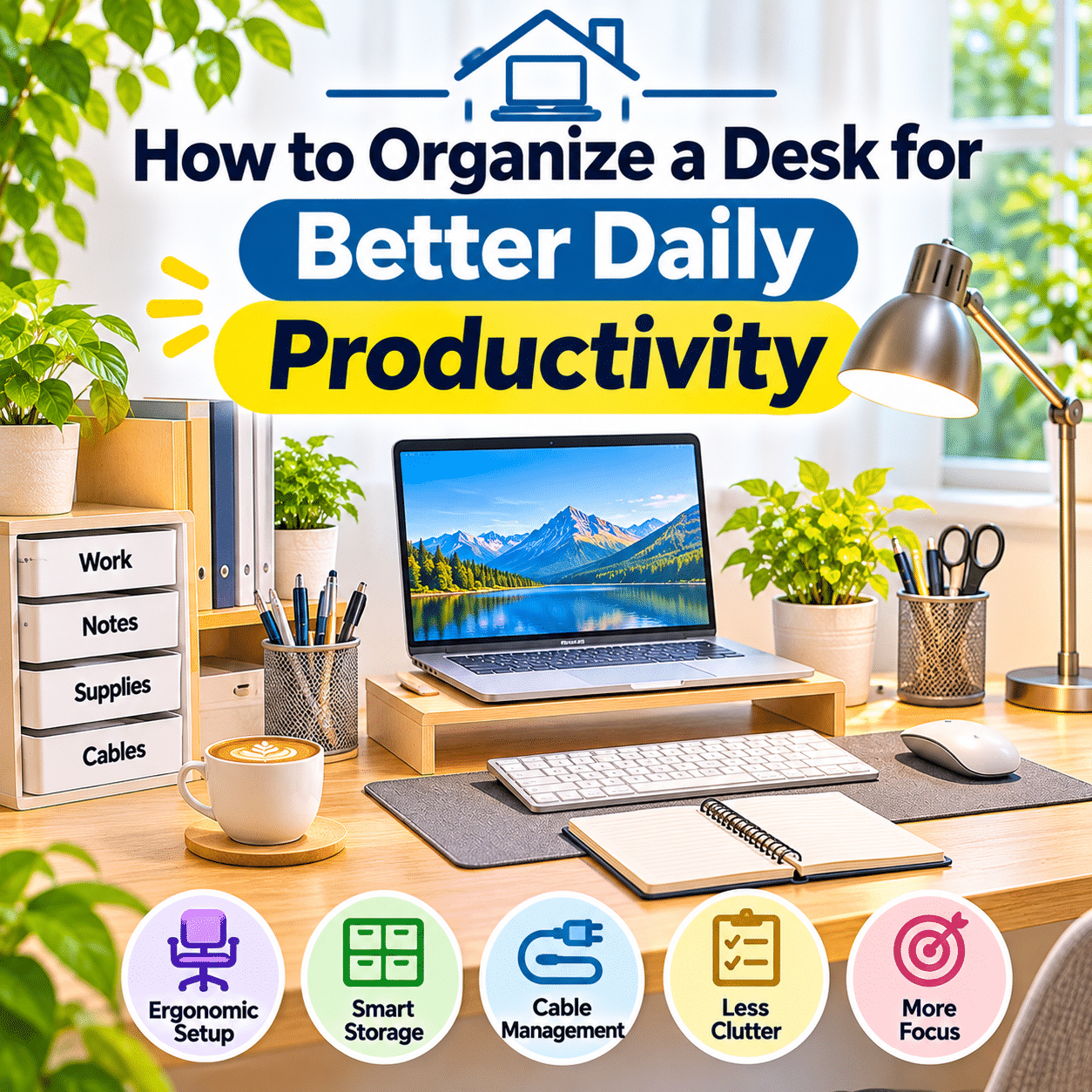
A well-organized desk can make everyday work feel easier, more comfortable, and more manageable. Whether you work from home, study, manage personal projects, or spend several hours using a computer, the arrangement of your workspace can influence how smoothly you move between tasks.
A desk is more than a place to put a laptop or notebook. It is a working environment where tools, documents, technology, and personal belongings come together. When these items are arranged thoughtfully, you can spend less time searching for supplies, clearing space, or dealing with unnecessary distractions.
However, desk organization is not simply about creating a perfectly minimalist workspace. An empty desk is not automatically more productive, and a desk filled with useful tools is not necessarily disorganized.
The real goal is to create a practical system that supports your daily activities.
For some people, this means keeping a laptop, notebook, and pen within easy reach. For others, it involves organizing multiple monitors, creative tools, reference materials, charging accessories, and frequently used documents.
The best arrangement depends on how you work, the equipment you use, and the amount of space available.
Fortunately, improving desk organization does not require expensive furniture or elaborate storage systems. Simple changes such as assigning consistent locations to everyday items, managing cables, reducing unnecessary clutter, and establishing a short daily reset routine can make a meaningful difference.
This guide explains how to organize a desk for better daily productivity, including planning your workspace layout, creating functional zones, managing office supplies, organizing digital equipment, handling paperwork, improving ergonomics, and maintaining a system that works over time.
The goal is to build a workspace that feels clear, comfortable, and ready for whatever the day brings.
1. Understand Why Desk Organization Matters
Desk organization influences how easily you can begin, continue, and complete everyday tasks.
When essential items are difficult to find, even small interruptions can disrupt your workflow.
For example, searching through a drawer for a charging cable or moving several objects to make room for a notebook may seem insignificant. However, repeated interruptions can make a workday feel unnecessarily fragmented.
A practical desk organization system can help:
- Reduce time spent searching for supplies.
- Keep essential tools accessible.
- Create enough space for comfortable work.
- Reduce unnecessary visual distractions.
- Simplify transitions between activities.
- Support safer cable arrangements.
- Make routine cleaning easier.
- Encourage consistent working habits.
- Help maintain a comfortable workspace.
Desk organization alone does not guarantee greater productivity. Workload, concentration, sleep, motivation, and task complexity also matter.
However, a functional workspace can remove avoidable obstacles from daily activities.
2. Define What Productivity Means for Your Workspace
Productivity does not always mean completing more tasks in less time.
For some activities, productivity involves maintaining concentration.
For others, it means working accurately, organizing information, communicating effectively, or completing creative projects without unnecessary interruptions.
Before reorganizing your desk, consider what you want to improve.
Ask yourself:
- Do I frequently misplace important items?
- Does my desk feel too crowded?
- Do I struggle to find enough writing space?
- Are cables interfering with my work?
- Do papers accumulate faster than I can organize them?
- Is my computer equipment positioned comfortably?
- Do I spend too much time preparing to begin work?
- Does my workspace support my most common activities?
Your answers can help identify the changes that will provide the greatest practical value.
An organized desk should make your normal work easier, not introduce another complicated system to maintain.
3. Evaluate Your Current Desk Setup
Before purchasing organizers or rearranging furniture, observe how you currently use your desk.
Pay attention to where objects naturally accumulate.
Common clutter areas include:
- The space beside the keyboard.
- Corners behind monitors.
- Desk drawers.
- Areas near charging outlets.
- Spaces beneath the monitor.
- Paper stacks beside the laptop.
- Shelves immediately above the desk.
Identify items you use frequently and those that remain untouched for weeks.
Also consider whether your desk provides enough space for your primary activities.
A desk that looks tidy but forces you to reach awkwardly or constantly move equipment may not be functioning well.
The goal is to improve the arrangement rather than simply make everything look neat.
4. Start With a Complete Desk Reset
A desk reset provides a clear starting point for organization.
Begin by removing loose objects from the work surface.
Place them on a nearby table or another suitable area.
Then separate the items into broad categories:
- Essential work equipment.
- Frequently used supplies.
- Occasionally used accessories.
- Documents and paperwork.
- Personal decorations.
- Items that belong elsewhere.
- Unnecessary or damaged objects.
Avoid disconnecting complex computer equipment without first identifying its connections.
If you need to unplug devices, shut them down appropriately and keep important cables labeled.
Once the desk is clear, clean the accessible surface using a method suitable for its material.
This gives you an opportunity to rebuild the workspace intentionally.
5. Sort Desk Items by Frequency of Use
One of the simplest organization principles is to arrange items according to how often they are needed.
A useful system has three levels.
Daily-use items
Keep these within comfortable reach.
Examples include:
- Keyboard.
- Mouse.
- Notebook.
- Pen.
- Headphones.
- Frequently used documents.
- Phone charging cable.
Occasional-use items
Store these in nearby drawers or shelves.
Examples include:
- Extra stationery.
- Spare cables.
- Staplers.
- Scissors.
- Backup notebooks.
- Specialized accessories.
Rarely used items
Move these to a separate storage location.
Examples include:
- Old equipment packaging.
- Archived documents.
- Seasonal supplies.
- Duplicate accessories.
- Unused decorative objects.
This arrangement helps preserve desk space for the activities that matter most.
6. Create Functional Zones on Your Desk
Dividing a desk into functional zones can make organization easier.
The zones do not need physical dividers.
They simply represent areas assigned to particular activities.
A typical desk might include:
| Desk Zone | Main Purpose | Common Items |
|---|---|---|
| Primary work zone | Computer-based tasks | Monitor, keyboard, mouse |
| Writing zone | Notes and paperwork | Notebook, pen, documents |
| Reference zone | Frequently consulted information | Planner, document holder |
| Charging zone | Powering devices | Charger, cable holder |
| Storage zone | Small accessories | Drawer organizer, stationery |
| Personal zone | Comfort and decoration | Small plant, photograph |
Not every desk needs all six zones.
For smaller workspaces, several functions may share the same area.
The important principle is to assign each activity enough room without allowing unnecessary objects to spread across the entire desk.
7. Identify Your Primary Working Area
Your primary working area should support the activity you perform most often.
For computer-based work, this is usually the space directly in front of your monitor.
For handwriting or sketching, it may be a clear section of the desk.
For creative projects, the main working area may change depending on the task.
Keep this area free from objects that do not contribute to the activity.
For example, if you type throughout the day, avoid placing storage containers where they interfere with your keyboard or mouse.
If you regularly write by hand, preserve enough flat surface space for a notebook and comfortable arm movement.
8. Position Your Monitor Thoughtfully
Monitor placement affects both workspace organization and physical comfort.
For a single-monitor setup, position the display directly in front of your normal working position.
A common starting point is to place the top of the visible screen around eye level or slightly below, adjusting for individual comfort and vision needs.
The screen should be far enough away for comfortable viewing while keeping text easy to read.
An arm’s length is a common starting point for many desktop monitors, but the ideal distance varies.
Avoid placing unnecessary objects between yourself and the monitor.
If you use a monitor stand, the space beneath it may provide useful storage for small items, provided the stand is stable and designed for the load.
9. Organize Multiple Monitors
Multiple monitors can support activities such as research, document editing, communication, and creative production.
However, they also require more desk space.
If one monitor is used most frequently, place it directly in front of you.
Position the secondary monitor nearby at a comfortable angle.
If both monitors are used equally, arrange them close together with their inner edges near the center of your working position.
Consider using compatible monitor arms when appropriate.
Monitor arms may free desk space and allow more flexible positioning.
Always check weight limits, mounting compatibility, and desk stability before installation.
10. Keep the Keyboard and Mouse Within Comfortable Reach
The keyboard and mouse should be positioned so that you can use them without excessive reaching.
A practical arrangement includes:
- Keyboard centered with the main screen.
- Mouse beside the keyboard.
- Relaxed shoulders.
- Comfortable elbow positioning.
- Relatively straight wrists.
- Enough space for natural movement.
Avoid placing storage containers or decorative objects where they restrict mouse movement.
If desk space is limited, a compact keyboard may provide additional room.
Choose input devices based on comfort and actual work requirements rather than appearance alone.
11. Create a Dedicated Writing Area
Even people who work primarily on computers often need space for handwritten notes.
A writing area can support:
- Daily planning.
- Meeting notes.
- Quick calculations.
- Sketching.
- Journaling.
- Reviewing printed documents.
- Organizing task lists.
Keep a notebook and writing tool accessible if you use them regularly.
Avoid covering the entire desk with permanent organizers.
A flexible open area may be more useful than several containers occupying valuable space.
For very small desks, a movable writing mat or portable notebook holder can help define the space without requiring a separate surface.
12. Organize Pens and Stationery
Pens, pencils, markers, sticky notes, and other stationery can accumulate quickly.
Instead of keeping every item on the desk, choose a small collection of frequently used supplies.
For example:
- Two or three reliable pens.
- One pencil.
- A small notepad.
- A few sticky notes.
- One highlighter if needed.
Store additional supplies in a drawer or container.
A compact pen holder can work well when it does not interfere with the main working area.
Avoid keeping dried-out markers, broken pens, or unnecessary duplicates.
13. Use Desk Drawers More Effectively
Drawers can provide valuable storage, but they can also become hidden clutter zones.
A practical drawer system separates items into categories.
For example:
Top drawer: Frequently used stationery and small accessories.
Middle drawer: Spare cables, chargers, and occasional-use tools.
Lower drawer: Notebooks, folders, or less frequently used materials.
Drawer dividers can help prevent small objects from mixing.
However, do not overfill every compartment.
Leave enough room to remove and replace items easily.
A drawer is organized when its contents are easy to identify and access, not merely when everything fits inside.
14. Choose Desk Organizers Based on Real Needs
Desk organizers are useful when they solve a specific storage problem.
Common options include:
- Pen holders.
- Drawer dividers.
- Document trays.
- Small storage boxes.
- Monitor stands.
- Cable clips.
- Vertical file holders.
- Desktop shelves.
Before buying an organizer, identify what it will hold.
Measure the available space and consider whether the accessory will reduce or increase clutter.
A large organizer filled with unnecessary items may make the desk less functional.
Choose simple, appropriately sized solutions that match your workflow.
15. Organize Paper Documents Into Clear Categories
Paper clutter can accumulate even in a digital workspace.
Common examples include:
- Bills.
- Receipts.
- Meeting notes.
- Printed instructions.
- Reference materials.
- Forms.
- Project documents.
- Personal records.
Instead of leaving papers in one growing stack, separate them according to purpose.
A simple system might include:
- Action Required.
- Reference.
- To File.
- Archive.
- Recycle or Shred.
Keep only active documents near the desk.
Store archived records in an appropriate location.
For documents containing sensitive information, use secure storage and suitable disposal methods.
16. Create a Simple Incoming Paper System
An incoming paper tray can prevent loose documents from spreading across the desk.
Choose one designated location for new paperwork.
When a document arrives, place it there until you can process it.
During a regular review, decide whether to:
- Take action.
- File it.
- Digitize it when appropriate.
- Archive it.
- Dispose of it securely.
Avoid creating multiple incoming piles around the workspace.
One clearly defined collection point is usually easier to manage.
17. Reduce Unnecessary Paper Accumulation
Not every document needs to remain in physical form.
When appropriate, digital storage can reduce the number of papers occupying desk space.
Possible examples include:
- Digital manuals.
- Electronic receipts.
- Online statements.
- Scanned reference documents.
- Digital task lists.
However, some documents require physical originals for legal, administrative, or personal reasons.
Do not discard important records without checking applicable requirements.
For digital copies, use secure storage, appropriate access controls, and reliable backups.
The goal is to reduce unnecessary paper without losing important information.
18. Create a Practical Cable Management System
Charging cables, monitor cords, USB accessories, and power cables can make a desk appear cluttered.
They may also interfere with movement.
Begin by identifying each cable and its purpose.
Then separate:
- Permanent connections.
- Frequently disconnected cables.
- Occasional-use accessories.
- Unused cables.
Useful management tools include:
- Reusable cable ties.
- Cable clips.
- Cable sleeves suitable for the equipment.
- Under-desk cable trays.
- Labeled connectors.
- Dedicated charging holders.
Avoid sharp bends and excessive tension.
Keep cables away from chair wheels and moving desk components.
19. Organize Charging Accessories
A dedicated charging area can reduce the number of loose cords on your desk.
Depending on your equipment, it may include:
- Smartphone charger.
- Laptop power adapter.
- Smartwatch charger.
- Wireless earbud charger.
- USB charging hub.
- Cable holder.
Place charging equipment where it remains accessible without interfering with your main work area.
Use chargers and cables that meet the devices’ requirements.
Keep adapters adequately ventilated.
Avoid charging equipment beneath papers, fabric, or other materials that may trap heat.
Do not overload power strips or connect them in chains.
20. Keep Frequently Used Technology Accessible
Technology accessories are most useful when they can be reached without interrupting work.
Examples include:
- Headphones.
- Webcam.
- Microphone.
- External storage.
- Drawing tablet.
- USB hub.
- Calculator.
- Smartphone.
However, not every accessory needs permanent desk space.
For example, headphones may be stored on a suitable stand or hook when not in use.
An external drive used only occasionally can remain in a drawer.
Arrange equipment according to actual frequency of use.
21. Organize a Desk for Video Meetings
Video meetings often require a slightly different desk arrangement.
Useful considerations include:
- Camera position.
- Microphone accessibility.
- Suitable lighting.
- Headphone placement.
- Clear space around equipment.
- Manageable background clutter.
Position the camera at a comfortable height when possible.
Keep frequently used meeting accessories within reach.
Avoid allowing microphone cables or lighting equipment to interfere with typing.
If you use portable equipment, create a consistent storage location so that meeting preparation remains simple.
22. Organize a Desk for Creative Work
Creative activities may require more tools and flexible working space.
Examples include:
- Drawing.
- Photography editing.
- Video production.
- Craft planning.
- Digital illustration.
- Writing.
- Design work.
A creative desk may benefit from movable organizers rather than permanently fixed storage.
For example, a small container can hold drawing tools during a project and return to a shelf afterward.
Keep active project materials together.
Store completed or inactive project supplies separately.
The goal is to make it easy to begin creative work without spending unnecessary time preparing the desk.
23. Organize a Desk for Studying
A study desk should support concentration, note-taking, and easy access to learning materials.
Useful items may include:
- Laptop or computer.
- Notebook.
- Pens.
- Textbooks.
- Reading lamp.
- Planner.
- Water bottle.
Avoid keeping unrelated entertainment devices or excessive decorative objects in the primary study area if they interfere with attention.
Use a vertical document holder or nearby shelf for reference materials.
Keep the writing area clear enough for comfortable note-taking.
A simple arrangement can make it easier to move between reading, typing, and writing.
24. Organize a Small Desk
A small desk requires careful prioritization.
When surface space is limited, focus on essential equipment.
Useful strategies include:
- Choosing compact accessories.
- Using vertical storage.
- Keeping spare supplies in drawers.
- Selecting a monitor stand with useful clearance.
- Using cable clips.
- Removing rarely used items.
- Choosing multifunctional accessories.
- Keeping the primary work area clear.
Avoid adding shelves or organizers that restrict comfortable movement.
A small desk can function well when each item has a clear purpose.
25. Use Vertical Space Thoughtfully
Vertical storage can free valuable desk surface area.
Options include:
- Wall shelves.
- Pegboards.
- Vertical file holders.
- Small desktop shelving units.
- Wall-mounted organizers.
Place frequently used items at comfortable reaching heights.
Avoid storing heavy objects on unstable shelves.
Follow mounting instructions and check wall compatibility.
Do not position heavy equipment where it could fall onto the desk or working area.
Vertical storage should improve accessibility without making the workspace feel crowded.
26. Improve Desk Lighting
Lighting affects how comfortably you can read, write, and use electronic devices.
A desk may benefit from a combination of general room lighting and task lighting.
A suitable desk lamp should illuminate the working surface without shining directly into your eyes.
Consider:
- Adjustable brightness.
- Flexible lamp positioning.
- Comfortable light distribution.
- Minimal screen glare.
- Stable placement.
- Adequate room illumination.
Avoid positioning a lamp where it blocks the monitor or occupies essential working space.
If natural light is available, use curtains or blinds to manage strong reflections.
27. Maintain Comfortable Desk Ergonomics
Desk organization and ergonomics are closely connected.
A tidy desk is not necessarily comfortable if equipment is poorly positioned.
Review:
- Chair height.
- Desk height.
- Monitor position.
- Keyboard placement.
- Mouse accessibility.
- Foot support.
- Available legroom.
- Lighting conditions.
Keep your shoulders relaxed and avoid unnecessary reaching.
Change positions regularly during extended work sessions.
No single posture is ideal for every person or every activity.
A flexible setup that supports comfortable movement is generally more useful than a rigid arrangement.
28. Keep the Space Beneath Your Desk Clear
The area beneath a desk is often overlooked.
It may accumulate:
- Storage boxes.
- Spare cables.
- Old equipment.
- Bags.
- Shoes.
- Unused accessories.
Excessive under-desk storage can restrict leg movement and make cleaning difficult.
Keep enough space for your feet, knees, and chair.
Route cables safely away from moving furniture.
If you use an under-desk organizer, ensure it does not interfere with comfortable seating or ventilation.
A clear floor area can make the entire workspace feel more functional.
29. Add Personal Decorations Without Creating Clutter
A productive workspace does not need to feel impersonal.
Small decorative elements can make a desk more inviting.
Examples include:
- A framed photograph.
- A small plant.
- A favorite object.
- A simple desk calendar.
- A decorative lamp.
- A meaningful souvenir.
Choose items that fit comfortably within the available space.
Avoid placing decorations where they block the screen, restrict hand movement, or interfere with cables.
A few thoughtfully selected objects often create a more balanced environment than numerous unrelated decorations.
30. Consider Indoor Plants for Your Desk
Small indoor plants can add a natural element to a workspace.
Suitable choices depend on available light, space, and maintenance preferences.
Before placing a plant on your desk, consider:
- Natural lighting.
- Plant size.
- Watering requirements.
- Stability of the container.
- Distance from electronics.
- Pet safety when relevant.
Use a suitable saucer or protective surface when necessary.
Avoid placing water-filled containers where spills could damage electronic equipment.
Plants can make a workspace feel more pleasant, but they should not complicate daily work or create maintenance problems.
31. Create a Simple Daily Desk Reset Routine
A short desk reset at the end of the day can prevent clutter from accumulating.
A practical routine may take only a few minutes.
For example:
- Save and close completed work.
- Return pens to their holder.
- Put loose papers in the correct tray.
- Store unused accessories.
- Return charging cables to their designated positions.
- Remove cups and food containers.
- Clear the primary working area.
- Prepare essential items for the next day.
The goal is not to clean every surface perfectly.
It is to make the desk ready for the next work session.
32. Use a Weekly Desk Organization Routine
A weekly review can address items that accumulate despite daily tidying.
Consider setting aside a short period to:
- Sort loose paperwork.
- Empty unnecessary packaging.
- Check stationery supplies.
- Clean accessible surfaces.
- Organize charging cables.
- Review active project materials.
- Remove items that belong elsewhere.
- Check whether frequently used tools remain accessible.
Weekly organization should be manageable.
If the process consistently takes too long, your storage system may need simplification.
33. Review Desk Organization Monthly
Monthly reviews provide an opportunity to evaluate whether the workspace still supports your activities.
Ask yourself:
- Which items do I rarely use?
- Are my storage containers too full?
- Have new cables accumulated?
- Is my monitor positioned comfortably?
- Do I need more writing space?
- Are there unnecessary papers?
- Has my work routine changed?
- Is any equipment damaged or unstable?
Make small adjustments rather than completely reorganizing the desk every month.
A sustainable system should evolve gradually with your needs.
34. Organize Your Digital Desktop Too
Physical desk organization is only one part of a productive workspace.
A cluttered computer desktop can also make files difficult to locate.
Consider organizing digital files into clear categories.
For example:
- Active Projects.
- Documents.
- Reference Materials.
- Images.
- Downloads.
- Archives.
Use descriptive file names.
Avoid saving everything permanently in the Downloads folder.
Create a simple system that matches how you search for information.
Back up important files using suitable storage methods.
Digital organization should make information easier to retrieve without creating unnecessary folder complexity.
35. Keep Digital Tools and Notifications Manageable
A well-organized physical desk may still feel distracting when digital notifications constantly interrupt work.
Review the applications and services you use regularly.
Consider:
- Closing unnecessary browser tabs.
- Organizing frequently used bookmarks.
- Muting nonessential notifications during focused work.
- Keeping relevant applications accessible.
- Removing unused desktop shortcuts.
- Using appropriate calendar reminders.
- Separating active tasks from reference information.
Avoid creating overly complicated productivity systems.
A few consistent digital habits may be more effective than maintaining numerous overlapping applications.
36. Create a Clear Daily Task Area
A small area for daily priorities can help connect desk organization with practical work planning.
Possible tools include:
- A notebook.
- A daily planner.
- A small task pad.
- A digital task manager.
- A simple calendar.
Keep the task list easy to review.
For example, identify a few important activities for the day rather than filling the desk with multiple competing lists.
A task area should support decision-making without becoming another source of clutter.
Choose one primary planning method when possible.
37. Avoid Over-Organizing Your Workspace
Organization can become counterproductive when too much time is spent maintaining the system.
Common examples include:
- Repeatedly rearranging supplies.
- Buying organizers without a clear purpose.
- Creating too many storage categories.
- Labeling items that are already easy to identify.
- Maintaining several overlapping task systems.
- Trying to keep every object perfectly aligned.
A practical workspace does not need to look identical every day.
Temporary clutter is normal during active work.
The important question is whether you can return the desk to a functional condition without excessive effort.
38. Adapt Your Desk to Changing Work Needs
Workspaces change over time.
You may add a second monitor, begin a new hobby, switch from a laptop to a desktop computer, or spend more time writing by hand.
When your activities change, review the desk layout.
For example:
- A new monitor may require different cable routing.
- More paperwork may justify a document tray.
- Frequent video meetings may require dedicated microphone storage.
- Creative projects may benefit from portable organizers.
- A new laptop may change charging requirements.
Avoid keeping outdated arrangements simply because they worked previously.
A useful desk organization system should remain flexible.
39. Avoid Common Desk Organization Mistakes
Several common mistakes can reduce the usefulness of an otherwise tidy workspace.
Keeping too many items on the desk
Excessive accessories can restrict working space.
Better approach: Keep daily essentials accessible and store occasional-use items nearby.
Buying organizers before sorting belongings
Storage products may not match actual needs.
Better approach: Sort first, then choose appropriate organizers.
Hiding clutter in drawers
A clear desktop does not help if important items become impossible to find.
Better approach: Organize drawers into simple categories.
Ignoring cable management
Loose cables can create clutter and interfere with movement.
Better approach: Route and secure cables safely.
Sacrificing comfort for appearance
A visually attractive arrangement may still encourage awkward working positions.
Better approach: Prioritize ergonomics and accessibility.
Creating complicated storage rules
Systems with too many categories are difficult to maintain.
Better approach: Use a few clear locations that match everyday habits.
Forgetting regular maintenance
Even a well-organized desk can become cluttered again.
Better approach: Establish short daily and weekly reset routines.
40. Build a Desk Organization System That Lasts
Long-term desk organization depends more on consistent habits than on storage products.
A sustainable system should have several characteristics.
Simple
Every frequently used item has an obvious location.
Accessible
Essential tools can be reached without unnecessary effort.
Flexible
The arrangement can adapt to different tasks.
Comfortable
Equipment placement supports natural movement and suitable working positions.
Easy to maintain
Daily tidying requires only a short amount of time.
Appropriate for your space
The system fits your desk dimensions and available storage.
Personal
The arrangement reflects how you actually work.
When these principles are combined, desk organization becomes part of your normal routine rather than a recurring project.
Step-by-Step Guide: Organize Your Desk for Daily Productivity
This practical walkthrough can help you transform a cluttered desk into a more functional workspace.
Step 1: Identify your main work activities
Determine whether you primarily use a computer, write, study, create content, or perform a combination of tasks.
Step 2: Evaluate the current arrangement
Notice which items create clutter and which tools are difficult to reach.
Step 3: Clear loose objects
Remove unnecessary items from the desk surface.
Step 4: Clean the desk
Use a cleaning method appropriate for the surface material.
Step 5: Sort belongings into categories
Separate essential equipment, stationery, documents, cables, and personal items.
Step 6: Remove unnecessary items
Discard or responsibly recycle damaged accessories and unwanted materials.
Step 7: Identify daily essentials
Choose the tools you need within easy reach.
Step 8: Create a primary work zone
Reserve the central working area for your most frequent activity.
Step 9: Position the monitor
Place the main display at a comfortable height and viewing distance.
Step 10: Arrange the keyboard and mouse
Keep input devices within comfortable reach.
Step 11: Create writing space
Leave enough room for a notebook or printed documents when needed.
Step 12: Organize stationery
Keep frequently used supplies accessible and store extras separately.
Step 13: Sort paperwork
Create simple categories for active, reference, and archived documents.
Step 14: Organize desk drawers
Use compartments or containers where they provide practical value.
Step 15: Manage charging cables
Identify, route, and secure cables appropriately.
Step 16: Arrange technology accessories
Give headphones, chargers, and other tools consistent locations.
Step 17: Improve lighting
Reduce glare and provide comfortable task illumination.
Step 18: Clear under-desk space
Maintain adequate legroom and safe cable routing.
Step 19: Add personal touches
Choose a few decorations that do not interfere with work.
Step 20: Test the workspace
Perform your normal activities and notice whether the arrangement feels comfortable.
Step 21: Adjust the layout
Move items that require unnecessary reaching or repeated rearrangement.
Step 22: Establish a daily reset
Return essential items to their locations after work.
Step 23: Schedule a weekly review
Sort accumulated paperwork and remove unnecessary clutter.
Step 24: Reassess periodically
Adapt the desk as your equipment and work requirements change.
Practical Desk Organization Checklist
Use this checklist to create and maintain a functional daily workspace.
Planning and Sorting
- Identify the main activities performed at the desk.
- Evaluate current clutter.
- Clear unnecessary objects.
- Sort items into useful categories.
- Separate daily-use and occasional-use supplies.
- Remove damaged or obsolete accessories.
Workspace Layout
- Create a primary work zone.
- Preserve sufficient writing space.
- Position the main monitor comfortably.
- Keep keyboard and mouse accessible.
- Arrange frequently used items within reach.
- Maintain adequate legroom.
- Avoid overcrowding the desk.
Storage and Supplies
- Organize stationery.
- Use drawer dividers where helpful.
- Create a dedicated location for spare supplies.
- Sort active paperwork.
- Store archived documents appropriately.
- Use vertical storage when suitable.
- Avoid unnecessary organizers.
Technology and Cables
- Identify charging cables.
- Organize permanent connections.
- Keep frequently used chargers accessible.
- Route cables away from chair wheels.
- Maintain ventilation around electronics.
- Avoid overloaded power strips.
- Store occasional-use accessories safely.
Comfort and Environment
- Check chair and desk height.
- Adjust monitor viewing distance.
- Reduce screen glare.
- Provide suitable task lighting.
- Maintain comfortable room conditions.
- Keep the working area easy to clean.
- Allow regular movement during work.
Daily and Long-Term Habits
- Return supplies after use.
- Place incoming papers in one designated location.
- Clear unnecessary items at the end of the day.
- Review desk organization weekly.
- Reassess storage monthly.
- Organize digital files regularly.
- Adjust the system when work needs change.
Common Desk Organization Problems and Solutions
| Problem | Possible Cause | Practical Solution |
|---|---|---|
| Desk feels crowded | Too many items on the surface | Move occasional-use items to storage |
| Pens and supplies disappear | No consistent storage location | Use a small stationery organizer |
| Paper stacks keep growing | No incoming document system | Create a designated paper tray |
| Charging cables become tangled | Loose cords without routing | Use suitable cable clips and reusable ties |
| Not enough writing space | Permanent accessories occupy the surface | Create a flexible writing zone |
| Desk drawers are messy | Unsorted small objects | Add simple compartments |
| Computer work feels uncomfortable | Poor equipment placement | Review ergonomic positioning |
| Too much time spent tidying | Organization system is overly complicated | Reduce categories and simplify storage |
| Clutter returns quickly | No daily reset habit | Establish a short end-of-day routine |
| Digital files are difficult to find | Inconsistent file naming and storage | Create a clear digital folder structure |
Frequently Asked Questions About Desk Organization
1. What is the best way to organize a desk for productivity?
Begin by identifying your most frequent tasks.
Keep essential equipment within comfortable reach, create a clear primary working area, organize supplies into simple categories, and establish a short daily reset routine.
The best arrangement is one that supports your actual workflow.
2. Does a clean desk improve productivity?
A well-organized desk can reduce unnecessary searching and interruptions.
However, productivity depends on many factors, and an empty desk is not automatically better.
The goal is functional organization rather than perfect minimalism.
3. What should I keep on my desk?
Keep items you use frequently.
These may include a computer, keyboard, mouse, notebook, pen, and essential accessories.
Store less frequently used items in nearby drawers or shelves.
4. How do I organize a small desk?
Prioritize essential equipment, use compact accessories, consider suitable vertical storage, and keep the primary work surface clear.
Avoid adding organizers that occupy more space than they save.
5. How can I organize desk drawers?
Separate items into simple categories such as stationery, charging accessories, and documents.
Use drawer dividers where helpful.
Avoid overfilling compartments.
6. How should I organize paperwork on my desk?
Use categories such as Action Required, Reference, To File, and Archive.
Keep active documents accessible and store completed records elsewhere.
Dispose of sensitive documents securely.
7. What is the easiest way to manage desk cables?
Identify each cable, separate permanent connections from frequently used accessories, and use suitable cable clips or reusable ties.
Keep cables away from moving furniture and walking areas.
8. Should I use a monitor stand?
A monitor stand may help improve screen positioning and free some desk space.
Choose one that is stable, appropriately rated, and compatible with your equipment.
9. How many desk organizers do I need?
Only as many as solve real storage problems.
Start by sorting your belongings before purchasing organizers.
A few appropriately sized accessories are often sufficient.
10. How can I keep my desk organized every day?
Spend a few minutes returning supplies, sorting loose papers, removing unnecessary objects, and preparing the workspace for the next day.
Consistency is more important than lengthy cleaning sessions.
11. Is a minimalist desk better for concentration?
Some people prefer fewer visible objects, while others work comfortably with more tools nearby.
Choose an arrangement that reduces unnecessary distractions without limiting access to useful equipment.
12. How do I organize a desk for working from home?
Prioritize comfortable computer positioning, suitable lighting, accessible work supplies, organized cables, and enough space for daily activities.
Include a system for managing documents and meeting accessories when needed.
13. How can I make my desk look attractive without creating clutter?
Choose a few meaningful decorative items and coordinate them with functional accessories.
Keep decorations away from the primary working area.
Comfort and usability should remain the priorities.
14. Should I organize my computer desktop too?
Yes.
Consistent digital folders, descriptive file names, manageable downloads, and appropriate backups can make information easier to locate.
Physical and digital organization can complement each other.
15. How often should I reorganize my desk?
A short daily reset and a weekly review are practical starting points.
Larger adjustments are usually necessary only when your equipment, activities, or storage needs change.
Final Thoughts
Organizing a desk for better daily productivity is not about achieving a perfectly empty surface or purchasing a collection of expensive storage accessories.
It is about creating a workspace that supports the way you actually work.
A thoughtful desk arrangement keeps essential tools accessible, preserves enough room for comfortable activities, and reduces unnecessary interruptions caused by clutter.
Start by identifying your main tasks and sorting your belongings according to frequency of use.
Then create simple working zones, organize stationery and documents, manage cables, and position computer equipment comfortably.
Remember that desk organization should remain flexible. A workspace used for writing may require a different arrangement from one used for video editing, studying, or creative projects.
Small daily habits are often more valuable than occasional major reorganizations.
Returning supplies to their designated locations, processing incoming paperwork, and clearing the primary work area at the end of the day can help maintain a practical system over time.
As your responsibilities and equipment change, adjust your workspace accordingly.
A well-organized desk should make it easier to begin meaningful work, maintain comfortable routines, and move between activities with less unnecessary effort.
The most productive desk is not necessarily the tidiest one—it is the workspace that keeps what you need within reach, removes what you do not need, and makes everyday work feel simpler and more manageable.