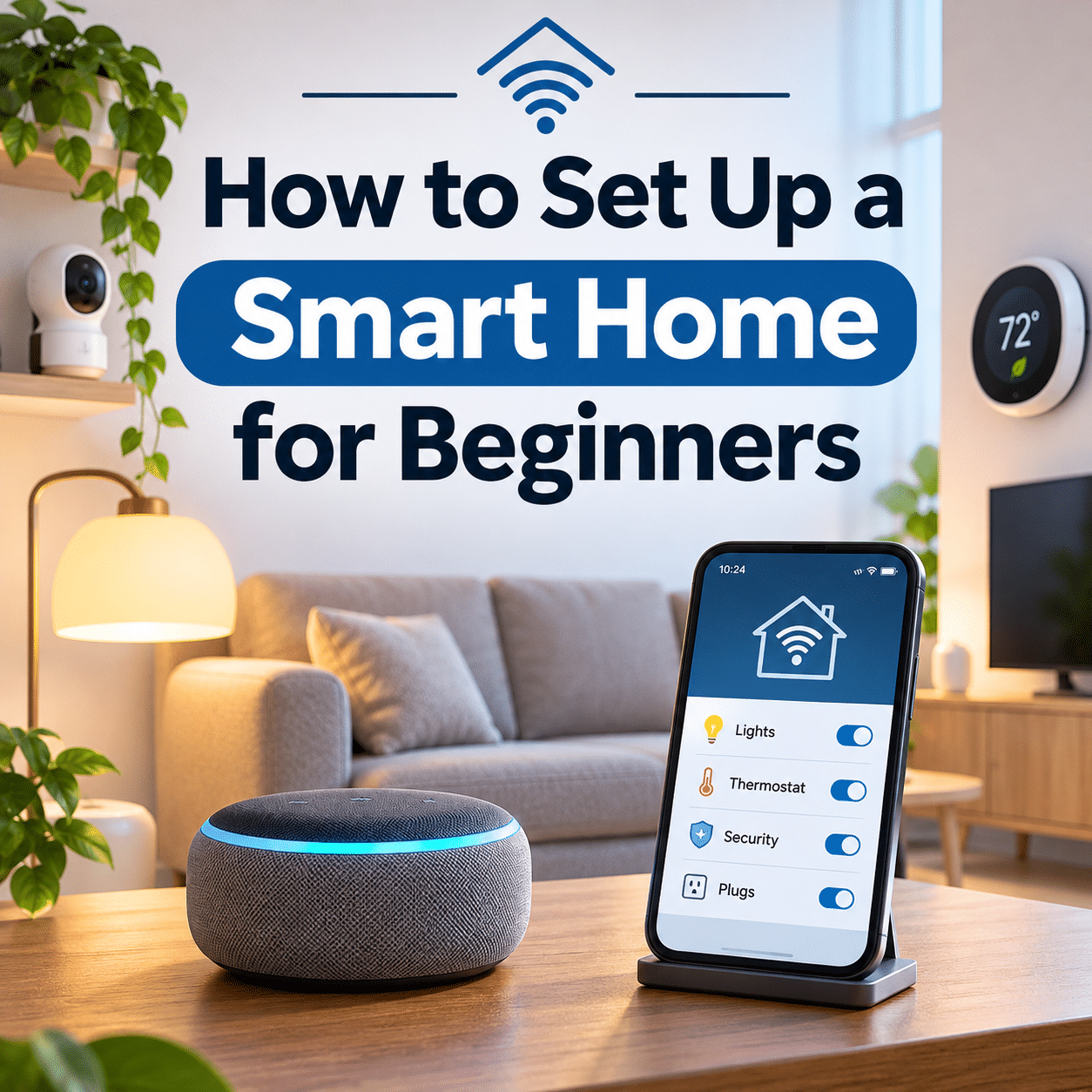
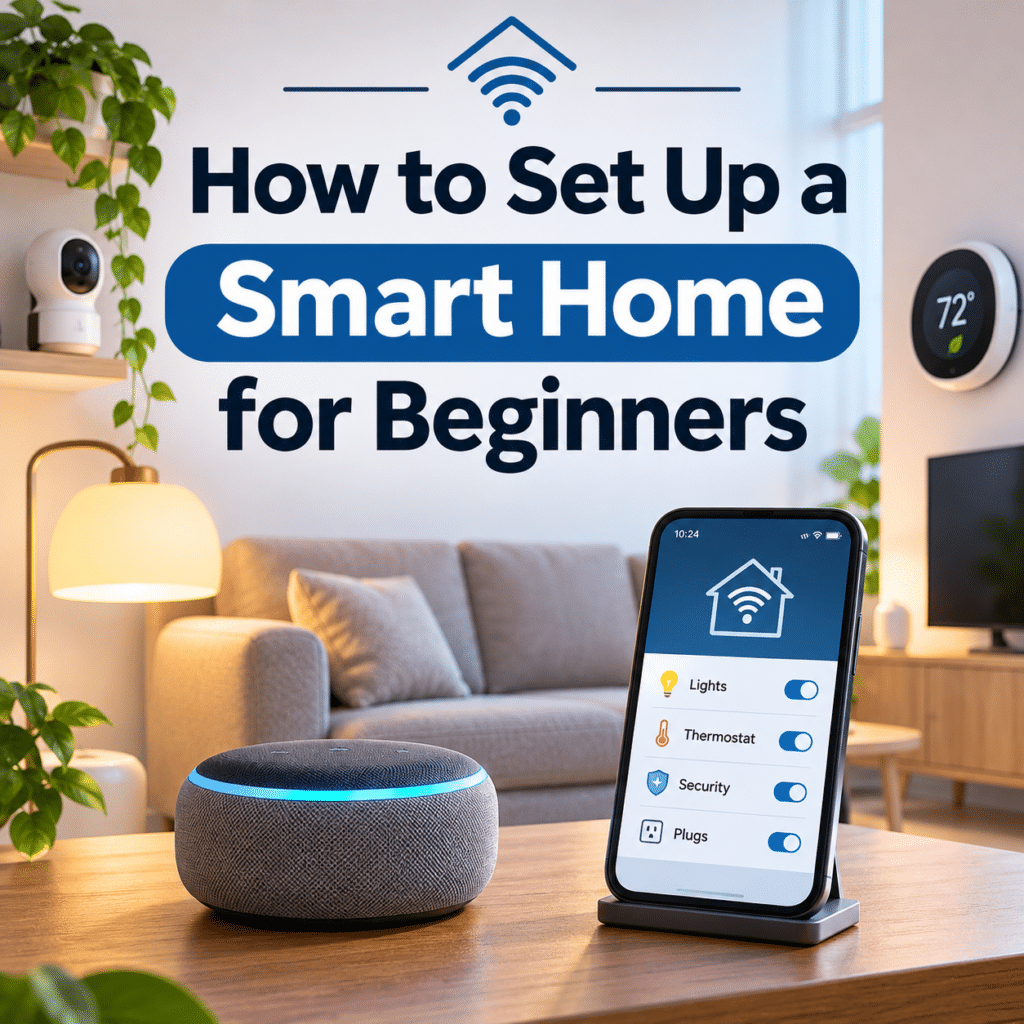
A smart home can make everyday living more convenient, comfortable, and efficient. From turning off lights without leaving the couch to adjusting the temperature before arriving home, smart technology offers practical ways to simplify familiar household routines.
For beginners, however, setting up a smart home can feel complicated. There are different devices, wireless technologies, applications, compatibility standards, and automation options to consider. With so many choices available, it can be difficult to know where to begin.
The good news is that creating a smart home does not require expensive equipment, advanced technical knowledge, or a complete home renovation. A simple setup with a few carefully chosen devices can provide meaningful everyday benefits.
The most successful smart homes are built gradually. Instead of purchasing numerous gadgets at once, beginners can start by identifying everyday needs, selecting compatible products, and learning how individual devices work together.
This guide explains how to set up a smart home from the beginning, including choosing an ecosystem, preparing your Wi-Fi network, installing devices, creating automations, improving security, and maintaining your system over time.
Whether you live in a small apartment, a family house, or a rented property, the goal is the same: create a smart home that supports your lifestyle rather than making everyday routines more complicated.
1. What Is a Smart Home?
A smart home is a living environment equipped with connected devices that can be monitored, controlled, or automated through digital technology.
These devices may include:
- Smart light bulbs and lighting systems.
- Smart plugs and electrical outlets.
- Smart thermostats and climate controls.
- Smart speakers and displays.
- Smart door locks and video doorbells.
- Smart cameras and motion sensors.
- Smart blinds and curtains.
- Smart appliances and household equipment.
Many smart devices connect through Wi-Fi, while others use technologies such as Thread, Zigbee, Bluetooth, or Z-Wave.
Depending on the equipment, you may control devices through a smartphone application, a physical switch, a voice assistant, or an automated routine.
A smart home does not need to include every type of connected device. Even one automated light or a smart plug controlling a lamp can be the beginning of a useful smart home system.
2. Understand the Difference Between Smart Devices and Home Automation
Smart devices and home automation are closely related, but they are not identical.
A smart device provides connected functionality, such as allowing you to turn a light on or off from your phone.
Home automation goes further by allowing connected devices to perform actions automatically when certain conditions are met.
For example:
| Smart Device Control | Home Automation |
|---|---|
| Turning on a lamp using an app | Lamp turns on at sunset |
| Adjusting a thermostat manually | Temperature changes according to a schedule |
| Checking a door sensor | Receiving an alert when a door opens |
| Closing smart blinds remotely | Blinds close automatically in the evening |
| Turning off a smart plug | Plug switches off at a scheduled time |
For beginners, it is helpful to understand manual smart controls before building more advanced automations.
This creates a foundation for troubleshooting and helps prevent unnecessary complexity.
3. Identify What You Want Your Smart Home to Accomplish
Before purchasing any equipment, consider which everyday tasks you would like to simplify.
Different households have different priorities.
Some people want convenient lighting. Others are interested in energy monitoring, temperature control, accessibility, or home security.
Ask yourself:
- Which household activities do I repeat every day?
- Are there lights or appliances I frequently forget to turn off?
- Would scheduled lighting improve my daily routine?
- Do I want to monitor certain areas of my home?
- Could automated temperature control improve comfort?
- Would hands-free controls make household tasks easier?
- Do I want to reduce unnecessary electricity use?
Write down three practical improvements you would like to achieve.
For example:
- Automatically turn on living room lights in the evening.
- Control bedroom lighting without getting out of bed.
- Receive notifications when a selected door is opened.
Starting with specific goals makes it easier to choose useful products and avoid unnecessary purchases.
4. Begin With One Room Instead of the Entire House
One of the simplest ways to begin is to focus on a single room.
A bedroom, living room, or home office can provide a manageable starting point.
For example, a beginner-friendly living room setup might include:
- Two compatible smart bulbs.
- One smart plug for a table lamp.
- One smart speaker or compatible control application.
- A simple evening lighting routine.
This small system allows you to learn device installation, grouping, scheduling, and automation without managing an entire household.
Once the setup works reliably, you can expand into other rooms.
A small, dependable smart home is more useful than a large collection of poorly connected devices.
5. Choose a Smart Home Ecosystem
A smart home ecosystem is the platform that helps you manage connected devices.
Choosing a primary ecosystem early can simplify future purchases and reduce compatibility problems.
Common options include:
| Ecosystem | General Characteristics | Useful Considerations |
|---|---|---|
| Amazon Alexa | Voice control, routines, and broad device support | Confirm device and regional feature compatibility |
| Google Home | Device management, voice controls, and home routines | Check supported devices and available features |
| Apple Home | Integration with supported Apple devices and accessories | Some functions require a compatible home hub |
| Samsung SmartThings | Supports a wide variety of connected devices and automation options | Certain devices and protocols require compatible hubs |
No single ecosystem is ideal for every household.
The best choice depends on the smartphones you use, the devices you already own, your preferred controls, and the products available in your region.
Avoid assuming that a device will work with every feature of an ecosystem simply because it advertises general compatibility.
6. Understand Why Device Compatibility Matters
Compatibility determines whether smart home products can communicate and work together.
For example, a smart bulb may work through its manufacturer’s application but not support the automation platform you prefer.
A smart sensor may also require a separate hub before it can connect to your home network.
Before buying, verify:
- Supported smart home platforms.
- Required wireless technology.
- Whether a hub or bridge is necessary.
- Whether internet access is required for normal operation.
- Whether automations work locally or through the cloud.
- Regional availability of important features.
- Whether the device supports your preferred voice assistant.
Compatibility should be checked for the exact product model, not just the manufacturer’s brand.
This is especially important when combining products from different companies.
7. Learn the Basics of Matter
Matter is a smart home interoperability standard designed to help compatible devices work across supported platforms.
Its purpose is to reduce some of the difficulties associated with purchasing products from different manufacturers.
Matter-compatible products can include selected smart lights, plugs, locks, sensors, and other supported device categories.
However, Matter does not mean every device supports every feature on every platform.
Important considerations include:
- Both the device and controller must support the relevant Matter functionality.
- Certain devices require a compatible Thread border router.
- Advanced manufacturer-specific features may remain available only in the original application.
- Device category and platform support can differ.
- Matter support does not automatically eliminate the need for hubs or bridges in every setup.
When shopping for new equipment, Matter compatibility can be a useful consideration, particularly if you want flexibility between ecosystems.
8. Understand Wi-Fi, Thread, Zigbee, and Z-Wave
Smart home devices use different communication technologies.
Understanding the basics helps you choose equipment that fits your home.
| Technology | Typical Uses | Important Considerations |
|---|---|---|
| Wi-Fi | Cameras, plugs, bulbs, appliances | Uses your home network; network quality matters |
| Thread | Compatible sensors, lights, and other low-power devices | Requires appropriate Thread network infrastructure |
| Zigbee | Sensors, bulbs, switches | Usually requires a compatible hub or coordinator |
| Z-Wave | Locks, sensors, switches | Requires a compatible controller; regional frequency compatibility matters |
| Bluetooth | Setup, nearby control, selected accessories | Range and remote-control capabilities vary |
Wi-Fi devices are often convenient for small beginner installations because many connect directly to an existing router.
However, a larger collection of devices may benefit from technologies designed for low-power communication and mesh networking.
A mesh network allows supported devices to help relay communications, although actual behavior depends on the technology and device roles.
9. Check Your Home Wi-Fi Before Installing Devices
A stable network is one of the most important foundations of a reliable smart home.
Before installing equipment, test Wi-Fi coverage in the rooms where devices will be used.
Pay attention to:
- Weak signal areas.
- Thick walls and long distances from the router.
- Router capacity and device limits.
- Frequent connection interruptions.
- Network congestion.
- Compatibility with 2.4 GHz and 5 GHz wireless bands.
Many smart home devices use 2.4 GHz Wi-Fi because it offers practical coverage and is widely supported.
Some devices do not support 5 GHz Wi-Fi during setup or normal operation.
Check the manufacturer’s requirements rather than assuming every device uses the same band.
For larger homes, a properly configured mesh Wi-Fi system may help improve coverage.
10. Improve Router Placement for Reliable Connections
Router placement can significantly influence wireless performance.
For better coverage:
- Position the router in a reasonably central location.
- Keep it away from large metal objects.
- Avoid enclosing it inside cabinets.
- Reduce interference from nearby electronics where possible.
- Place it in an open, elevated position when practical.
- Test connectivity in distant rooms.
- Reposition networking equipment if dead zones appear.
In homes with multiple floors or extensive walls, additional access points or a mesh Wi-Fi system may be appropriate.
A smart home should not depend on a wireless connection that frequently drops.
11. Secure Your Home Network First
Smart home security begins with the network connecting your devices.
Before adding equipment, review the router’s security settings.
Recommended practices include:
- Use a strong, unique router administrator password.
- Enable WPA3-Personal where supported, or WPA2-AES where appropriate.
- Install router firmware updates.
- Disable unnecessary remote administration.
- Avoid exposing smart devices directly to the internet.
- Review connected devices periodically.
- Enable automatic security updates when available.
A separate IoT network can provide additional isolation, but it must be configured carefully.
Some smart home systems rely on local discovery and communication between devices, controllers, and phones. Network isolation may interfere with those functions unless the router supports the necessary configuration.
For beginners, a properly secured main network is often a more practical starting point than a complicated network arrangement that breaks device communication.
12. Create a Simple Smart Home Budget
Smart home expenses can grow quickly when purchasing multiple devices.
Instead of budgeting for an entire connected household, divide purchases into stages.
An illustrative beginner plan might look like this:
| Stage | Equipment | Purpose |
|---|---|---|
| First | Smart bulbs or a smart plug | Learn basic controls |
| Second | Compatible speaker or controller | Centralize convenient control |
| Third | Motion or contact sensors | Introduce event-based automation |
| Fourth | Additional room devices | Expand useful routines |
| Later | Locks, cameras, thermostats, or advanced hubs | Address more specific household needs |
Actual costs vary significantly by brand, region, and installation requirements.
Remember to consider subscriptions, replacement batteries, hubs, and professional installation where necessary.
The goal is not to buy the largest number of devices. It is to invest in equipment that provides meaningful value.
13. Start With Smart Lighting
Smart lighting is one of the most accessible entry points for beginners.
Depending on the product, smart bulbs can offer:
- Remote on/off control.
- Adjustable brightness.
- Color temperature changes.
- Color-changing effects.
- Scheduled operation.
- Integration with compatible sensors.
- Voice control.
For a first installation, choose one lamp or light fixture that you use frequently.
Install a compatible smart bulb, follow its setup instructions, and test basic controls.
Start with a simple evening schedule before experimenting with complex lighting scenes.
Important lighting considerations
A smart bulb generally needs continuous electrical power to remain connected.
If someone turns off its wall switch, remote control and automation may stop working.
Smart switches, compatible wireless controls, or other manufacturer-supported solutions can help address this issue.
Do not install smart bulbs in enclosed fixtures, dimmer circuits, or other environments unless the product is rated for those conditions.
14. Use Smart Plugs for Simple Automation
Smart plugs allow certain ordinary electrical devices to be controlled through a connected outlet.
They are especially useful for beginners because installation usually requires little more than plugging the device into a suitable socket and completing setup.
Common applications include:
- Table lamps.
- Decorative lighting.
- Selected fans.
- Nonessential electronics.
- Devices that safely resume operation when power is restored.
Before using a smart plug, check its voltage, current, wattage, and regional electrical certification.
Never exceed its rated load.
Avoid using ordinary smart plugs with high-power heating equipment, appliances requiring continuous power, medical equipment, or devices that could create a hazard if switched unexpectedly.
Also remember that some appliances do not automatically restart after power is restored.
15. Consider a Smart Speaker or Display
A compatible smart speaker can provide convenient hands-free control.
For example, you may be able to:
- Turn compatible lights on or off.
- Adjust brightness.
- Activate predefined scenes.
- Control supported smart plugs.
- Ask for weather information.
- Set timers and reminders.
- Trigger household routines.
A smart display may add visual controls, camera views, and other features.
However, a smart speaker is not essential for every smart home.
Many beginners can control devices directly through smartphone applications.
Choose a speaker or display only if it supports your preferred ecosystem and provides functions you will genuinely use.
16. Understand Smart Home Hubs and Controllers
A smart home hub or controller helps coordinate compatible devices.
Some hubs support specific wireless protocols, while others manage automations and integrate multiple systems.
Depending on the platform, a hub may provide:
- Communication with Zigbee or Z-Wave devices.
- Support for certain Thread networks.
- Local automation processing.
- Remote access to compatible accessories.
- Centralized device management.
Not every smart home requires a separate hub.
A few Wi-Fi smart bulbs and plugs may work without one.
However, certain sensors, locks, switches, and advanced automation systems depend on compatible hub hardware.
Always confirm which controller, bridge, or border router is required for the specific equipment you intend to install.
17. Install Your First Smart Device Step by Step
A simple smart plug or bulb is a good first device.
Follow this general installation process:
- Read the manufacturer’s instructions.
- Confirm electrical and network compatibility.
- Install the manufacturer’s official application if required.
- Create an account only when necessary.
- Enable multifactor authentication when available.
- Connect the device to power.
- Activate pairing mode according to the instructions.
- Add the device through the appropriate application.
- Connect it to the supported network or controller.
- Assign a recognizable name.
- Install available firmware updates.
- Test manual controls.
- Test any intended automation.
Do not discard setup codes, QR labels, or documentation that may be needed for future pairing.
Store sensitive setup information somewhere secure.
18. Organize Devices by Room
As your smart home grows, room organization becomes increasingly useful.
Most major smart home platforms allow compatible devices to be grouped by room or area.
For example:
Living Room
- Ceiling Light
- Floor Lamp
- Reading Lamp
Bedroom
- Bedside Light
- Ambient Light
- Air Purifier
Home Office
- Desk Lamp
- Monitor Light
- Decorative Light
Clear organization makes device management easier and can improve voice command accuracy.
Avoid placing unrelated devices into broad groups that might activate unexpectedly.
19. Give Every Device a Clear Name
Device names should be simple, distinctive, and easy to recognize.
For example:
| Less Useful Name | Better Name |
|---|---|
| Smart Plug 01 | Living Room Lamp |
| Light Device 2 | Bedroom Ceiling Light |
| Plug ABC | Desk Lamp |
| Sensor 003 | Front Door Sensor |
| Bulb New | Reading Corner Light |
Avoid giving multiple devices nearly identical names.
Consistent naming becomes especially valuable when you add voice commands, scenes, and automations.
If several devices serve the same purpose, use room names to distinguish them.
20. Learn How Smart Home Scenes Work
A scene is a collection of device settings activated together.
Instead of adjusting several devices individually, you can activate a scene with one action.
For example, an Evening Relaxation scene might:
- Dim the living room lights.
- Set compatible bulbs to warm white.
- Turn on a decorative lamp.
- Adjust compatible blinds.
A Work Mode scene might:
- Turn on desk lighting.
- Set a brighter color temperature.
- Turn off distracting decorative lights.
Scenes are useful because they simplify manual control before you begin building fully automatic routines.
21. Create Your First Automation
An automation performs actions when a specified trigger or condition occurs.
For beginners, scheduled lighting is an excellent starting point.
Example: Evening lighting automation
Goal: Turn on a living room lamp automatically each evening.
Setup:
- Open your smart home application.
- Find the automation or routines section.
- Create a new automation.
- Select a time-based trigger.
- Choose a suitable evening time or supported sunset trigger.
- Select the living room lamp.
- Set the desired brightness.
- Save the automation.
- Test it under appropriate conditions.
If you use a sunset trigger, check whether the application needs a location setting or permission.
A simple automation should be tested before additional actions are added.
22. Understand Automation Triggers and Conditions
Automations can respond to different types of events.
Common triggers include:
- Time of day.
- Sunrise or sunset.
- Motion detection.
- Door opening or closing.
- Temperature changes.
- Humidity measurements.
- Device state changes.
- Supported presence detection.
Conditions determine whether an automation should run.
For example:
Trigger: Motion detected in the hallway.
Condition: It is nighttime.
Action: Turn on the hallway light at low brightness.
This is more useful than turning on a bright hallway light whenever motion occurs, regardless of the time.
Not every platform supports every trigger or condition, so check the capabilities of your chosen ecosystem.
23. Build a Practical Morning Routine
A morning routine can make the beginning of the day feel more organized.
Depending on your devices, a routine might:
- Gradually brighten bedroom lighting.
- Open compatible motorized blinds.
- Adjust a supported thermostat.
- Turn on selected ambient lights.
- Provide a weather summary through a smart speaker.
Avoid automating appliances that should not operate unattended.
For example, a coffee maker should only be scheduled if the appliance is specifically designed and approved for that type of automatic operation.
Start with lighting and other low-risk actions.
24. Create an Evening Wind-Down Routine
Evening routines can help establish a comfortable household atmosphere.
A simple setup might include:
- Warm, dim lighting.
- Reduced brightness in shared spaces.
- Scheduled decorative lighting.
- A bedside lamp scene.
- Automatic shutdown of selected nonessential lights.
Choose settings that fit your household’s actual habits.
An evening routine should not unexpectedly turn off lights while someone is cooking, cleaning, or using a staircase.
Consider whether manual overrides are needed.
25. Use Motion Sensors for Hands-Free Lighting
Motion sensors can make lighting more convenient in areas where people frequently enter and leave.
Potential locations include:
- Hallways.
- Closets.
- Laundry rooms.
- Entryways.
- Storage spaces.
- Selected bathrooms.
For example, a motion sensor may activate a closet light when someone enters.
A timer or supported occupancy condition can turn the light off after the area is no longer in use.
Motion sensors do not always detect stationary occupants reliably.
For rooms where people sit still for long periods, occupancy sensors or longer timeout settings may provide better results.
26. Explore Smart Temperature Control
Smart thermostats and compatible climate-control devices can improve convenience and, in some situations, reduce unnecessary energy consumption.
Depending on the system, they may support:
- Temperature schedules.
- Remote adjustments.
- Occupancy-based settings.
- Energy usage information.
- Integration with other smart devices.
However, heating and cooling systems vary widely.
Before purchasing a smart thermostat, confirm compatibility with your HVAC equipment, wiring, voltage, and control system.
Some installations require professional assistance.
For homes using individual air conditioners, compatible smart infrared controllers may offer limited remote-control functions, but their capabilities depend on the equipment and integration.
27. Understand Smart Home Energy Monitoring
Certain smart plugs, switches, and energy monitors provide information about electricity consumption.
This can help you understand how selected devices use energy.
For example, an energy-monitoring smart plug may show how much electricity a compatible lamp or small appliance consumes over time.
However, not every smart plug includes energy monitoring.
Also, energy savings are not guaranteed simply because a device is smart.
Meaningful reductions usually depend on behavior, efficient equipment, sensible schedules, and avoiding unnecessary operation.
Use energy data to make informed decisions rather than assuming automation always lowers electricity bills.
28. Consider Smart Door and Window Sensors
Contact sensors detect whether a door or window is open or closed.
They can support simple automations such as:
- Turning on an entryway light.
- Sending a notification when a selected door opens.
- Reminding you that a window remains open.
- Adjusting compatible climate routines when windows are open.
For example, a contact sensor may notify you when a balcony door has remained open for a specified period.
Sensors should be positioned according to manufacturer instructions.
Check alignment, mounting stability, battery condition, and communication reliability.
29. Evaluate Smart Locks Carefully
Smart locks can provide convenient access management, but they require careful planning.
Features may include:
- Keypad entry.
- Smartphone access.
- Temporary access credentials.
- Activity notifications.
- Integration with compatible home platforms.
Before installation, consider:
- Door and lock compatibility.
- Mechanical backup options.
- Battery replacement.
- Emergency access.
- Internet and power failure behavior.
- Security update support.
- Household access requirements.
Do not rely on an automation that unlocks exterior doors solely because a phone appears nearby without understanding the security implications.
A smart lock should remain dependable during network outages and other ordinary household disruptions.
30. Understand Smart Cameras and Privacy
Smart cameras and video doorbells can provide useful monitoring features.
However, they also introduce privacy and security responsibilities.
Before installing a camera:
- Review where footage is stored.
- Understand whether cloud subscriptions are required.
- Check encryption and account security features.
- Enable multifactor authentication where available.
- Review recording and retention settings.
- Avoid unnecessary recording of private spaces.
- Consider the privacy of household members, visitors, and neighbors.
- Follow applicable local laws.
Position cameras thoughtfully.
For indoor monitoring, consider physical privacy shutters or turning cameras off when monitoring is unnecessary.
Security should not come at the expense of reasonable household privacy.
31. Choose Between Local and Cloud-Based Control
Some smart home functions operate locally, while others depend on internet-connected services.
Local control
Local control allows supported devices to communicate within the home network or through a local controller.
Potential advantages include:
- Reduced dependence on external servers.
- Continued operation of certain functions during internet outages.
- Lower latency for some automations.
- Greater control over selected data flows.
Cloud-based control
Cloud services may provide:
- Remote access.
- Account synchronization.
- Voice assistant integrations.
- Manufacturer-specific features.
- Online notifications and services.
However, cloud-dependent functions may stop working when internet access or the provider’s service is unavailable.
A device may also combine local and cloud functionality.
For essential everyday functions, it is useful to understand what continues working when the internet goes down.
32. Protect Your Smart Home Accounts
Smart home applications may control lighting, locks, cameras, and other household equipment.
Account security is therefore important.
Use these practices:
- Create a unique password for each important account.
- Enable multifactor authentication when supported.
- Keep recovery information current.
- Review connected applications and services.
- Remove access for unused accounts.
- Avoid sharing your primary account credentials.
- Use supported household member permissions.
- Check login notifications and account activity where available.
When granting access to family members or guests, provide only the permissions they need.
Avoid using shared passwords when the platform offers separate user accounts.
33. Keep Firmware and Applications Updated
Smart devices contain software that may need security patches and performance improvements.
Regular updates can help address vulnerabilities, compatibility issues, and bugs.
A practical maintenance routine includes:
- Checking firmware availability.
- Updating the main smart home application.
- Keeping controllers and hubs updated.
- Reviewing router firmware.
- Installing smartphone operating system updates.
- Checking whether older devices remain supported.
Enable automatic updates when appropriate, but understand that some updates may temporarily interrupt service or change device behavior.
After major updates, test important routines.
34. Prepare for Internet and Power Outages
A smart home should remain usable when technology fails.
Internet outages may affect cloud-dependent controls, remote access, and some voice features.
Power outages can interrupt routers, hubs, lights, and connected appliances.
Plan for these situations by:
- Retaining practical manual controls.
- Understanding which automations work locally.
- Keeping physical access options for locks.
- Avoiding unnecessary dependence on voice commands.
- Checking how devices behave after power returns.
- Using appropriate backup power for critical networking equipment where justified.
Never assume a smart device will automatically return to its previous state after a power interruption.
Test recovery behavior for equipment where unexpected operation could create a problem.
35. Make Your Smart Home Easy for Everyone to Use
A successful smart home should work for everyone in the household.
Not every person wants to use a smartphone application or voice assistant.
Consider providing:
- Familiar physical switches.
- Clearly labeled buttons.
- Simple lighting scenes.
- Easy-to-understand device names.
- Straightforward household instructions.
- Manual controls for essential equipment.
Avoid automations that unexpectedly change the environment.
For example, a living room light should not turn off merely because the system assumes everyone has left when someone is still reading quietly.
Technology should support household habits, not force people to change them unnecessarily.
36. Adapt Smart Home Technology to Small Apartments
A smart home can be particularly practical in a small apartment.
Limited space makes it easier to begin with a few devices.
Useful options may include:
- Smart bedside lighting.
- A connected desk lamp.
- Smart plugs for decorative lights.
- Compact sensors.
- Compatible motorized curtains.
- A centralized smartphone control application.
Renters should prioritize nonpermanent installations.
Avoid modifying electrical wiring, locks, or building systems without the required permission.
Adhesive-mounted sensors, portable lamps, and plug-in accessories can be useful alternatives when compatible with the space.
37. Avoid Common Smart Home Beginner Mistakes
Several mistakes can make an otherwise simple setup frustrating.
Buying devices before checking compatibility
A product may not work with your chosen platform.
Better approach: Verify exact model compatibility before purchasing.
Installing too many devices at once
Troubleshooting becomes difficult when several new products fail simultaneously.
Better approach: Install and test one device at a time.
Ignoring Wi-Fi quality
Unstable connections can cause devices to appear unreliable.
Better approach: Check network coverage before installation.
Creating complicated automations too early
Multiple triggers and conditions can produce unexpected results.
Better approach: Begin with one trigger and one action.
Forgetting security updates
Outdated devices may develop compatibility or security problems.
Better approach: Establish a regular maintenance routine.
Removing manual controls
Household members may struggle when the network or automation system fails.
Better approach: Preserve practical physical control options.
Purchasing devices without long-term support
A low-cost product may become difficult to use if its application or cloud service is discontinued.
Better approach: Consider manufacturer support, update policies, and local functionality.
38. Troubleshoot Common Smart Home Problems
Even a carefully planned smart home may occasionally experience technical issues.
| Problem | Possible Cause | What to Try |
|---|---|---|
| Device will not connect | Unsupported network band or weak signal | Verify requirements and test closer to router |
| Device frequently goes offline | Network interference or unstable power | Check signal, power supply, and firmware |
| Voice command fails | Naming conflict or unsupported integration | Review device names and platform connection |
| Automation does not run | Incorrect trigger, condition, or permission | Check automation settings and activity history |
| Smart bulb stops responding | Wall switch turned off | Restore power and review switch arrangement |
| Sensor responds inconsistently | Placement, range, or battery issue | Check alignment, battery, and connectivity |
| Device works in one app but not another | Integration or feature compatibility limitation | Review supported platform features |
| Remote control stops working | Internet or cloud service problem | Test local control and service status |
When troubleshooting, change one variable at a time.
For example, if a smart plug disconnects frequently, test Wi-Fi coverage before resetting the device or rebuilding every automation.
This method makes it easier to identify the actual cause.
39. Build a Smart Home Maintenance Routine
Smart home systems benefit from occasional maintenance.
A simple schedule can help keep devices reliable.
Weekly checks
- Confirm commonly used devices respond normally.
- Check important automations.
- Review unexpected notifications.
- Look for devices reporting low battery levels.
Monthly checks
- Review firmware and application updates.
- Check sensor placement.
- Inspect connected device lists.
- Remove unused automations.
- Confirm important manual controls still work.
Periodic reviews
- Check whether products remain supported.
- Review privacy settings and connected services.
- Reassess household needs.
- Test behavior during network interruptions.
- Update access permissions.
- Replace aging or unreliable equipment when necessary.
Maintenance does not need to be complicated.
A few regular checks can prevent small problems from becoming persistent frustrations.
40. Expand Your Smart Home Gradually
Once your first devices work reliably, consider expanding into additional rooms or functions.
A practical progression might be:
Stage 1: Basic control
Install a smart bulb or plug and learn the application.
Stage 2: Convenience
Add room groups, scenes, and simple schedules.
Stage 3: Automation
Introduce compatible motion or contact sensors.
Stage 4: Household integration
Connect additional rooms and establish useful routines.
Stage 5: Advanced functionality
Evaluate energy monitoring, climate control, smart locks, or more sophisticated local automation.
At each stage, ask whether the new equipment solves a real problem.
Avoid expanding simply because more products are available.
Step-by-Step Guide: Set Up Your First Smart Home
The following practical process brings the essential beginner tasks together.
Step 1: Choose one everyday problem
Select a specific task, such as turning on living room lighting automatically in the evening.
Step 2: Select your main ecosystem
Choose a platform that works well with your existing devices and preferred controls.
Step 3: Check your Wi-Fi
Verify network coverage, router security, and compatibility requirements.
Step 4: Set a realistic budget
Begin with one or two devices rather than purchasing an entire collection.
Step 5: Research compatible equipment
Confirm the exact model supports your ecosystem, wireless technology, electrical requirements, and intended features.
Step 6: Install your first device
Follow the manufacturer’s official setup instructions.
Step 7: Secure your accounts
Use unique passwords, multifactor authentication where available, and updated software.
Step 8: Assign a clear name and room
Organize the device so it is easy to identify and control.
Step 9: Test manual operation
Confirm the device works consistently before introducing automation.
Step 10: Create a simple scene
Set up a useful lighting or comfort preset.
Step 11: Add one automation
Use a basic time-based or supported sensor trigger.
Step 12: Test normal and failure conditions
Check what happens when the device loses connectivity or power, where safe and appropriate.
Step 13: Use the setup for several days
Observe whether it genuinely improves your routine.
Step 14: Adjust before expanding
Change schedules, names, or conditions based on actual experience.
Step 15: Add the next useful device
Expand only when the current setup is dependable.
Practical Smart Home Setup Checklist
Use this checklist to organize your first smart home installation.
Planning
- Identify three everyday tasks worth simplifying.
- Choose one room for the initial setup.
- Select a primary smart home ecosystem.
- Establish a realistic starting budget.
- Decide which devices are genuinely necessary.
Network Preparation
- Check Wi-Fi coverage in the selected room.
- Confirm supported wireless bands.
- Secure router administrator access.
- Enable appropriate Wi-Fi encryption.
- Review router firmware updates.
Device Selection
- Verify exact model compatibility.
- Check whether a hub is required.
- Confirm electrical ratings and certifications.
- Review manufacturer support and update policies.
- Understand local and cloud functionality.
Installation
- Follow official setup instructions.
- Install the necessary application.
- Secure device-related accounts.
- Pair and name each device.
- Assign devices to appropriate rooms.
- Install available firmware updates.
- Test manual controls.
Automation
- Create one simple scene.
- Set up one useful automation.
- Verify triggers and conditions.
- Test the automation under realistic conditions.
- Preserve appropriate manual overrides.
Ongoing Maintenance
- Review device connectivity.
- Check battery levels where applicable.
- Keep software updated.
- Review account permissions.
- Remove unused integrations.
- Reassess household needs before purchasing more devices.
Frequently Asked Questions About Setting Up a Smart Home
1. What is the easiest way to start a smart home?
Start with one compatible smart bulb or smart plug in a frequently used room. Learn how to control it through an application, then add a simple schedule or scene.
This provides practical experience without requiring a complicated installation.
2. Do I need a smart speaker to create a smart home?
No. Many smart devices can be controlled through smartphone applications.
A smart speaker can provide convenient voice control, but it is optional unless a specific setup requires compatible controller hardware.
3. Can I create a smart home without buying a hub?
Yes. Many Wi-Fi smart bulbs, plugs, and other accessories operate without a separate hub.
However, certain protocols, devices, and automation features require compatible controllers, bridges, or border routers.
4. Is setting up a smart home expensive?
It does not have to be.
A basic setup can begin with one or two devices. Costs increase as you add sensors, controllers, security equipment, climate controls, and other features.
Plan purchases around practical needs.
5. Can smart home devices work without internet access?
Some can.
Devices and automations that support local communication may continue operating during an internet outage.
Cloud-dependent features, remote access, and certain voice services may become unavailable.
The exact behavior depends on the equipment and configuration.
6. What is the difference between Wi-Fi and Matter?
Wi-Fi is a networking technology used to connect devices.
Matter is an interoperability standard that enables supported smart home devices and platforms to work together.
Matter devices may communicate over Wi-Fi, Thread, or other supported transport mechanisms depending on their design.
7. Is Matter better than choosing one smart home brand?
Matter can improve flexibility and cross-platform compatibility, but it does not guarantee identical features across every ecosystem.
A consistent product ecosystem may still offer advantages such as simpler setup or additional manufacturer-specific functions.
The best approach depends on your needs.
8. Can I install smart home devices in a rented apartment?
Yes. Many smart bulbs, plugs, portable sensors, and connected lamps require no permanent building modifications.
Check your rental agreement before changing locks, wiring, switches, or permanently installed equipment.
9. Are smart plugs safe for all appliances?
No.
Smart plugs have electrical ratings and operating limitations. They should only be used with compatible devices within their specified capacity.
Avoid connecting equipment that could become hazardous if powered remotely or unexpectedly.
10. Can smart home technology reduce electricity bills?
It may help when automations reduce unnecessary equipment operation or improve energy management.
However, savings depend on the devices, household habits, climate, and energy consumption patterns.
Smart technology alone does not guarantee lower electricity costs.
11. How many smart devices can I connect to my Wi-Fi?
The practical limit depends on the router, network configuration, connected equipment, and overall traffic.
Some routers handle many low-bandwidth devices well, while others may experience performance problems sooner.
Check your router specifications and monitor network reliability as you expand.
12. Are smart home devices secure?
They can be used more securely when you choose reputable manufacturers, maintain updates, protect accounts, and configure networks appropriately.
No internet-connected device is completely risk-free.
Pay particular attention to cameras, locks, accounts, and devices that handle sensitive information.
13. What happens if my smart home system stops working?
The result depends on the device and the cause of the failure.
Some equipment continues working through physical switches or local controls. Other features may become temporarily unavailable.
Preserving manual operation and understanding outage behavior can reduce disruption.
14. Should I buy all my smart home devices from one manufacturer?
Not necessarily.
Using one manufacturer may simplify setup and support, while compatible products from multiple manufacturers may offer more flexibility.
Check integration details before combining devices.
15. What should I automate first?
Start with a simple, low-risk routine that you will use regularly.
Good examples include scheduled lighting, an evening lamp scene, or motion-activated closet lighting.
Avoid complex automations involving access control, unattended appliances, or essential household equipment until you understand the system’s behavior.
Final Thoughts
Setting up a smart home for the first time is easier when you focus on practical improvements rather than complicated technology.
A successful beginner setup starts with understanding your needs, choosing compatible devices, preparing a reliable network, and learning how basic controls and automations work.
Smart lighting and plugs provide accessible starting points. As your confidence grows, you can explore sensors, climate controls, energy monitoring, and other connected household features.
Security, privacy, and reliability should remain important throughout the process. Keep software updated, protect your accounts, understand device limitations, and preserve manual controls wherever practical.
Most importantly, allow your smart home to develop naturally alongside your daily routines. A carefully planned system with a few useful automations can be more satisfying than an elaborate setup filled with unnecessary technology.
The best smart home is not the one with the most connected devices, but the one that makes everyday life simpler, safer, and more comfortable.