Working from home has become a familiar part of everyday life. Whether you work remotely, study online, manage a small business, create digital content, or simply spend several hours using a computer, your workspace can influence how comfortable and productive you feel throughout the day.
A home workspace does not need to be large or expensive to function well. Even a small desk in a bedroom, living room, or quiet corner can become a practical working environment with thoughtful furniture placement, appropriate equipment, and comfortable daily habits.
However, many home workspaces develop gradually rather than through careful planning. A laptop may sit too low, a chair may offer limited support, or a desk may be positioned where screen glare makes it difficult to work comfortably.
Over time, these arrangements can contribute to physical discomfort, visual fatigue, and unnecessary distractions.
Ergonomics offers a practical approach to improving these conditions.
Rather than forcing your body to adapt to a poorly arranged workspace, ergonomic design focuses on adjusting your surroundings and work habits to support comfortable movement, suitable working positions, and manageable physical demands.
The good news is that creating an ergonomic home workspace does not require replacing every piece of furniture. Many improvements can begin with simple adjustments to screen height, chair position, keyboard placement, lighting, and work routines.
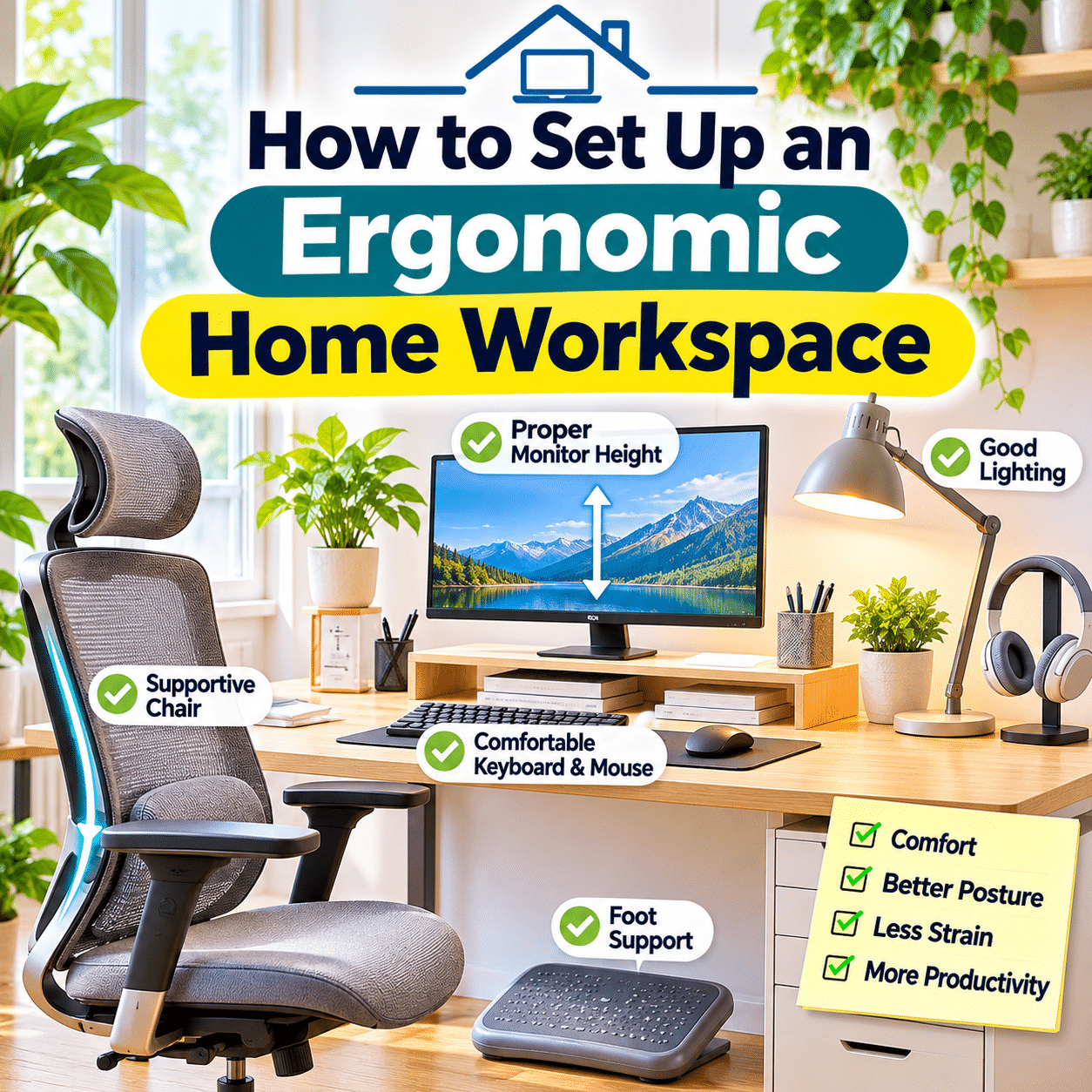
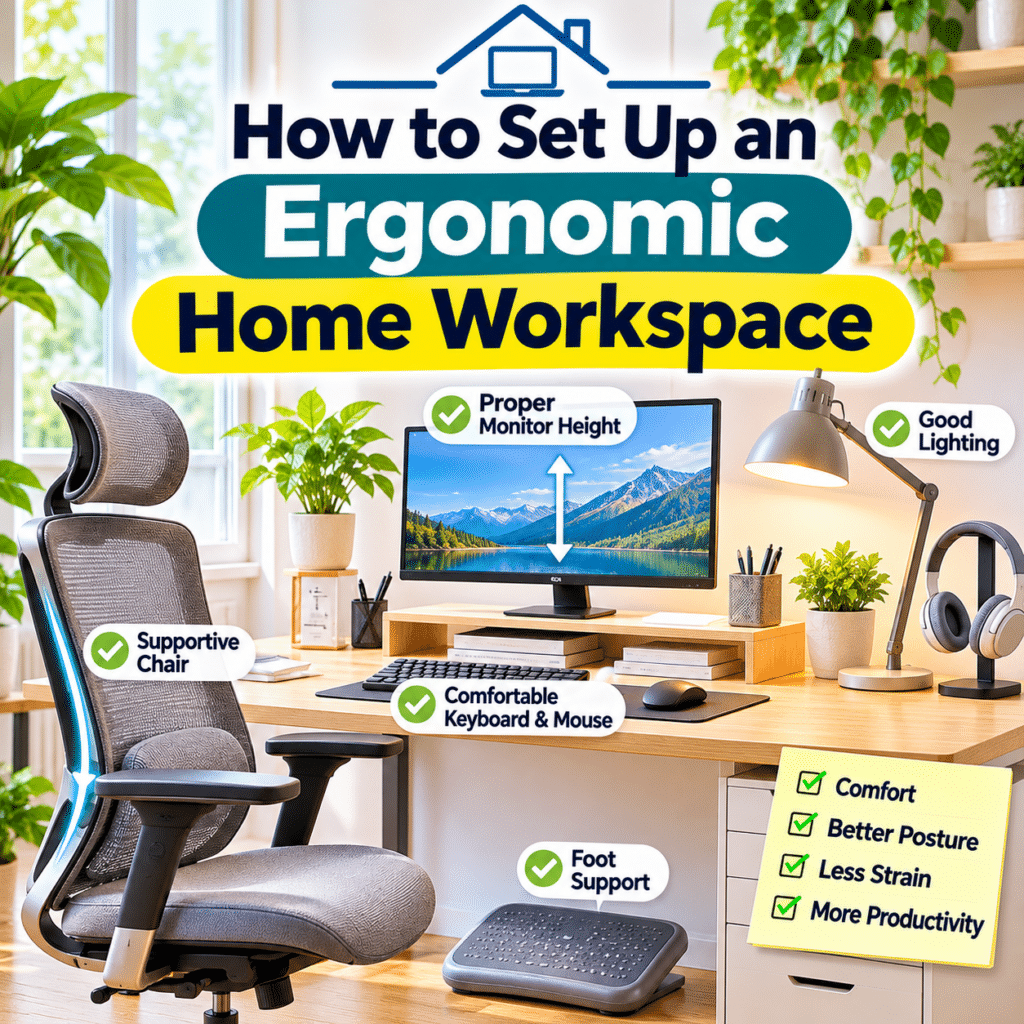
This guide explains how to set up an ergonomic home workspace, including choosing a suitable location, adjusting your desk and chair, positioning monitors, arranging accessories, improving lighting, managing cables, and developing healthier working habits.
The goal is to create a comfortable, flexible, and functional workspace that supports your everyday activities over the long term.
1. Understand What Ergonomics Means in a Home Workspace
Ergonomics is the practice of designing tasks, equipment, and environments to better suit the people using them.
In a home workspace, this means arranging furniture and tools so that common activities can be performed comfortably and efficiently.
An ergonomic setup considers several factors:
- Sitting and standing positions.
- Chair and desk dimensions.
- Monitor height and distance.
- Keyboard and mouse placement.
- Lighting conditions.
- Frequently used equipment.
- Movement and rest opportunities.
- Individual body proportions.
- The type and duration of work.
Ergonomics is not about maintaining one supposedly perfect posture throughout the day.
Instead, it encourages suitable support, comfortable positioning, reduced unnecessary strain, and regular changes in position.
A workspace that allows you to move naturally is often more practical than one that encourages remaining completely still.
2. Why an Ergonomic Workspace Matters
Computer-based activities frequently involve repetitive hand movements, sustained visual attention, and extended periods in similar positions.
A poorly arranged workspace may contribute to discomfort in areas such as:
- Neck.
- Shoulders.
- Upper back.
- Lower back.
- Wrists.
- Hands.
- Hips.
- Legs.
- Eyes.
Ergonomic adjustments can help reduce unnecessary physical demands and make everyday tasks more comfortable.
However, ergonomic furniture does not guarantee prevention of pain or injury.
Comfort depends on multiple factors, including individual health, workload, activity patterns, and the amount of time spent in one position.
The purpose of ergonomic design is to create more supportive working conditions rather than promise a completely discomfort-free experience.
3. Begin by Evaluating Your Current Workspace
Before purchasing furniture or accessories, examine your existing setup.
Sit down and perform your usual work for several minutes.
Pay attention to:
- Whether your shoulders feel relaxed.
- Whether your feet rest comfortably.
- Whether the screen is easy to view.
- Whether you lean forward to read.
- Whether your wrists bend awkwardly.
- Whether your chair supports your back.
- Whether frequently used items are within reach.
- Whether lighting creates glare.
- Whether cables interfere with movement.
You may discover that only a few adjustments are necessary.
For example, raising a laptop screen and adding an external keyboard can improve a setup without replacing the desk.
Start by identifying the most noticeable sources of discomfort or inconvenience.
4. Choose the Right Location for Your Home Workspace
The location of your workspace influences comfort, concentration, and daily convenience.
A suitable area should ideally provide:
- Enough room for essential equipment.
- Comfortable lighting.
- Adequate ventilation.
- Manageable noise levels.
- Access to electrical outlets.
- Space for moving your chair.
- A stable working surface.
- Reasonable separation from household distractions.
Not everyone has a dedicated home office.
A corner of a bedroom, living room, or multipurpose room can work well when arranged thoughtfully.
Choose a location that supports your actual work habits rather than trying to recreate a traditional office unnecessarily.
5. Plan the Space Around Your Daily Activities
Different activities require different workspace arrangements.
For example, someone who spends most of the day typing may prioritize keyboard position and monitor visibility.
A person who frequently draws or writes by hand may need more open desk space.
A content creator may require additional room for microphones, cameras, lighting, and editing equipment.
Consider your main tasks.
| Work Activity | Important Workspace Considerations |
|---|---|
| Typing and document work | Keyboard position, chair support, screen height |
| Video meetings | Camera placement, lighting, microphone accessibility |
| Graphic design | Display visibility, input devices, adequate desk space |
| Writing and studying | Comfortable seating, document placement, lighting |
| Digital content creation | Flexible equipment arrangement, cable organization |
| General computer use | Balanced layout, comfortable viewing, movement breaks |
Design the workspace around what you actually do most often.
6. Choose a Desk With Suitable Dimensions
A desk should provide enough space for equipment without forcing uncomfortable positions.
Important considerations include:
- Work surface height.
- Available legroom.
- Desk depth.
- Surface stability.
- Space for monitors.
- Keyboard and mouse placement.
- Cable routing.
- Storage requirements.
A desk that is too high may encourage raised shoulders.
A desk that is too low may cause uncomfortable arm positioning or reduced leg clearance.
There is no single desk height that suits everyone.
The appropriate height depends on body proportions, chair adjustment, and the type of work.
An adjustable desk can offer flexibility, but a fixed desk may also work well with suitable seating and accessories.
7. Understand the Relationship Between Desk and Chair Height
Desk and chair height should be considered together.
When typing, a useful starting position is:
- Shoulders relaxed.
- Upper arms close to the body.
- Elbows comfortably bent, often around a right angle.
- Forearms supported or positioned without excessive reaching.
- Wrists relatively straight.
- Feet supported.
These are general guidelines rather than rigid requirements.
Individual comfort and task demands may justify small variations.
If your desk is too high, raising the chair may improve arm positioning.
However, this may leave your feet unsupported.
A suitable footrest can help address that problem.
The goal is to adjust the entire setup rather than solving one issue while creating another.
8. Choose a Chair That Supports Comfortable Sitting
A suitable chair is one of the most important elements of a seated workspace.
Useful features may include:
- Adjustable seat height.
- Supportive backrest.
- Appropriate seat depth.
- Stable base.
- Comfortable seat cushioning.
- Adjustable armrests.
- Smooth movement.
- Suitable lumbar support.
Not every chair needs every adjustment feature.
The most important consideration is whether the chair fits your body and allows comfortable working positions.
An expensive chair is not automatically better than a simpler model that fits properly.
Whenever possible, evaluate a chair based on actual sitting comfort rather than appearance alone.
9. Adjust Your Chair Height
Begin by sitting with your hips positioned comfortably toward the back of the chair.
Adjust the seat height so that your feet can rest on the floor or a stable footrest.
Your knees should have a comfortable bend, and the seat should not place excessive pressure behind them.
Then check whether your arms align comfortably with the keyboard.
If your chair must be raised to reach the desk, use a footrest if your feet no longer rest securely.
Avoid allowing your legs to dangle for long periods.
Chair height should support both your lower body and your working arm position.
10. Understand Proper Seat Depth
Seat depth affects how comfortably your thighs and lower back are supported.
A seat that is too deep may prevent you from sitting against the backrest without pressure behind your knees.
A seat that is too shallow may provide insufficient thigh support.
When seated comfortably, there should generally be a small amount of space between the front edge of the seat and the back of your knees.
The exact amount depends on body proportions and chair design.
If your chair has an adjustable seat depth, experiment until your back can remain supported without uncomfortable pressure on your legs.
11. Set Up Comfortable Lumbar Support
The lower back has a natural inward curve.
A supportive chair can help maintain comfortable contact with this area.
Some office chairs include adjustable lumbar support.
Others use a contoured backrest.
If your chair lacks adequate support, a suitable cushion may help.
However, excessive lumbar pressure can also feel uncomfortable.
Adjust support so that it feels natural rather than forcing your back into an exaggerated position.
Remember that changing positions throughout the day remains important even when lumbar support is well configured.
12. Adjust Chair Armrests Thoughtfully
Armrests can provide support during certain activities.
However, poorly positioned armrests may encourage raised shoulders or prevent the chair from moving close enough to the desk.
Ideally, armrests should allow your shoulders to remain relaxed.
They should not force your elbows outward or push your arms into an uncomfortable position.
If armrests interfere with keyboard use, adjust or lower them when possible.
Some people prefer minimal armrest use while typing.
The most suitable arrangement depends on the chair, desk, and individual working style.
13. Position Your Monitor at a Comfortable Height
Monitor height influences head and neck positioning.
A common starting point is to place the top of the visible screen around eye level or slightly below it.
The main viewing area should allow a comfortable, slightly downward gaze.
Avoid placing the monitor so high that you repeatedly tilt your head backward.
Likewise, a very low monitor may encourage sustained forward bending.
Adjust the monitor according to your natural seated position.
For users wearing certain types of glasses, particularly multifocal lenses, a lower monitor position may be more comfortable.
14. Set the Right Monitor Viewing Distance
Monitor distance affects visual comfort and the need to lean forward.
A common starting point for many desktop displays is approximately an arm’s length away.
However, the ideal distance depends on:
- Screen size.
- Display resolution.
- Text size.
- Vision needs.
- Desk depth.
- Type of work.
The screen should be far enough away for comfortable viewing but close enough that text remains easy to read.
If you find yourself leaning toward the screen, try increasing text size before moving the monitor excessively close.
Comfortable viewing is more important than following one exact measurement.
15. Position the Monitor Directly in Front of You
For single-monitor setups, place the display directly in front of your primary working position.
This reduces the need for sustained head rotation.
The keyboard should also align with the main screen.
If your monitor is positioned far to one side, you may repeatedly turn your neck while typing.
A centered arrangement is generally a practical starting point.
However, your setup may need adjustments if you frequently work with physical documents or specialized equipment.
The goal is to minimize unnecessary twisting during your most common activities.
16. Arrange Dual Monitors Ergonomically
Dual monitors can be useful for multitasking, research, editing, and communication.
The best arrangement depends on how frequently each display is used.
When both monitors are used equally
Position them close together and angle them slightly inward.
You may prefer the center of the two-screen arrangement directly in front of you.
When one monitor is primary
Place the primary display directly in front of you.
Position the secondary monitor nearby at a comfortable angle.
Try to keep screen heights reasonably aligned when practical.
Avoid placing frequently used content on a display that requires repeated extreme neck rotation.
17. Improve Laptop Ergonomics
Laptops are convenient but create a common ergonomic challenge.
The keyboard and screen are attached.
When the laptop keyboard is positioned comfortably for typing, the screen may be too low.
When the screen is raised, the built-in keyboard becomes difficult to use comfortably.
For extended laptop work, consider:
- A stable laptop stand.
- An external keyboard.
- An external mouse.
- A separate monitor when useful.
- A suitable docking station.
These accessories allow more independent adjustment of screen and input positions.
For short periods, using a laptop without additional equipment may be reasonable.
For longer sessions, greater adjustability can improve comfort.
18. Use a Laptop Stand Safely
A laptop stand can raise the screen closer to a comfortable viewing position.
Choose a stand that provides:
- Stable support.
- Appropriate height.
- Suitable weight capacity.
- Adequate ventilation.
- Convenient access to ports.
- Compatibility with the laptop’s dimensions.
Avoid unstable arrangements such as stacking equipment on objects that can slide or collapse.
If raising the laptop makes its keyboard uncomfortable to reach, use external input devices.
Do not block ventilation openings.
A stand should improve positioning without creating new stability or cooling problems.
19. Position Your Keyboard Correctly
Keyboard placement affects shoulder, elbow, and wrist comfort.
A practical starting arrangement includes:
- Keyboard directly in front of the main screen.
- Shoulders relaxed.
- Elbows near the body.
- Forearms comfortably positioned.
- Wrists relatively straight.
- Enough space for natural hand movement.
Avoid placing the keyboard so far away that you must continually reach forward.
Likewise, placing it too close may create cramped arm positions.
Some keyboards include adjustable feet.
A steep keyboard angle is not automatically better.
Choose an angle that allows comfortable wrist positioning.
20. Choose a Comfortable Mouse Position
The mouse should be positioned close enough to use without excessive reaching.
Ideally, it sits beside the keyboard at a similar height.
Keep your upper arm relatively close to your body.
Avoid repeatedly reaching far to the side.
If your desk is narrow, consider a compact keyboard that leaves more space for mouse movement.
Different mouse shapes may suit different hands and working styles.
A vertical mouse, trackball, or other alternative may be useful for some people, but no single design is best for everyone.
Comfort and usability should guide your choice.
21. Understand Wrist Position and Support
Comfortable wrist positioning is important during keyboard and mouse use.
Try to avoid sustained extreme bending upward, downward, or sideways.
Keep movements relaxed.
A wrist rest may provide comfort during pauses, but pressing the wrists firmly against a hard surface while typing can create unnecessary pressure.
Some users benefit from supporting the palms or forearms instead.
The most suitable arrangement depends on your equipment and individual comfort.
If you experience persistent numbness, tingling, or pain, seek guidance from a qualified healthcare professional rather than relying only on accessories.
22. Arrange Frequently Used Items Within Easy Reach
A well-organized desk reduces unnecessary stretching and repeated reaching.
Place frequently used items near your normal working area.
These may include:
- Keyboard.
- Mouse.
- Notebook.
- Pen.
- Smartphone.
- Headphones.
- Water bottle.
- Frequently referenced documents.
Less frequently used items can be stored farther away.
Avoid overcrowding the desk.
Leave enough room for comfortable hand and arm movement.
A simple, uncluttered layout often supports both convenience and concentration.
23. Use a Document Holder When Needed
People who frequently reference printed documents may benefit from a document holder.
A suitable holder can position papers closer to the monitor’s viewing area.
This may reduce repeated downward head movement.
Consider placing the holder:
- Beside the monitor.
- Between the keyboard and monitor when appropriate.
- At a comfortable reading angle.
The best location depends on how often you alternate between paper and screen.
If you primarily type from printed documents, position them where they are easy to view without sustained neck twisting.
24. Improve Natural Lighting in Your Workspace
Natural light can make a workspace feel pleasant and inviting.
However, direct sunlight may create screen glare and uncomfortable brightness.
A practical arrangement often places the desk so that windows are to the side rather than directly behind or in front of the monitor.
This can help reduce strong reflections and excessive contrast.
Use curtains, blinds, or shades when necessary.
Consider how sunlight changes throughout the day.
A location that works well in the morning may experience glare in the afternoon.
Flexible light control is often more useful than relying on one fixed arrangement.
25. Choose Suitable Artificial Lighting
Artificial lighting helps maintain comfortable visibility when natural light is insufficient.
A home workspace may benefit from a combination of:
- General room lighting.
- Task lighting.
- Adjustable desk lamps.
- Indirect lighting.
Avoid placing bright lamps where they shine directly into your eyes or reflect strongly off the screen.
A desk lamp should illuminate documents or work surfaces without creating distracting glare.
Adjustable lamps provide flexibility for different tasks.
The goal is balanced lighting rather than maximum brightness.
26. Reduce Screen Glare and Reflections
Glare can make text difficult to read and encourage uncomfortable viewing positions.
Common sources include:
- Windows.
- Ceiling lights.
- Desk lamps.
- Glossy surfaces.
- Bright objects behind the user.
To reduce glare:
- Adjust the monitor angle.
- Reposition nearby lamps.
- Use window coverings.
- Reduce direct reflections.
- Adjust screen brightness appropriately.
- Consider suitable anti-glare accessories when needed.
Avoid increasing screen brightness excessively to compensate for poor lighting conditions.
Improving the environment is often more effective.
27. Adjust Display Brightness and Text Size
Display settings can influence visual comfort.
Text that is too small may cause you to lean forward.
A screen that is excessively bright or dim compared with the surrounding room may feel uncomfortable.
Consider adjusting:
- Screen brightness.
- Text scaling.
- Display resolution.
- Contrast settings.
- Application zoom.
- Color settings according to your tasks.
Use comfortable text sizes rather than struggling to read small content.
For visually demanding work, consistent display settings may also support accuracy.
Individual preferences vary, so make adjustments based on actual viewing comfort.
28. Understand Digital Eye Strain
Extended screen use can contribute to symptoms commonly associated with digital eye strain.
These may include:
- Tired eyes.
- Dryness.
- Blurred vision.
- Headaches.
- Difficulty refocusing.
- General visual discomfort.
Contributing factors may include prolonged near work, reduced blinking, glare, and unsuitable viewing conditions.
Regular visual breaks can help.
One commonly suggested habit is the 20-20-20 rule: approximately every 20 minutes, look at something at least 20 feet away for about 20 seconds.
This is a practical reminder rather than a guaranteed treatment.
Persistent symptoms should be evaluated by an appropriate eye care professional.
29. Create Space for Comfortable Leg Movement
An ergonomic desk should allow your legs to move naturally.
Avoid filling the space beneath the desk with storage boxes, cables, or unused equipment.
Check that you can:
- Position your feet comfortably.
- Move your knees.
- Change leg positions.
- Adjust your chair.
- Enter and leave the workspace easily.
Restricted legroom can make even a supportive chair uncomfortable.
Keep the floor area clear enough for normal movement.
If you use a footrest, choose one that remains stable and does not create a tripping hazard.
30. Decide Whether a Footrest Is Useful
A footrest can help when chair and desk adjustments leave your feet unsupported.
It may be especially useful when a fixed desk is too high for comfortable typing at a lower chair position.
A suitable footrest should:
- Provide stable support.
- Offer enough surface area for both feet.
- Avoid slipping.
- Allow comfortable ankle positioning.
- Fit beneath the desk.
An adjustable footrest may provide additional flexibility.
However, a footrest is not necessary if your feet already rest comfortably and your working position feels well supported.
31. Consider a Sit-Stand Desk
A height-adjustable desk allows users to alternate between seated and standing work.
This flexibility can help reduce prolonged time in one position.
However, standing continuously is not automatically healthier or more comfortable than sitting.
Extended standing can also cause fatigue or discomfort.
If using a sit-stand desk:
- Adjust the work surface for comfortable arm positioning.
- Keep the monitor at a suitable viewing height.
- Wear comfortable footwear.
- Change positions regularly.
- Begin with manageable standing periods.
- Avoid remaining motionless for long periods.
The benefit comes from flexibility and movement rather than standing as much as possible.
32. Set Up a Comfortable Standing Position
When working while standing, use the same general ergonomic principles as seated work.
Aim for:
- Relaxed shoulders.
- Comfortable elbow positioning.
- Neutral wrist alignment.
- Monitor at a suitable height.
- Stable footing.
- Enough room to shift weight.
- Easy access to frequently used equipment.
Avoid locking your knees or leaning heavily against the desk for extended periods.
A supportive floor surface may improve comfort.
If you use an anti-fatigue mat, ensure that it is stable and does not create a tripping hazard.
33. Build Movement Into Your Workday
Even a well-designed workstation cannot eliminate the effects of remaining in one position for extended periods.
Regular movement is an important part of ergonomic work habits.
Simple options include:
- Standing briefly.
- Walking around the room.
- Changing seated positions.
- Stretching gently.
- Refilling a water bottle.
- Taking a short screen break.
- Alternating between suitable tasks.
There is no single break schedule that works for every person or occupation.
A practical approach is to take frequent short breaks and avoid long periods of uninterrupted static posture.
Movement should feel comfortable rather than forced.
34. Use Work Breaks More Effectively
Breaks provide opportunities to reduce sustained physical and visual demands.
Instead of spending every break looking at another screen, consider activities such as:
- Looking into the distance.
- Walking briefly.
- Changing position.
- Doing a simple household task.
- Relaxing your hands.
- Moving your shoulders gently.
- Resting your eyes.
Breaks do not need to be long to provide a useful change of activity.
The most important habit is consistency.
If reminders are helpful, use a calendar, timer, or suitable application.
Avoid turning breaks into another complicated task to manage.
35. Organize Charging Cables and Power Accessories
Cables can create visual clutter and interfere with movement around a workspace.
A simple cable management system may include:
- Reusable cable ties.
- Cable clips.
- Under-desk organizers.
- Appropriate cable sleeves.
- Labeled charging accessories.
- A suitable power strip.
- Dedicated charging locations.
Route cables away from chair wheels and walking areas.
Avoid stretching cords across open floor space.
Keep power adapters adequately ventilated.
Do not overload electrical outlets or connect power strips in chains.
Cable organization should improve safety and accessibility rather than merely conceal equipment.
36. Keep Your Desk Organized Without Overcomplicating It
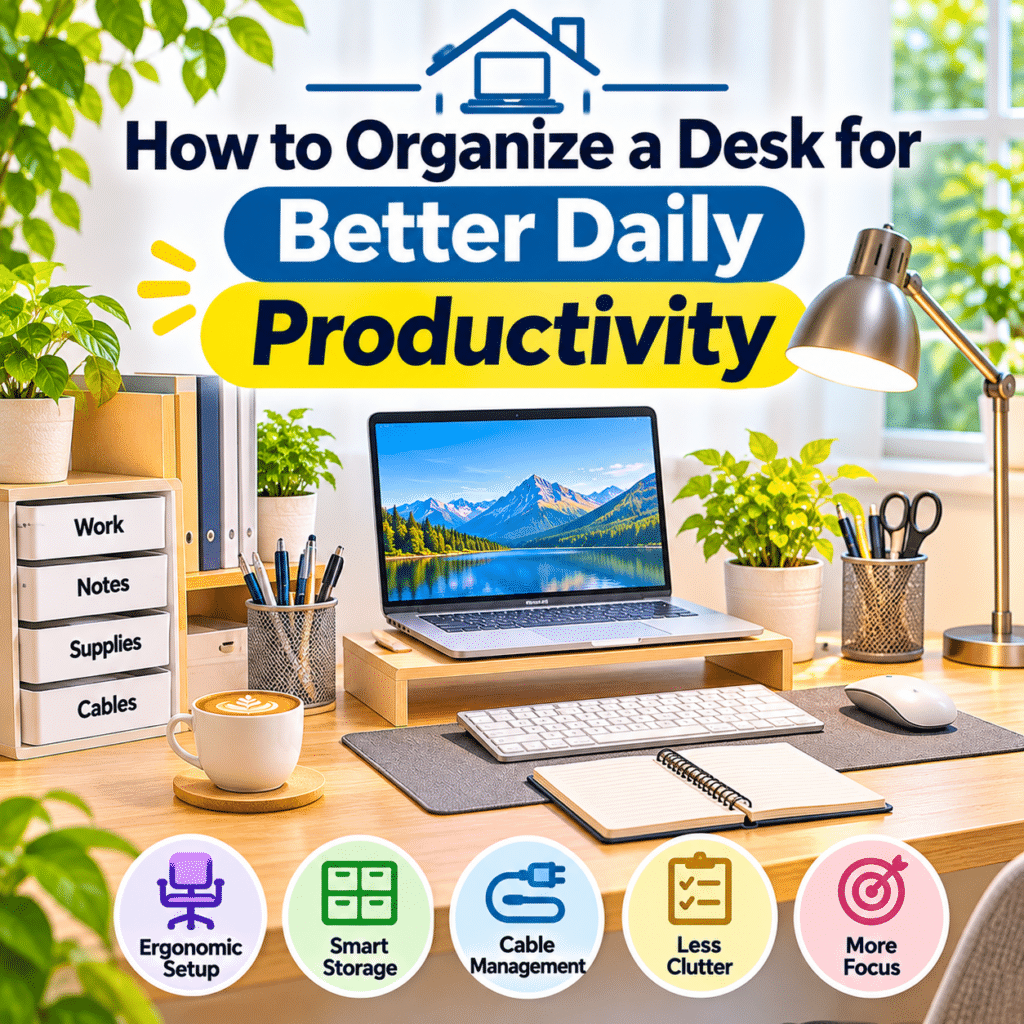
A clutter-free desk can make work feel more manageable.
However, an ergonomic workspace does not need to look perfectly minimal.
Keep the items you use regularly within easy reach.
Store occasional-use accessories in drawers or nearby shelves.
Useful organizational habits include:
- Returning tools to consistent locations.
- Removing unnecessary packaging.
- Keeping cables controlled.
- Maintaining space for writing.
- Cleaning frequently touched surfaces.
- Reviewing desk clutter periodically.
Avoid storing heavy objects where they may fall.
The most effective organization system is one you can maintain during normal workdays.
37. Consider Noise and Acoustic Comfort
Noise can affect concentration and communication.
Potential sources include:
- Household appliances.
- Street traffic.
- Nearby conversations.
- Construction.
- Television audio.
- Echo in sparsely furnished rooms.
Practical improvements may include:
- Choosing a quieter workspace location.
- Closing doors when appropriate.
- Using curtains or soft furnishings.
- Positioning microphones carefully.
- Using comfortable headphones.
- Scheduling demanding tasks during quieter periods.
Noise-canceling headphones may help in certain environments.
However, avoid listening at unnecessarily high volume.
Your workspace should support concentration while allowing awareness of important household sounds when needed.
38. Maintain Comfortable Temperature and Ventilation
Temperature and airflow influence workspace comfort.
A room that feels too hot, cold, or stuffy can make extended work less pleasant.
Consider:
- Adequate ventilation.
- Appropriate temperature control.
- Avoiding direct uncomfortable drafts.
- Managing sunlight and heat buildup.
- Keeping computer ventilation openings clear.
- Maintaining suitable indoor air conditions.
Place heat-generating electronics where airflow is not obstructed.
Avoid positioning laptops or other equipment near heaters.
Comfortable environmental conditions depend on climate, personal preferences, and the characteristics of the room.
39. Personalize Your Workspace Thoughtfully
Ergonomic design and personal style can work together.
A workspace can be functional while still feeling welcoming.
Consider adding:
- A small plant.
- A favorite photograph.
- A simple desk organizer.
- Comfortable task lighting.
- A decorative object.
- A suitable wall calendar.
- A small shelf.
Avoid placing decorative items where they block the monitor, restrict movement, or create unstable arrangements.
Personal touches should support comfort without interfering with work.
The goal is to create a space that feels pleasant enough to use consistently.
40. Maintain and Adjust Your Workspace Over Time
An ergonomic workspace is not a one-time project.
Your equipment, activities, and comfort needs may change.
A practical review schedule can help.
Weekly checks
- Clear unnecessary clutter.
- Check chair and monitor positions.
- Clean frequently touched surfaces.
- Organize loose cables.
- Notice recurring discomfort.
Monthly checks
- Review lighting conditions.
- Inspect equipment stability.
- Reassess frequently used accessories.
- Check available legroom.
- Adjust storage arrangements.
Periodic reviews
- Evaluate whether the chair still provides suitable support.
- Review monitor and keyboard placement.
- Reconsider the workspace layout after equipment changes.
- Check whether your work routine allows enough movement.
- Replace damaged or unsuitable accessories.
If discomfort persists despite adjustments, consider seeking advice from a qualified healthcare or ergonomics professional.
Step-by-Step Guide: Set Up an Ergonomic Home Workspace
This practical walkthrough combines the essential principles into one beginner-friendly setup process.
Step 1: Choose your workspace location
Select a stable, reasonably quiet area with suitable lighting and enough room for equipment.
Step 2: Identify your main activities
Determine whether you primarily type, study, attend meetings, edit content, or perform other tasks.
Step 3: Clear the working area
Remove unnecessary items and create space for comfortable movement.
Step 4: Position the desk
Choose a location with suitable legroom, electrical access, and manageable lighting.
Step 5: Adjust the chair height
Position the chair so that your feet are supported and your arms can work comfortably.
Step 6: Check seat depth
Make sure your thighs are supported without uncomfortable pressure behind your knees.
Step 7: Adjust back support
Use the chair’s backrest or suitable lumbar support.
Step 8: Review armrest position
Keep your shoulders relaxed and ensure the chair can move close enough to the desk.
Step 9: Position the monitor
Place the main display directly in front of you.
Step 10: Adjust monitor height
Use a comfortable viewing position with the screen’s upper area around eye level or slightly below, as appropriate.
Step 11: Set viewing distance
Move the screen to a distance that allows easy reading without leaning forward.
Step 12: Arrange the keyboard
Place it close enough for comfortable typing with relaxed shoulders and relatively straight wrists.
Step 13: Position the mouse
Keep it near the keyboard to reduce unnecessary reaching.
Step 14: Improve laptop positioning
If using a laptop for extended work, consider a stand and external input devices.
Step 15: Adjust lighting
Reduce glare and provide comfortable illumination for the screen and desk.
Step 16: Organize accessories
Keep frequently used items within easy reach.
Step 17: Manage cables
Route cords away from moving furniture and walking areas.
Step 18: Check legroom
Remove objects that restrict comfortable movement.
Step 19: Test your working position
Perform your usual tasks for several minutes and notice any discomfort.
Step 20: Make small adjustments
Change one element at a time until the setup feels more comfortable.
Step 21: Plan movement breaks
Create opportunities to change positions throughout the workday.
Step 22: Review the setup regularly
Reassess comfort whenever your equipment or work habits change.
Practical Ergonomic Home Workspace Checklist
Use this checklist to evaluate your home workstation.
Workspace Location
- Choose a stable working area.
- Provide enough room for essential equipment.
- Ensure comfortable lighting.
- Reduce unnecessary distractions.
- Maintain suitable ventilation.
- Keep electrical outlets accessible.
Desk and Chair
- Use a desk with suitable working height.
- Adjust chair height.
- Support feet on the floor or a footrest.
- Check seat depth.
- Adjust back support.
- Keep shoulders relaxed.
- Review armrest positioning.
- Maintain adequate legroom.
Monitor and Laptop
- Position the main screen directly in front.
- Adjust monitor height.
- Set a comfortable viewing distance.
- Increase text size when necessary.
- Reduce glare.
- Consider a laptop stand for extended work.
- Use external input devices when helpful.
Keyboard and Mouse
- Keep the keyboard within comfortable reach.
- Position the mouse beside the keyboard.
- Avoid unnecessary shoulder reaching.
- Keep wrists relatively straight.
- Use relaxed hand movements.
- Avoid excessive pressure against hard surfaces.
Lighting and Environment
- Control direct sunlight.
- Reduce screen reflections.
- Use suitable task lighting.
- Maintain comfortable room temperature.
- Reduce distracting noise.
- Keep ventilation openings unobstructed.
Organization and Safety
- Keep frequently used items nearby.
- Remove unnecessary desk clutter.
- Organize charging cables.
- Keep cords away from chair wheels.
- Avoid overloaded power strips.
- Maintain clear walking areas.
- Secure heavy equipment.
Healthy Working Habits
- Change positions regularly.
- Take short movement breaks.
- Rest your eyes periodically.
- Avoid prolonged static posture.
- Adjust equipment when discomfort appears.
- Review the setup as work needs change.
Common Ergonomic Workspace Problems and Practical Solutions
| Problem | Possible Cause | Practical Adjustment |
|---|---|---|
| Neck discomfort | Monitor too low, high, or off-center | Adjust screen height and alignment |
| Raised shoulders | Desk or keyboard too high | Review chair and desk relationship |
| Feet do not reach floor | Chair raised to match desk | Use a stable footrest |
| Lower back discomfort | Inadequate support or prolonged sitting | Adjust backrest and change positions |
| Wrist discomfort | Awkward keyboard or mouse placement | Reposition input devices |
| Frequent leaning forward | Screen too far away or text too small | Adjust viewing distance and text scaling |
| Eye fatigue | Glare, prolonged viewing, or unsuitable lighting | Improve lighting and take visual breaks |
| Restricted leg movement | Storage beneath desk | Clear the under-desk area |
| Shoulder reaching | Mouse too far away | Move mouse closer to keyboard |
| Standing fatigue | Prolonged standing without movement | Alternate sitting, standing, and walking |
These adjustments are general ergonomic suggestions, not medical diagnoses.
Persistent or worsening symptoms should be evaluated by a qualified healthcare professional.
Frequently Asked Questions About Ergonomic Home Workspaces
1. What is an ergonomic home workspace?
An ergonomic home workspace is arranged to support comfortable working positions, appropriate equipment placement, and manageable physical demands.
It considers furniture, screens, input devices, lighting, and movement habits.
2. Do I need an expensive ergonomic chair?
No.
A suitable chair should fit your body, support comfortable sitting, and work well with your desk.
Adjustability can be helpful, but price alone does not determine ergonomic suitability.
3. What is the ideal desk height?
There is no universal ideal height.
The appropriate desk height depends on your body proportions, chair position, and work activities.
Your arms should be able to work comfortably without raised shoulders or excessive reaching.
4. Should my monitor be at eye level?
A common starting point is to position the top of the visible screen around eye level or slightly below.
However, individual vision needs and equipment may require adjustments.
5. How far should I sit from my computer screen?
Approximately an arm’s length is a common starting point for many desktop monitors.
The ideal distance depends on screen size, text scaling, and visual comfort.
6. Is a laptop stand necessary?
Not always.
For extended laptop use, a stand combined with an external keyboard and mouse can provide more flexibility in screen and input positioning.
7. Can I create an ergonomic workspace in a small room?
Yes.
A compact desk, adjustable chair, suitable screen placement, and thoughtful storage can support a comfortable workspace in limited space.
8. Are standing desks better than sitting desks?
Standing desks provide the option to change positions.
However, prolonged standing can also cause discomfort.
Alternating between suitable positions and moving regularly is generally more practical than remaining in one position.
9. How often should I take breaks from computer work?
Frequent short breaks and regular changes in position can help reduce prolonged static demands.
The most suitable schedule depends on your work and personal needs.
10. What is the best position for a keyboard?
Place the keyboard within comfortable reach, generally directly in front of the main screen.
Keep your shoulders relaxed and wrists relatively straight.
11. Should I use a wrist rest?
Some people find wrist rests comfortable during pauses.
However, avoid pressing the wrists firmly against a hard surface while typing.
Choose accessories based on comfort and appropriate hand positioning.
12. How can I reduce eye strain while working from home?
Adjust lighting, reduce glare, use readable text sizes, and take regular visual breaks.
Persistent visual symptoms should be discussed with an eye care professional.
13. Where should I place my desk near a window?
Positioning the desk so that windows are to the side often helps reduce direct glare and strong screen reflections.
Use curtains or blinds when needed.
14. How do I know if my workspace needs adjustment?
Common signs include repeated leaning, uncomfortable reaching, unsupported feet, distracting glare, or recurring discomfort during work.
Evaluate your setup and make gradual changes.
15. What is the most important ergonomic habit?
Regularly changing positions and adjusting your workspace to match your needs is one of the most useful habits.
Even supportive furniture cannot replace movement and appropriate work routines.
Final Thoughts
Setting up an ergonomic home workspace is an investment in everyday comfort, convenience, and sustainable working habits.
A well-designed workstation does not require expensive furniture or a large dedicated office. Many meaningful improvements come from adjusting equipment you already own.
Begin with the essentials: a supportive chair, suitable desk height, comfortable monitor placement, accessible keyboard and mouse, and balanced lighting.
Then consider the smaller details that influence daily use, such as cable organization, legroom, noise, temperature, and frequently used accessories.
Remember that ergonomics is not about maintaining one perfect posture all day. Comfortable work involves flexibility, appropriate support, and regular movement.
As your activities change, your workspace should adapt.
Review your setup periodically, make adjustments when discomfort appears, and avoid assuming that one arrangement will remain ideal forever.
With thoughtful planning and a few consistent habits, even a modest home workspace can become a comfortable and practical place for working, studying, and creating.
The best ergonomic home workspace is one that fits your body, supports your daily tasks, and makes comfortable movement a natural part of your working routine.