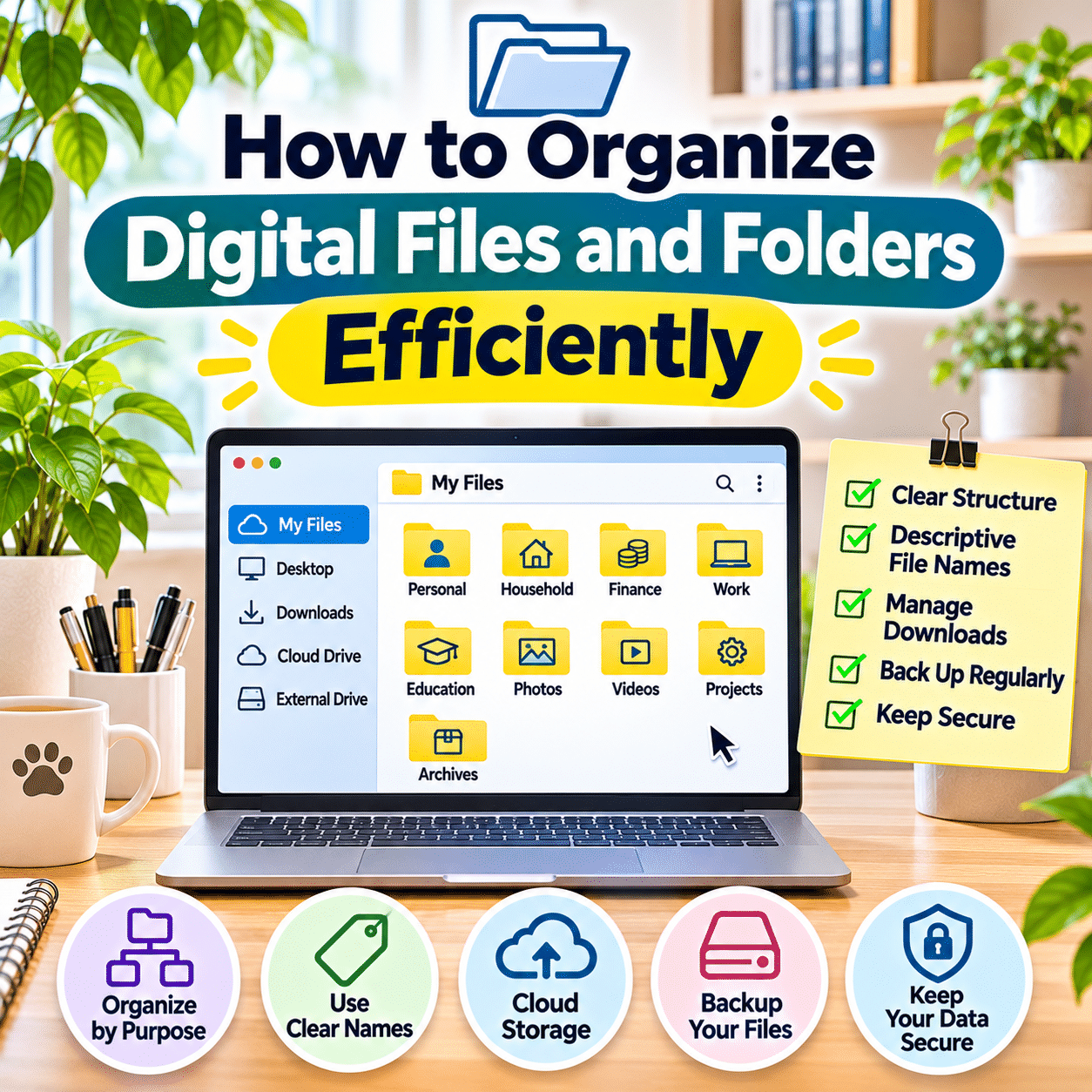
As digital collections grow, keeping everything organized becomes increasingly important.
Without a clear system, files can quickly become scattered across desktop screens, Downloads folders, external drives, cloud storage accounts, and multiple devices. Important documents may become difficult to locate, duplicate files can consume unnecessary storage space, and older projects may become mixed with current work.
Fortunately, organizing digital files does not require advanced technical knowledge or complicated software.
A practical system begins with a few simple principles: creating clear folder categories, using consistent file names, separating active projects from archived materials, managing downloads, removing unnecessary duplicates, and maintaining reliable backups.
The goal is not to create the most elaborate folder structure possible. It is to build a system that makes information easy to find, understand, protect, and maintain.
An effective digital organization system should also be flexible. The way you organize a few personal documents may differ from how you manage thousands of photographs, business records, or creative project files.
This guide explains how to organize digital files and folders efficiently, including planning a folder structure, choosing naming conventions, organizing different file types, managing cloud storage, protecting sensitive information, and establishing sustainable maintenance routines.
Whether you use a Windows computer, Mac, smartphone, tablet, or a combination of devices, these principles can help create a more manageable digital environment.
1. Understand Why Digital File Organization Matters
Digital organization is the process of arranging electronic information so that files can be stored, identified, retrieved, and maintained efficiently.
A well-organized system can help:
- Reduce time spent searching for documents.
- Prevent important files from becoming misplaced.
- Make project materials easier to manage.
- Reduce unnecessary duplicate files.
- Improve collaboration and file sharing.
- Simplify backup procedures.
- Support long-term digital recordkeeping.
- Reduce storage clutter.
- Make transitions between devices easier.
- Protect important personal and professional information.
However, digital organization does not mean that every file needs a complicated classification system.
A useful structure should make everyday activities easier rather than create additional administrative work.
2. Identify the Types of Files You Manage
Before reorganizing your computer, consider the kinds of files you use regularly.
Common categories include:
- Personal documents.
- Household records.
- Financial statements.
- Photographs.
- Videos.
- Music and audio recordings.
- Educational materials.
- Work documents.
- Creative projects.
- Software installation files.
- Downloads.
- Archived records.
Different file types may require different organizational approaches.
For example, photographs are often easier to organize by date and event, while financial documents may be better grouped by category and year.
Creative projects may need dedicated folders containing multiple related file formats.
Understanding your file collection helps you design a structure that matches your actual needs.
3. Evaluate Your Current Digital Storage
Begin by examining where your files are currently stored.
Common locations include:
- Desktop.
- Documents.
- Downloads.
- Pictures.
- Videos.
- External hard drives.
- USB drives.
- Cloud storage folders.
- Smartphone storage.
- Shared network folders.
Look for patterns.
Are important documents scattered across multiple locations?
Do you frequently save files to the desktop because it is convenient?
Does the Downloads folder contain hundreds of unrelated items?
Are project files mixed with personal photographs?
Identifying these problems helps you decide where to begin.
Avoid reorganizing every device simultaneously.
Start with one manageable storage location.
4. Define Your Main Organization Goals
A digital filing system should solve practical problems.
Consider which improvements matter most.
For example:
- Finding documents faster.
- Keeping active projects separate.
- Reducing duplicate photographs.
- Organizing household records.
- Managing creative assets.
- Preparing files for backup.
- Improving collaboration.
- Freeing unnecessary storage space.
Your priorities will influence the structure.
Someone managing personal documents may prefer a simple category-based system.
A content creator may need project folders containing images, video clips, audio, graphics, and exported files.
A student may organize materials by subject and academic term.
The most efficient system is one designed around how files are actually used.
5. Create a Simple Main Folder Structure
A practical digital filing system begins with a small number of main folders.
For example:
My Files/
├── Personal/
├── Household/
├── Finance/
├── Work/
├── Education/
├── Photos/
├── Videos/
├── Projects/
└── Archives/
These categories are only a starting point.
You may combine folders that contain relatively few files or add categories for major activities.
Avoid creating numerous main folders before understanding what you need.
A smaller collection of clearly defined categories is often easier to navigate.
6. Organize Files by Purpose Rather Than File Type Alone
One common approach is to group all PDFs together, all spreadsheets together, and all images together.
This may work for certain collections, but it can separate files that belong to the same activity.
For example, a home renovation project might include:
- Contracts.
- Photographs.
- Spreadsheets.
- Receipts.
- Design drawings.
- Correspondence.
Keeping these files together in one project folder may be more useful than separating them by extension.
A purpose-based structure could look like:
Projects/
└── Home Renovation/
    ├── Contracts/
    ├── Budget/
    ├── Photos/
    ├── Plans/
    └── Receipts/
Choose categories that reflect how you search for information.
7. Keep Folder Hierarchies Manageable
Folders can contain subfolders, which can contain additional subfolders.
This flexibility is useful, but excessive nesting can make files difficult to retrieve.
Consider the difference between:
Documents/
└── Personal/
    └── Household/
        └── Utilities/
            └── Electricity/
                └── Statements/
                    └── 2026/
And a simpler arrangement:
Household/
└── Utilities/
    └── Electricity_2026/
Neither structure is universally correct.
However, the second requires fewer navigation steps.
Use deeper folder structures only when they provide meaningful organization.
If a folder contains just one or two files, creating several additional levels may not be necessary.
8. Use Clear and Descriptive Folder Names
Folder names should communicate their contents immediately.
Useful examples include:
- Household Bills.
- Tax Documents.
- Family Photos.
- Website Projects.
- Product Images.
- Course Materials.
- Insurance Records.
- Travel Planning.
Avoid vague names such as:
- Stuff.
- Random.
- New Folder.
- Miscellaneous.
- Important Things.
- Files 2.
A temporary miscellaneous folder may occasionally be useful, but it should not become the permanent destination for unrelated information.
Clear names reduce the need to open multiple folders to identify their contents.
9. Establish a Consistent File Naming Convention
File names are one of the most important parts of digital organization.
A useful name should help identify a file without opening it.
For example:
Instead of:
Document1.pdf
Use:
Home_Insurance_Policy_2026.pdf
Instead of:
IMG_4837.jpg
Use:
2026-06-15_Garden_Balcony.jpg
Instead of:
Final_New_Updated_2.docx
Use:
Project_Proposal_v03.docx
A good naming convention is:
- Descriptive.
- Consistent.
- Easy to read.
- Appropriate for the file type.
- Compatible with your devices and software.
Avoid making names unnecessarily long.
10. Use Dates in a Consistent Format
Dates can help organize files chronologically.
One practical format is:
YYYY-MM-DD
For example:
- 2026-01-15_Bank_Statement.pdf
- 2026-03-08_Home_Repair_Invoice.pdf
- 2026-05-20_Project_Meeting_Notes.docx
- 2026-09-12_Travel_Itinerary.pdf
This format sorts naturally by date in many file managers.
For monthly records, the year and month may be sufficient.
For example:
2026-10_Electricity_Bill.pdf
Choose the level of detail that matches your needs.
Use dates consistently so that files remain easy to arrange and compare.
11. Choose a Standard Naming Pattern
Different categories may benefit from different naming patterns.
| File Category | Suggested Pattern | Example |
|---|---|---|
| Household documents | Date_Category_Description | 2026-04-10_Water_Bill.pdf |
| Project files | Project_Document_Version | Website_Homepage_v02.psd |
| Meeting notes | Date_Project_Meeting | 2026-07-15_Marketing_Meeting.docx |
| Photos | Date_Event_Description | 2026-08-20_Family_Dinner.jpg |
| Invoices | Date_Vendor_Invoice | 2026-09-03_Office_Supplies_Invoice.pdf |
| Reports | Project_Report_Period | Sales_Report_2026-Q3.xlsx |
| Creative exports | Project_Format_Version | Product_Banner_Square_v03.png |
These are examples rather than mandatory rules.
Choose patterns that work for your files and use them consistently.
12. Avoid Problematic Characters in File Names
Different operating systems and cloud services have different restrictions.
For broad compatibility, avoid characters that may cause problems, particularly:
< > : " / \ | ? *Also avoid unnecessary trailing spaces or periods.
Letters, numbers, hyphens, and underscores are generally practical choices.
Spaces are supported in many modern systems, but underscores or hyphens may be useful in automated workflows.
For example:
2026-10-15_Project_Report.pdf
is a portable and readable naming style.
13. Keep File Extensions Intact
File extensions help operating systems and applications recognize file formats.
Common examples include:
.pdffor PDF documents..docxfor Word documents..xlsxfor Excel workbooks..jpgfor JPEG images..pngfor PNG images..mp4for video files..zipfor compressed archives.
Renaming a file extension does not convert its actual format.
For example, changing a filename from .jpg to .png does not transform the image into a PNG file.
Use an appropriate application or conversion process when changing formats.
Be cautious with files that have unexpected or misleading extensions.
14. Organize Your Desktop
The desktop often becomes a temporary storage area for frequently used files.
However, keeping large numbers of documents there can make navigation difficult.
A practical desktop may contain:
- A few essential shortcuts.
- A folder for current work.
- Frequently used applications.
- Limited temporary files.
Move permanent documents into their appropriate folders.
Avoid keeping the desktop as the only location for important files.
A simple desktop can make it easier to locate active tasks and reduce visual clutter.
15. Manage the Downloads Folder
The Downloads folder is one of the most common sources of digital clutter.
It may contain:
- PDF documents.
- Images.
- Software installers.
- Compressed archives.
- Receipts.
- Duplicate downloads.
- Temporary attachments.
Treat Downloads as a temporary collection area rather than permanent storage.
A simple routine is:
- Review recent downloads.
- Move important files to their proper folders.
- Rename files when necessary.
- Remove unnecessary duplicates.
- Delete unneeded temporary files.
- Leave files in place when they are still actively needed.
Review the folder regularly to prevent excessive accumulation.
16. Create an Inbox Folder for Unsorted Files
A digital inbox can provide one temporary location for files that have not yet been organized.
For example:
My Files/
└── 00_Inbox/
The prefix 00 helps keep the folder near the beginning of alphabetical listings.
You might use it for:
- Newly received documents.
- Scanned files.
- Downloaded reference materials.
- Temporary project assets.
- Files awaiting review.
The inbox should not become a permanent archive.
Set aside time to process its contents.
Move files into their final locations once their purpose is clear.
17. Separate Active Projects From Archived Projects
Active projects are usually accessed frequently.
Completed projects may need to be retained but rarely opened.
Separating them makes navigation easier.
For example:
Projects/
├── Active/
│   ├── Website Redesign/
│   └── Product Catalog/
└── Archive/
    ├── Completed Campaign/
    └── Previous Website/
When a project is complete, confirm that important deliverables and source files are preserved.
Then move the project into an archive.
Avoid deleting project materials solely because the work is finished.
Some files may be needed for future revisions, reference, or legal purposes.
18. Organize Project Files Consistently
A repeatable project folder structure can save time.
For example:
Project Name/
├── 01_Planning/
├── 02_Research/
├── 03_Source_Files/
├── 04_Working_Files/
├── 05_Exports/
└── 06_Archive/
This structure can work for:
- Website development.
- Design projects.
- Video production.
- Writing projects.
- Business presentations.
- Research activities.
Not every project requires every folder.
Remove unnecessary categories rather than maintaining empty folders without purpose.
Consistency is most valuable when it simplifies repeated work.
19. Use Version Numbers for Files That Change
Projects often involve multiple revisions.
Without a naming system, files may accumulate names such as:
- Final.
- Final2.
- Final_New.
- Final_Really.
- Final_Latest.
These names become confusing over time.
A clearer approach uses version numbers.
For example:
Website_Layout_v01.figWebsite_Layout_v02.figWebsite_Layout_v03.fig
For approved deliverables, consider a separate Final or Approved folder.
If you use cloud services with reliable version history, you may not need a new file for every minor edit.
Use manual versions primarily when distinct revisions need to be preserved.
20. Understand the Difference Between Backups and Versions
Versions and backups serve different purposes.
A version is an earlier or alternative state of a file.
A backup is a separate copy intended to help recover information after loss, corruption, or another problem.
For example, keeping three versions in the same folder does not protect them if the storage device fails.
Similarly, a cloud synchronization service may copy accidental deletions or unwanted changes across devices.
A reliable system should consider both revision history and independent recovery options.
Do not assume that synchronization alone provides complete backup protection.
21. Organize Personal Documents
Personal documents may include:
- Identification records.
- Certificates.
- Insurance documents.
- Travel information.
- Membership records.
- Personal correspondence.
- Important administrative paperwork.
A simple structure might be:
Personal/
├── Identification/
├── Certificates/
├── Insurance/
├── Travel/
└── Important_Records/
These files may contain sensitive information.
Use appropriate device security, encryption, and access controls.
Keep important physical originals when legally or administratively required.
Digital copies do not always replace original documents.
22. Organize Financial Files
Financial documents often benefit from a category-and-year structure.
For example:
Finance/
├── Banking/
│   ├── 2025/
│   └── 2026/
├── Taxes/
│   ├── 2025/
│   └── 2026/
├── Insurance/
└── Investments/
Use descriptive filenames that identify the document and relevant period.
Avoid including unnecessary full account numbers or other sensitive information in filenames.
Retention requirements vary by jurisdiction and document type.
Check applicable rules before deleting financial records.
23. Organize Household Records
Household records may include:
- Utility bills.
- Maintenance invoices.
- Appliance manuals.
- Property documents.
- Service contracts.
- Warranty information.
- Renovation records.
A practical structure might look like:
Household/
├── Utilities/
├── Maintenance/
├── Appliances/
├── Property/
├── Contracts/
└── Warranties/
If you manage more than one property, consider creating a separate main folder for each property.
Keep sensitive ownership and legal records appropriately protected.
24. Organize Digital Photographs
Photographs can accumulate rapidly, especially when images come from multiple smartphones, cameras, and messaging applications.
A practical organization system often uses dates and events.
For example:
Photos/
├── 2024/
├── 2025/
└── 2026/
    ├── 2026-01_Family_Gathering/
    ├── 2026-04_Garden/
    └── 2026-08_Travel/
This structure makes it easier to browse photographs chronologically.
Other approaches may organize images by subject, location, or project.
Choose the method that matches how you normally search for photographs.
25. Understand Photo Metadata
Many digital photographs contain metadata.
Depending on the device and file format, this may include:
- Capture date.
- Camera model.
- Image dimensions.
- Orientation.
- Exposure settings.
- Location information.
Metadata can help organize large photo collections.
However, metadata may be missing or altered when images are downloaded, edited, or transferred between applications.
Do not assume that every photograph contains an accurate capture date.
Also remember that location metadata can reveal sensitive information when images are shared.
Review privacy settings before distributing photographs publicly.
26. Remove Duplicate Photos Carefully
Duplicate photographs can consume significant storage space.
Duplicates may appear because of:
- Repeated downloads.
- Device transfers.
- Cloud synchronization.
- Messaging applications.
- Editing workflows.
- Multiple backup copies.
Before deleting duplicates, distinguish between:
- Exact copies.
- Different resolutions.
- Edited versions.
- Cropped images.
- Original camera files.
- Compressed sharing copies.
Files that look similar may serve different purposes.
Use duplicate detection tools carefully and review proposed deletions.
Never perform large-scale deletion without confirming that important originals and backups are protected.
27. Organize Video Files
Video files are often much larger than ordinary documents.
A clear structure can help manage storage and editing workflows.
For example:
Videos/
└── Project_Name/
    ├── Raw_Footage/
    ├── Audio/
    ├── Graphics/
    ├── Editing_Project/
    ├── Exports/
    └── Archive/
Keep original footage separate from exported videos.
Preserve project files and any linked assets needed for future editing.
Be cautious when moving video source files because some editing applications store references to their original locations.
Moving or renaming source files may cause missing-media errors.
Follow your editing software’s project management or consolidation procedures when necessary.
28. Organize Creative Design Assets
Creative projects may contain:
- Source images.
- Illustrations.
- Design documents.
- Fonts used under applicable licenses.
- Graphics.
- Templates.
- Exported images.
- Reference materials.
A useful structure separates editable sources from finished exports.
For example:
Design_Project/
├── References/
├── Source_Images/
├── Editable_Files/
├── Graphics/
├── Exports/
└── Archive/
Keep file names consistent with the project.
Avoid overwriting important editable originals with flattened or compressed exports.
Preserve relevant licenses and usage information where appropriate.
29. Organize Educational Materials
Students and lifelong learners often accumulate digital notes, assignments, presentations, and reference materials.
A simple structure might be:
Education/
├── Current_Courses/
│   ├── Course_A/
│   └── Course_B/
├── Reference_Materials/
├── Certificates/
└── Completed_Courses/
Within each course, organize materials according to the learning activities.
For example:
- Lessons.
- Notes.
- Assignments.
- Practice Exercises.
- Reference Documents.
Use descriptive filenames that identify subjects and topics.
Archive completed courses when they are no longer active.
30. Use Search Features Effectively
Even a well-organized folder structure may contain thousands of files.
Modern operating systems provide search tools that can help locate information.
Common search options include:
- Filename.
- File extension.
- Date modified.
- File size.
- Folder location.
- File contents, when supported and indexed.
For example, searching for a specific project name may be faster than manually navigating several folders.
Consistent naming improves search effectiveness.
Remember that search results depend on indexing settings, storage locations, permissions, and application support.
A file may exist even if it does not appear in a particular search.
31. Use Tags and Metadata When Helpful
Some operating systems and applications support file tags, labels, or additional metadata.
These features can help classify files without moving them into multiple folders.
For example, a document might be tagged:
- Urgent.
- Reference.
- Approved.
- Personal.
- Project A.
However, tag support varies between platforms and applications.
Tags may not transfer reliably when files move between different systems.
For important long-term organization, descriptive filenames and clear folders remain useful foundations.
Use tags as a supplement rather than the only method of identifying files.
32. Understand Cloud Storage Organization
Cloud storage services can make files accessible across devices.
Common examples include:
- Google Drive.
- Microsoft OneDrive.
- Apple iCloud Drive.
- Dropbox.
These services offer different features, storage plans, sharing controls, and synchronization behaviors.
Regardless of the provider, maintain a clear folder structure.
Avoid scattering similar files across multiple cloud accounts without a specific reason.
Know which service contains your primary working copy.
Also understand which folders are synchronized and which files are stored only online.
33. Avoid Confusion Between Local and Cloud Files
Files may exist:
- Only on your computer.
- Only in cloud storage.
- Locally and in the cloud.
- In synchronized folders.
- In independently backed-up locations.
These arrangements are not identical.
For example, deleting a file from a synchronized folder may also remove it from the connected cloud account and other devices.
Before reorganizing large collections, understand the synchronization behavior of your storage service.
Check whether files are available offline when necessary.
Do not assume that a cloud icon or synchronized folder automatically means the file has an independent backup.
34. Manage Shared Folders Carefully
Shared folders can support collaboration, but they require clear organization and access rules.
When sharing files:
- Use descriptive folder names.
- Keep related documents together.
- Assign appropriate permissions.
- Avoid sharing entire folders unnecessarily.
- Review access periodically.
- Remove outdated permissions.
- Protect confidential information.
Some services distinguish between viewing, commenting, and editing permissions.
Choose the minimum access necessary for the task.
Be cautious with unrestricted public links.
A shared folder should make collaboration easier without exposing unrelated information.
35. Protect Sensitive Digital Files
Digital organization should include appropriate security practices.
Sensitive files may contain:
- Identification details.
- Financial information.
- Medical records.
- Private correspondence.
- Legal documents.
- Confidential business information.
Protect these records through suitable measures such as:
- Strong, unique passwords.
- Multi-factor authentication.
- Device encryption.
- Secure storage.
- Appropriate sharing permissions.
- Regular software updates.
- Reliable backups.
Avoid storing passwords or recovery codes in unsecured documents.
If files are shared with others, review whether sensitive information should be removed or protected first.
36. Create a Reliable Backup Strategy
A well-organized file collection is still vulnerable to accidental deletion, hardware failure, theft, malware, or other unexpected problems.
A backup strategy helps protect important information.
One commonly recommended approach is the 3-2-1 principle:
- Maintain three copies of important data.
- Use two different storage types or systems.
- Keep one copy off-site.
For example:
- Primary files on a computer.
- A separate backup on an external drive.
- An additional protected backup in a suitable cloud service.
The exact arrangement depends on your needs and resources.
For critical files, consider maintaining an offline or otherwise isolated backup to reduce exposure to certain forms of malware or accidental synchronization.
37. Test Your Backups
Creating backups is only part of protecting digital information.
You should also confirm that files can be recovered.
Periodically:
- Check backup status.
- Confirm important folders are included.
- Verify that recent files are present.
- Restore a sample file to a safe location.
- Open the restored file.
- Review backup access credentials.
- Check available storage capacity.
Do not overwrite your primary files while performing a test restore.
A backup that cannot be restored may provide a false sense of security.
38. Delete Files Carefully
Removing unnecessary files can reduce clutter and storage use.
However, deletion should be deliberate.
Before deleting a file, consider:
- Is it still needed?
- Is it an original?
- Does another project depend on it?
- Is it required for legal or financial reasons?
- Is it included in a verified backup?
- Is it shared with other users?
- Will deletion synchronize across devices?
Avoid deleting unfamiliar system files or application support folders.
Do not remove files simply because their names are unclear.
Investigate uncertain items before making irreversible changes.
39. Understand Archiving Versus Deleting
Archiving and deleting serve different purposes.
Archiving preserves files that are no longer actively used but may be needed later.
Deleting removes files that are no longer necessary.
Examples of files suitable for archiving may include:
- Completed projects.
- Historical reports.
- Previous design versions.
- Old course materials.
- Past business records.
Examples of files that may be suitable for deletion include:
- Unneeded temporary downloads.
- Verified duplicate files.
- Obsolete installers.
- Unnecessary exported copies.
- Empty folders with no purpose.
Always consider retention obligations and dependencies before deleting files.
40. Build a Sustainable Digital Organization Routine
The best digital filing system is one that remains easy to maintain.
Instead of repeatedly reorganizing everything, establish simple habits.
Daily habits
- Save new files in appropriate locations.
- Use descriptive filenames.
- Keep active project folders organized.
- Avoid unnecessary desktop clutter.
- Confirm important work is saved.
Weekly habits
- Review Downloads.
- Process unsorted files.
- Move completed materials.
- Remove unnecessary temporary files.
- Check active project organization.
Monthly habits
- Review storage use.
- Identify unnecessary duplicates.
- Archive completed projects.
- Check cloud synchronization.
- Review shared-folder permissions.
- Verify backup status.
Periodic reviews
- Reassess folder categories.
- Update naming conventions when necessary.
- Test file restoration.
- Review security settings.
- Confirm long-term archives remain accessible.
- Adjust the system as your needs change.
Consistency matters more than creating an elaborate organizational structure.
Step-by-Step Guide: Organize Your Digital Files and Folders
This practical walkthrough combines the essential principles into one manageable process.
Step 1: Identify your main file categories
List the types of documents, photographs, videos, and project files you manage.
Step 2: Locate your existing files
Review your desktop, Documents folder, Downloads, external drives, and cloud storage.
Step 3: Protect important information
Create a verified backup before making large-scale changes.
Step 4: Choose a primary storage structure
Decide where your main organized file collection will live.
Step 5: Create a small number of main folders
Use clear categories such as Personal, Household, Finance, Work, Photos, and Projects.
Step 6: Establish naming conventions
Choose consistent patterns for dates, descriptions, and versions.
Step 7: Create an unsorted file inbox
Use one temporary location for files awaiting organization.
Step 8: Organize documents by purpose
Keep related materials together.
Step 9: Create project folders
Separate planning, source files, working files, and exports when useful.
Step 10: Organize photographs
Choose a consistent structure based on dates, events, or subjects.
Step 11: Organize video and creative assets
Preserve source materials and editing project dependencies.
Step 12: Review the Downloads folder
Move important files and remove unnecessary temporary items.
Step 13: Clean up the desktop
Keep permanent documents in their appropriate folders.
Step 14: Identify duplicate files
Review duplicates carefully before deletion.
Step 15: Separate active and archived projects
Move completed materials into clearly labeled archive folders.
Step 16: Review cloud storage
Understand synchronization behavior and primary file locations.
Step 17: Check sharing permissions
Ensure sensitive folders are not accessible to unintended users.
Step 18: Protect confidential documents
Use appropriate security measures.
Step 19: Establish reliable backups
Maintain independent copies of important information.
Step 20: Test file recovery
Verify that selected files can be restored successfully.
Step 21: Create a weekly maintenance routine
Process unsorted files and review recent downloads.
Step 22: Review the system periodically
Adjust folders and naming conventions as your digital collection evolves.
Practical Digital File Organization Checklist
Use this checklist to create and maintain a reliable digital filing system.
Planning and Structure
- Identify main file categories.
- Review existing storage locations.
- Choose a primary file organization structure.
- Create clearly named main folders.
- Avoid unnecessary folder nesting.
- Organize files according to purpose.
- Separate active and archived materials.
File Naming
- Use descriptive filenames.
- Apply consistent date formats.
- Use version numbers when necessary.
- Avoid problematic characters.
- Preserve correct file extensions.
- Keep naming conventions consistent.
Everyday Organization
- Keep the desktop manageable.
- Review the Downloads folder.
- Create an unsorted file inbox.
- Move new files to appropriate folders.
- Organize current projects.
- Archive completed work.
- Review unnecessary duplicates carefully.
Photos and Media
- Organize photographs by date, event, or subject.
- Preserve important originals.
- Separate raw footage from exports.
- Keep editing project dependencies intact.
- Review image metadata when useful.
- Avoid deleting different versions accidentally.
Cloud Storage and Sharing
- Understand synchronized folder behavior.
- Identify primary file locations.
- Review offline availability.
- Organize shared folders clearly.
- Assign appropriate permissions.
- Remove unnecessary public links.
- Review sharing access periodically.
Security and Backups
- Protect sensitive documents.
- Use strong passwords.
- Enable multi-factor authentication where available.
- Maintain appropriate device security.
- Create independent backups.
- Check backup coverage.
- Test restoration periodically.
- Review retention requirements before deletion.
Long-Term Maintenance
- Process new files regularly.
- Review Downloads weekly.
- Archive completed projects.
- Check storage use.
- Verify backup status.
- Review folder structure periodically.
- Adapt the system when needs change.
Common Digital File Organization Problems and Solutions
| Problem | Possible Cause | Practical Solution |
|---|---|---|
| Files are difficult to find | Inconsistent names and locations | Use clear folders and descriptive filenames |
| Desktop is overcrowded | Permanent files stored on the desktop | Move documents into organized folders |
| Downloads folder is full | No regular processing routine | Review and sort downloads weekly |
| Too many duplicate files | Repeated transfers and downloads | Review duplicates before removing them |
| Project versions are confusing | Inconsistent version names | Use clear version numbering |
| Folder structure is difficult to navigate | Excessive nesting | Simplify folder hierarchy |
| Cloud files appear missing | Synchronization or offline availability issues | Check cloud status and file locations |
| Important files are accidentally deleted | No independent backup | Establish and test reliable backups |
| Shared files expose private information | Excessive sharing permissions | Restrict access and review links |
| Old projects clutter active folders | No archive system | Separate completed projects |
| Digital files become disorganized again | No maintenance routine | Establish short weekly reviews |
Frequently Asked Questions About Digital File Organization
1. What is the best way to organize digital files?
Begin with a small number of clearly named folders based on purpose.
Use descriptive filenames, consistent date formats, and separate active projects from archived materials.
The best system is one that matches how you search for and use files.
2. Should I organize files by type or category?
Organizing by purpose or project is often more practical when related files have different formats.
For example, a project folder may contain documents, images, spreadsheets, and videos.
File-type organization may still be useful for certain collections.
3. How many folders should I create?
There is no ideal number.
Start with a manageable collection of main categories and add subfolders only when they improve navigation.
Avoid excessive nesting.
4. What is the best file naming convention?
A useful convention combines descriptive information with dates or version numbers when appropriate.
For example:
2026-08-15_Project_Report_v02.pdf
Consistency is more important than following one universal naming pattern.
5. Why should I use the YYYY-MM-DD date format?
This format helps files sort chronologically in many file managers.
It also reduces ambiguity between different regional date formats.
6. How can I organize thousands of photographs?
Use a consistent structure based on years, events, or subjects.
Photo management applications and metadata can also help with searching.
Preserve original images and review duplicates carefully.
7. Should I delete duplicate files?
Unnecessary duplicates may be removed after careful review.
However, distinguish between exact copies, edited versions, original files, and backups.
Do not delete important copies without confirming their purpose.
8. Is cloud storage better than local storage?
Each has advantages.
Cloud storage can improve accessibility and collaboration, while local storage may provide greater offline control.
A combination may be useful, supported by independent backups.
9. Does cloud synchronization count as a backup?
Not necessarily.
Synchronization may replicate accidental deletions or unwanted changes.
Maintain independent recovery options for important files.
10. How should I organize my Downloads folder?
Treat it as temporary storage.
Regularly move important files into permanent folders and remove unnecessary temporary downloads.
11. What is the difference between archiving and deleting?
Archiving preserves files for future reference.
Deleting removes files that are no longer needed.
Check retention requirements and dependencies before deleting important materials.
12. How can I organize files across multiple devices?
Choose clear primary storage locations, use consistent folder structures, and understand cloud synchronization settings.
Maintain reliable backups and avoid unnecessary duplicate working copies.
13. How can I keep confidential files secure?
Use appropriate encryption, strong passwords, multi-factor authentication, controlled sharing permissions, and reliable backups.
Avoid placing sensitive documents in unrestricted shared folders.
14. How often should I reorganize digital files?
A short weekly review is a practical starting point.
Larger organizational changes are usually necessary only when your activities or storage needs change.
15. What is the most important digital organization habit?
Saving files with clear names in consistent locations is one of the most valuable habits.
When new files are organized correctly from the beginning, the entire system becomes easier to maintain.
Final Thoughts
Organizing digital files and folders efficiently is an important part of managing everyday information.
A well-designed system can reduce unnecessary searching, make projects easier to manage, and help protect valuable documents, photographs, and creative work.
The process does not require advanced software or an elaborate folder hierarchy.
Begin with a small number of meaningful categories, clear filenames, consistent date formats, and practical storage locations.
Keep active projects accessible and move completed materials into organized archives.
Treat the desktop and Downloads folder as working areas rather than permanent storage destinations.
When managing photographs, videos, and creative assets, preserve important originals and maintain the relationships between source files and editing projects.
Remember that digital organization and data protection work together.
A tidy folder structure cannot prevent hardware failure or accidental deletion. Reliable backups, appropriate security settings, and periodic recovery testing are essential for protecting important information.
Finally, keep the system flexible.
As your work, interests, devices, and storage requirements change, your folder structure may need occasional adjustments.
A simple weekly maintenance routine can help prevent clutter from accumulating and reduce the need for major reorganizations.
With thoughtful planning and consistent habits, digital file management can become a natural part of everyday life.
The best digital organization system is not the one with the most folders—it is the system that helps you find what you need quickly, protects what matters, and remains easy to maintain over time.