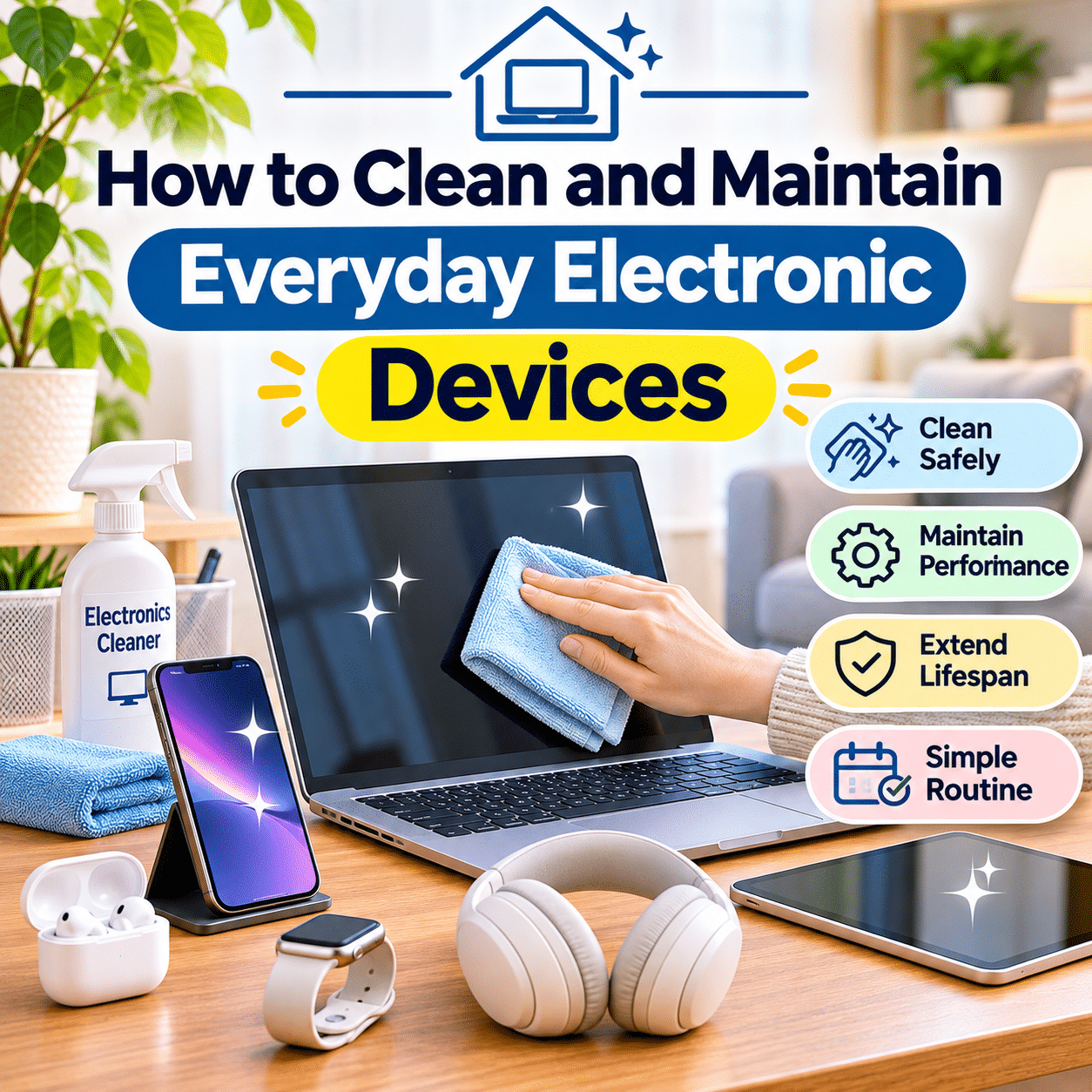
Electronic devices are an essential part of modern everyday life. Smartphones, laptops, tablets, televisions, headphones, keyboards, smartwatches, and countless other gadgets help us work, communicate, learn, and relax. Because these devices are used so frequently, they naturally collect dust, fingerprints, skin oils, and other everyday contaminants.
Over time, accumulated dirt can affect the appearance, comfort, and sometimes the performance of electronic equipment. Dust may obstruct ventilation openings, debris can interfere with charging connections, and neglected accessories can become uncomfortable or unhygienic to use.
Fortunately, keeping electronics clean does not require complicated procedures or expensive equipment. Most everyday devices benefit from gentle cleaning, appropriate materials, careful handling, and a consistent maintenance routine.
However, electronic equipment requires different care from ordinary household surfaces. Excess moisture, unsuitable cleaning chemicals, abrasive materials, and improper handling can damage screens, connectors, protective coatings, and internal components.
Understanding how to clean each device safely is therefore just as important as cleaning it regularly.
This guide explains how to clean and maintain everyday electronic devices, including smartphones, computers, tablets, televisions, headphones, charging accessories, smart home equipment, and other frequently used electronics.
It also covers safe cleaning supplies, common mistakes, preventive maintenance, storage practices, troubleshooting, and practical routines that help keep devices in good condition.
The goal is simple: make electronic device care an easy part of everyday living while protecting the equipment you depend on.
1. Why Regular Electronic Device Cleaning Matters
Electronic devices are frequently touched, carried, placed on furniture, and exposed to ordinary household environments.
As a result, they gradually accumulate:
- Dust and airborne particles.
- Fingerprints.
- Skin oils.
- Fabric fibers.
- Crumbs and food residue.
- Pet hair.
- Cosmetic residue.
- Moisture from everyday handling.
- Dirt transferred from bags and pockets.
Regular cleaning helps maintain a comfortable and pleasant user experience.
It can also make certain problems easier to identify, such as blocked ventilation openings, damaged charging cables, or debris around connectors.
Cleaning does not guarantee that a device will last longer, but appropriate maintenance can help prevent avoidable problems associated with dirt, overheating, and physical wear.
2. Understand the Difference Between Cleaning and Maintenance
Cleaning and maintenance are related activities, but they serve different purposes.
Cleaning focuses on removing dirt, dust, fingerprints, and other unwanted material from device surfaces.
Maintenance includes broader actions that help equipment remain functional and dependable.
These may involve:
- Installing software updates.
- Checking battery condition.
- Inspecting cables.
- Managing storage space.
- Maintaining ventilation.
- Reviewing security settings.
- Checking accessories for damage.
- Storing equipment appropriately.
| Activity | Main Purpose | Example |
|---|---|---|
| Surface cleaning | Remove visible dirt | Wiping a smartphone screen |
| Detailed cleaning | Address accessible buildup | Removing debris from keyboard gaps |
| Physical inspection | Identify wear or damage | Checking a charging cable |
| Software maintenance | Support performance and security | Installing operating system updates |
| Preventive care | Reduce avoidable problems | Keeping laptop vents unobstructed |
| Storage maintenance | Protect unused equipment | Storing electronics in a dry location |
A practical care routine combines these activities rather than focusing only on appearance.
3. Read Manufacturer Cleaning Instructions First
Different electronic devices have different materials, coatings, seals, and internal designs.
A cleaning method that is suitable for one product may damage another.
For example, some manufacturers permit carefully controlled use of certain disinfecting wipes on specific exterior surfaces.
Other products require only a dry or slightly damp cloth.
Before cleaning, review the manufacturer’s guidance for:
- Approved cleaning materials.
- Suitable liquids.
- Screen coating precautions.
- Water resistance limitations.
- Removable components.
- Ventilation openings.
- Charging ports.
- Disinfection recommendations.
Manufacturer instructions should take priority over general cleaning advice.
This is particularly important for expensive equipment, specialty displays, and devices with delicate finishes.
4. Prepare a Safe Electronics Cleaning Area
A clean workspace makes device maintenance easier.
Choose a stable surface with adequate lighting.
Remove drinks, food, and unnecessary objects from the area.
A suitable cleaning space should be:
- Dry.
- Well-lit.
- Free from loose liquids.
- Large enough for the device.
- Protected from excessive heat.
- Away from children and pets when small parts are involved.
For small electronics, a clean desk or table is usually sufficient.
Place a soft, clean cloth beneath delicate devices when appropriate.
Avoid cleaning electronics over sinks or other locations where accidental water exposure is more likely.
5. Gather Suitable Electronics Cleaning Supplies
Most routine electronics cleaning requires only a few basic materials.
Useful supplies may include:
- Clean microfiber cloths.
- Soft, lint-free cloths.
- A soft-bristled brush suitable for electronics.
- Manufacturer-approved screen-cleaning products.
- Cotton swabs where appropriate.
- A small container for removable accessories.
- Suitable cleaning wipes when explicitly permitted.
- A dry cloth for final inspection.
Use separate cloths for different tasks when practical.
For example, a cloth used to clean a dusty computer case should not immediately be used on a delicate display.
Avoid dirty or gritty cloths, which may scratch sensitive surfaces.
6. Know Which Cleaning Products to Avoid
Some ordinary household cleaners are unsuitable for electronics.
Depending on the device, potentially damaging materials include:
- Abrasive cleaning powders.
- Rough sponges.
- Scouring pads.
- Strong solvents.
- Ammonia-based cleaners.
- Bleach-containing products.
- Highly concentrated alcohol solutions.
- Unapproved glass cleaners.
- Excessively wet wipes.
These products may damage protective coatings, plastics, adhesives, or other components.
Never assume a product is safe simply because it is labeled as a general-purpose cleaner.
Use cleaning materials specifically approved for the device or recommended by its manufacturer.
7. Power Off Devices Before Cleaning
Turning off electronics before cleaning is an important precaution.
Whenever appropriate:
- Save your work.
- Shut down the device.
- Disconnect charging cables.
- Unplug external power supplies.
- Remove detachable accessories when recommended.
- Allow hot surfaces to cool.
- Begin cleaning only after the device is ready.
For equipment connected to household electricity, follow the manufacturer’s shutdown and disconnection instructions.
Some devices have internal batteries or components that remain energized even when powered off.
Do not open electrical enclosures or attempt internal cleaning unless the procedure is specifically supported and you have the necessary expertise.
8. Use Microfiber Cloths Correctly
Microfiber cloths are useful for cleaning many electronic surfaces because they can remove fingerprints and light dust without requiring aggressive scrubbing.
For routine cleaning:
- Choose a clean, soft microfiber cloth.
- Remove loose particles gently.
- Wipe the surface with light pressure.
- Use a fresh section of cloth when necessary.
- Inspect the surface for remaining residue.
If moisture is permitted, lightly dampen the cloth rather than applying liquid directly to the device.
The cloth should not be dripping.
Avoid pressing hard on displays or repeatedly rubbing a single area with excessive force.
9. Understand When Moisture Is Appropriate
Some electronic surfaces can be cleaned with a slightly damp cloth.
Others require dry cleaning.
The correct method depends on the device.
When the manufacturer permits moisture:
- Use only the recommended liquid.
- Apply it to the cloth rather than directly to the device.
- Keep moisture away from openings.
- Avoid saturating the cloth.
- Remove remaining surface moisture as instructed.
- Allow the device to dry appropriately before reconnecting power.
Do not assume water resistance means a device is safe to wash.
Water-resistant products have specific limitations, and resistance may decline with age, damage, or wear.
10. How to Clean a Smartphone Screen
Smartphone screens collect fingerprints and skin oils throughout the day.
A gentle cleaning routine can help maintain visibility and comfort.
Step-by-step cleaning
- Turn off the phone.
- Disconnect charging accessories.
- Remove the case if appropriate.
- Use a clean microfiber cloth.
- Wipe the screen gently.
- Address stubborn marks using only manufacturer-approved methods.
- Inspect the display under good lighting.
- Allow any permitted moisture to dry before use.
Avoid excessive pressure.
Do not spray cleaning solutions directly onto the screen.
Be especially careful around speakers, microphones, charging ports, and damaged screen edges.
11. Clean Smartphone Cases Separately
Phone cases often collect dirt around their edges, buttons, and interior surfaces.
Cleaning methods depend on the material.
Common case materials include:
- Silicone.
- Thermoplastic polyurethane.
- Hard plastic.
- Leather.
- Fabric.
- Composite materials.
A removable silicone or plastic case may tolerate cleaning methods that would be inappropriate for the phone itself.
However, not every case is washable.
Check the case manufacturer’s instructions.
Allow the case to dry completely before reinstalling it.
Trapped moisture between a case and phone can create unnecessary problems.
12. Maintain Smartphone Charging Ports Carefully
Charging ports may collect pocket lint, dust, and other debris.
This can sometimes interfere with charging connections.
However, charging ports contain delicate contacts and internal components.
Do not insert metal tools, sharp objects, or liquids into a charging port.
Avoid aggressive scraping.
If the manufacturer provides an approved cleaning procedure, follow it carefully.
Otherwise, inspect the port visually and seek professional assistance when debris cannot be removed safely.
If a charging connector does not fit properly, do not force it.
Repeatedly forcing a connector can damage the port.
13. Clean Smartphone Speakers and Microphone Openings
Small speaker and microphone openings can accumulate dust.
These areas require gentle handling.
For accessible exterior surfaces:
- Use a soft, dry cloth.
- Avoid applying liquid into openings.
- Do not insert sharp tools.
- Avoid aggressive brushing.
- Follow manufacturer guidance for approved cleaning methods.
Do not assume that compressed air is safe for every device.
Strong airflow may push debris deeper or damage delicate components.
If sound quality remains poor after appropriate exterior cleaning, the problem may require professional inspection.
14. How to Clean a Tablet Safely
Tablets generally require similar care to smartphones.
However, their larger displays may collect more visible fingerprints.
A practical cleaning process includes:
- Power off the tablet.
- Disconnect accessories.
- Remove the protective case when appropriate.
- Wipe the display with a clean microfiber cloth.
- Clean accessible exterior surfaces.
- Inspect charging and accessory connections.
- Reinstall accessories after everything is dry.
Avoid placing pressure on the center of a large display.
For tablets with keyboard covers or stylus accessories, clean those components according to their separate instructions.
15. How to Clean a Laptop Screen
Laptop displays may have delicate coatings and surface finishes.
Use gentle cleaning methods.
Recommended general process
- Shut down the laptop.
- Disconnect the charger.
- Allow the display to cool.
- Remove loose dust with a clean, soft cloth.
- Wipe gently without excessive pressure.
- Use only approved moisture or cleaning products when necessary.
- Allow the surface to dry before closing the laptop.
Avoid pressing on the screen with your fingers.
Do not close the laptop while moisture remains on the display or keyboard.
Never spray cleaning liquid directly onto the screen.
16. Clean Laptop Keyboards Carefully
Laptop keyboards collect dust, crumbs, and skin oils.
Because keyboard components sit close to internal electronics, cleaning requires care.
Begin by shutting down the laptop and disconnecting power.
Then:
- Wipe key surfaces with a suitable cloth.
- Remove loose debris using manufacturer-approved methods.
- Clean around keys gently.
- Avoid excessive moisture.
- Do not pull off keycaps unless the manufacturer provides a supported procedure.
Some laptop keyboards have delicate key mechanisms that can be damaged during removal.
If liquid has entered the keyboard, ordinary surface cleaning may not be sufficient.
Follow the manufacturer’s spill-response guidance and seek qualified assistance when necessary.
17. Maintain Laptop Ventilation Openings
Laptops rely on ventilation to manage internal temperatures.
Dust accumulation can restrict airflow.
To support proper cooling:
- Keep ventilation openings unobstructed.
- Avoid using laptops on soft bedding that blocks vents.
- Use stable surfaces.
- Inspect accessible vents periodically.
- Follow manufacturer-approved exterior cleaning procedures.
- Avoid placing the laptop near excessive heat.
Do not insert cleaning tools deeply into ventilation openings.
Compressed air and vacuum cleaners can be unsuitable for certain designs.
If a laptop overheats repeatedly, becomes unusually noisy, or shuts down unexpectedly, professional maintenance may be appropriate.
18. Clean Desktop Computer Exteriors
Desktop computers can collect dust around cases, ports, and ventilation openings.
Routine exterior cleaning is relatively straightforward.
- Shut down the computer.
- Disconnect external power as instructed.
- Allow components to cool.
- Wipe the case exterior.
- Clean accessible surfaces gently.
- Check ventilation openings.
- Inspect external cables.
Internal computer cleaning requires additional precautions.
Components may be sensitive to static electricity, physical contact, and inappropriate cleaning methods.
If you are unfamiliar with computer hardware, professional servicing is safer than opening the case without guidance.
19. Understand Safe Internal Computer Maintenance
Internal dust buildup can affect cooling performance.
However, opening a computer introduces risks.
Before attempting internal maintenance, consider:
- Manufacturer warranty conditions.
- Electrical safety.
- Electrostatic discharge precautions.
- Fan and connector sensitivity.
- Proper cleaning equipment.
- Whether the device is designed for user servicing.
Never open a power supply enclosure.
Some internal electrical components can retain hazardous energy after disconnection.
For sealed computers, compact devices, or equipment with complex cooling systems, seek qualified service rather than attempting unsupported disassembly.
20. How to Clean an External Keyboard
External keyboards are often easier to clean than built-in laptop keyboards.
Begin by disconnecting the keyboard or turning it off.
For routine care:
- Wipe key surfaces.
- Remove loose debris using approved methods.
- Clean accessible edges.
- Inspect the cable or battery compartment.
- Allow any permitted moisture to dry before reconnecting.
Some mechanical keyboards support removable keycaps.
However, keycap removal should only be performed when supported by the keyboard design and manufacturer.
Avoid soaking assembled keyboards unless they are specifically designed for that treatment.
21. How to Clean a Computer Mouse
Computer mice accumulate oils and dust around buttons, scroll wheels, and contact surfaces.
A simple cleaning process includes:
- Disconnect or power off the mouse.
- Wipe the exterior gently.
- Clean around buttons with a suitable soft tool.
- Remove visible dirt from the scroll wheel area.
- Inspect the optical sensor opening without touching internal components.
- Clean the underside and glide surfaces appropriately.
Avoid introducing liquid into the scroll wheel or button gaps.
For wireless mice, check battery condition and charging contacts as part of routine maintenance.
22. Clean Monitors and Computer Displays
External monitors may have coatings that differ from smartphone or laptop screens.
Always follow the display manufacturer’s instructions.
For general care:
- Turn off the monitor.
- Disconnect power when instructed.
- Allow the screen to cool.
- Remove loose dust gently.
- Use a clean microfiber cloth.
- Avoid excessive pressure.
- Use only approved cleaning solutions.
Do not apply ordinary window cleaner unless the manufacturer specifically permits it.
Keep moisture away from screen edges, controls, and ventilation openings.
23. How to Clean a Television Screen
Television screens can be large, delicate, and expensive to replace.
Modern displays may use specialized anti-reflective or other protective coatings.
For routine cleaning:
- Turn off the television.
- Allow the screen to cool.
- Use a clean, soft microfiber cloth.
- Wipe gently.
- Follow manufacturer guidance for stubborn marks.
- Avoid direct liquid application.
- Inspect the screen before turning it back on.
Do not use paper towels or abrasive cloths.
Avoid pressing hard on the display.
Different television technologies may have different cleaning requirements, so manufacturer instructions remain essential.
24. Clean Television Remotes and Game Controllers
Remote controls and game controllers are frequently handled.
They can collect skin oils, crumbs, and dust around buttons.
For safe routine cleaning:
- Turn off the device when possible.
- Remove batteries if recommended.
- Wipe exterior surfaces.
- Clean around buttons gently.
- Avoid excess moisture.
- Inspect battery compartments.
- Allow surfaces to dry before use.
Do not allow cleaning liquid to enter buttons, seams, or charging ports.
For controllers with rechargeable batteries, follow the manufacturer’s cleaning instructions.
25. How to Clean Wireless Earbuds
Wireless earbuds require careful cleaning because they contact the ears and contain small acoustic openings.
Common buildup includes:
- Earwax.
- Skin oils.
- Dust.
- Fabric fibers.
- Moisture residue.
Begin by checking the manufacturer’s instructions.
General precautions include:
- Disconnect the earbuds from power.
- Remove detachable ear tips if supported.
- Clean the exterior gently.
- Clean ear tips according to their material and manufacturer guidance.
- Avoid pushing debris into speaker openings.
- Keep liquids away from electronic components.
- Allow cleaned removable parts to dry completely.
Do not insert sharp tools into acoustic meshes.
Improper cleaning can damage sound-producing components.
26. Clean Earbud Charging Cases
Charging cases collect lint and dirt from pockets, bags, and surfaces.
Debris can interfere with charging contacts.
For routine care:
- Disconnect the case from charging power.
- Wipe the exterior.
- Inspect the interior.
- Remove loose debris using approved methods.
- Avoid liquids around charging contacts.
- Check that earbuds seat correctly.
Do not scrape contacts with metal objects.
If charging remains unreliable after safe cleaning, the case or earbuds may require further inspection.
27. How to Clean Over-Ear and On-Ear Headphones
Headphones often collect skin oils and moisture on ear cushions and headbands.
Cleaning methods depend on the materials.
Common materials include:
- Synthetic leather.
- Fabric.
- Foam.
- Silicone.
- Plastic.
- Metal.
For routine maintenance:
- Disconnect or power off the headphones.
- Wipe exterior surfaces.
- Clean cushions according to manufacturer instructions.
- Remove detachable pads only when supported.
- Avoid saturating foam or electronic components.
- Allow cleaned parts to dry before use.
Some replacement ear cushions are available for supported models.
Replacing worn cushions may improve comfort without requiring a new headset.
28. Maintain Smartwatches and Fitness Trackers
Wearable electronics are exposed to skin oils, sweat, and moisture during normal use.
Regular cleaning can help maintain comfort.
Before cleaning:
- Remove the device from your wrist.
- Disconnect charging accessories.
- Check the manufacturer’s cleaning guidance.
- Identify the strap material.
Silicone, leather, fabric, and metal bands may require different cleaning methods.
Clean removable bands separately when appropriate.
Allow the device and strap to dry before wearing them again.
Do not assume water resistance makes a smartwatch suitable for unrestricted exposure to cleaning liquids.
29. Clean Smartwatch Charging Contacts
Some wearable devices use magnetic or contact-based charging systems.
Residue on charging surfaces can interfere with reliable charging.
To maintain these areas:
- Disconnect charging power.
- Inspect contacts visually.
- Use manufacturer-approved cleaning methods.
- Avoid abrasive materials.
- Keep contacts dry before charging.
- Check for corrosion or visible damage.
Do not scrape contacts with sharp metal tools.
If charging remains inconsistent, verify cable compatibility and contact alignment before assuming the device is defective.
30. How to Clean Charging Cables and Adapters
Charging accessories can accumulate dust and oils from frequent handling.
They also experience repeated bending and movement.
For routine care:
- Disconnect the cable and adapter from power.
- Inspect for fraying or damage.
- Wipe exterior surfaces with a suitable dry cloth.
- Follow manufacturer guidance for any additional cleaning.
- Avoid moisture around connectors.
- Allow accessories to dry fully before reconnecting.
Do not use damaged cables or chargers.
Signs such as exposed conductors, melted plastic, unusual discoloration, or overheating require immediate attention.
Replace unsafe accessories rather than attempting improvised repairs.
31. Clean Smart Speakers and Smart Displays
Smart speakers and displays may collect dust on fabric coverings, screens, and exterior housings.
For routine cleaning:
- Disconnect power when appropriate.
- Wipe solid exterior surfaces gently.
- Use suitable dry cleaning methods for fabric areas.
- Avoid introducing moisture into speaker openings.
- Clean displays according to manufacturer guidance.
- Keep microphones and ventilation openings unobstructed.
Do not use excessive pressure on fabric grilles.
Avoid inserting tools into microphone or speaker openings.
After cleaning, confirm that the device remains stable and properly positioned.
32. Maintain Smart Home Sensors and Cameras
Smart home sensors and cameras may be installed in locations where dust accumulates.
Examples include:
- Entryways.
- Shelves.
- Hallways.
- Window frames.
- Outdoor covered areas.
For routine maintenance:
- Wipe accessible exterior surfaces.
- Keep camera lenses clean using approved methods.
- Inspect mounting stability.
- Check battery levels.
- Confirm sensors remain aligned.
- Review firmware updates.
- Test device operation.
For outdoor equipment, follow the manufacturer’s environmental protection and cleaning instructions.
Avoid spraying water directly onto devices unless the product explicitly supports that method.
33. Clean Wi-Fi Routers and Networking Equipment
Routers, modems, and network switches often operate continuously.
Dust can accumulate around ventilation openings and external surfaces.
To maintain networking equipment:
- Keep devices in well-ventilated locations.
- Avoid stacking equipment tightly.
- Remove visible exterior dust gently.
- Keep liquids away.
- Inspect cables for damage.
- Check for unusual heat.
- Follow manufacturer cleaning instructions.
If cleaning requires disconnecting power, plan for the temporary interruption of internet and connected services.
Do not open networking equipment unless user servicing is explicitly supported.
34. Clean Portable Speakers and Small Gadgets
Portable speakers, handheld gaming devices, cameras, and similar electronics benefit from gentle exterior cleaning.
The appropriate method depends on construction and environmental ratings.
General precautions include:
- Power off before cleaning.
- Disconnect charging cables.
- Remove surface dust.
- Use suitable soft cloths.
- Avoid forcing debris into openings.
- Check charging ports.
- Inspect seals and covers.
- Allow permitted moisture to dry.
Some portable speakers are water-resistant, but that does not automatically mean they should be washed with soap or exposed to cleaning chemicals.
Follow the specific product instructions.
35. Understand Electronic Device Disinfection
Cleaning and disinfection are not the same.
Cleaning removes dirt and other material from surfaces.
Disinfection uses suitable products or processes to reduce certain microorganisms.
Not every electronic device requires routine chemical disinfection.
When disinfection is appropriate:
- Follow the device manufacturer’s instructions.
- Use only approved products.
- Respect product contact-time requirements.
- Avoid excess moisture.
- Keep liquids away from openings.
- Follow the disinfectant’s safety directions.
Do not mix cleaning chemicals.
Avoid applying disinfectants to electronic surfaces when compatibility is uncertain.
36. Protect Electronic Devices From Dust
Dust is a common household concern, particularly in rooms with open windows, fabric furnishings, or frequent activity.
To reduce accumulation:
- Clean surrounding surfaces regularly.
- Keep electronics away from unnecessary floor-level dust exposure.
- Maintain suitable room ventilation.
- Avoid blocking device cooling vents.
- Store unused accessories in closed containers.
- Use manufacturer-approved protective covers when devices are not operating.
Do not cover powered equipment in ways that restrict airflow.
Dust prevention should never create an overheating risk.
37. Protect Electronics From Moisture and Humidity
Moisture can damage electronic components and connectors.
Potential sources include:
- Spilled drinks.
- Condensation.
- Humid bathrooms.
- Wet countertops.
- Damp storage areas.
- Rain exposure.
- Excessive cleaning liquid.
Keep ordinary electronics away from water unless they are specifically designed for the environment.
For storage, choose dry, stable locations.
Avoid placing devices near open windows where rain may enter.
If a device becomes wet, follow the manufacturer’s emergency guidance.
Do not assume that drying the exterior makes internal components safe to power on.
38. Understand What to Do After a Liquid Spill
Liquid spills require a different response from routine cleaning.
If liquid reaches an electronic device:
- Stop using it immediately.
- Disconnect external power if safe.
- Power it off when appropriate and safe.
- Avoid pressing unnecessary buttons.
- Do not connect a charger.
- Follow manufacturer spill-response instructions.
- Seek qualified service when internal liquid exposure is possible.
Do not use excessive heat to dry electronics.
Avoid placing devices in ovens, near heaters, or under direct high-temperature airflow.
Rice is not a reliable repair method for liquid-damaged electronics.
If the device contains a damaged or overheating battery, avoid handling it unnecessarily and seek appropriate professional assistance.
39. Maintain Electronic Devices Through Software Care
Physical cleaning is only one part of electronic maintenance.
Software also influences device security, reliability, and everyday performance.
Useful maintenance activities include:
- Installing operating system updates.
- Updating important applications.
- Reviewing available storage.
- Removing unused software.
- Checking security settings.
- Backing up important files.
- Reviewing account access.
- Monitoring unusual device behavior.
Software updates can address security vulnerabilities and compatibility issues.
Use official update mechanisms whenever possible.
Avoid installing unfamiliar maintenance utilities that promise unrealistic performance improvements.
40. Build a Practical Electronic Device Maintenance Schedule
A simple maintenance schedule can make device care easier to remember.
| Frequency | Suggested Tasks |
|---|---|
| Daily or as needed | Remove visible fingerprints and spills using approved methods |
| Weekly | Wipe frequently handled devices and check common accessories |
| Monthly | Inspect cables, clean accessible dust, review software updates |
| Every few months | Reassess storage, ventilation, backups, and device condition |
| When problems appear | Investigate unusual heat, charging issues, or performance changes |
The ideal frequency depends on usage, environment, and manufacturer guidance.
A shared keyboard may need cleaning more often than a rarely used tablet.
Avoid unnecessary disassembly or aggressive cleaning simply to follow a schedule.
Step-by-Step Guide: Clean and Maintain Everyday Electronics Safely
This practical process can be adapted to many household electronic devices.
Step 1: Identify the device
Determine what you are cleaning and whether it has special materials, coatings, or environmental limitations.
Step 2: Review manufacturer instructions
Check approved cleaning methods and prohibited products.
Step 3: Prepare the workspace
Choose a dry, stable, well-lit surface.
Remove drinks and unnecessary objects.
Step 4: Gather appropriate supplies
Prepare clean microfiber cloths and any manufacturer-approved cleaning accessories.
Step 5: Save important work
For computers and other active devices, save files and close applications.
Step 6: Power off safely
Shut down and disconnect external power as instructed.
Step 7: Remove detachable accessories
Take off cases, straps, or other components when appropriate.
Step 8: Inspect for damage
Look for cracks, frayed cables, loose connectors, or signs of overheating.
Step 9: Remove loose surface dust
Use gentle, approved methods.
Avoid forcing particles into openings.
Step 10: Clean exterior surfaces
Wipe gently with a suitable cloth.
Step 11: Address stubborn marks
Use only approved cleaning products and methods.
Step 12: Clean removable accessories
Follow the material-specific instructions for cases, straps, or other detachable parts.
Step 13: Inspect ports and openings
Check for visible debris without inserting unsuitable tools.
Step 14: Allow permitted moisture to dry
Do not reconnect power while moisture remains where it could create a hazard.
Step 15: Reassemble the device
Reattach clean, dry accessories.
Step 16: Check charging equipment
Inspect cables, adapters, and connectors for damage.
Step 17: Restart and test
Confirm the device operates normally.
Step 18: Review software updates
Install appropriate updates through official channels.
Step 19: Check storage and backups
Confirm important data is protected and unnecessary files are managed.
Step 20: Return the device to a suitable location
Keep it away from excessive moisture, heat, and obstructed ventilation.
Practical Electronic Device Cleaning Checklist
Use this checklist to organize routine care for household electronics.
Before Cleaning
- Identify the device and its materials.
- Read manufacturer cleaning instructions.
- Prepare a clean, dry workspace.
- Gather suitable cleaning supplies.
- Save important work.
- Power off the device when appropriate.
- Disconnect external power safely.
Screens and Exterior Surfaces
- Use a clean microfiber cloth.
- Remove loose dust gently.
- Avoid excessive pressure.
- Use only approved cleaning liquids.
- Never spray liquid directly into openings.
- Check for remaining moisture.
Keyboards and Accessories
- Remove accessible debris using approved methods.
- Clean frequently touched surfaces.
- Inspect buttons and connectors.
- Clean removable accessories separately.
- Allow cleaned parts to dry.
- Avoid unsupported disassembly.
Charging Equipment
- Inspect cables for fraying.
- Check adapters for damage.
- Keep charging contacts clean and dry.
- Avoid forcing connectors.
- Replace unsafe accessories.
- Maintain adequate ventilation during charging.
Device Maintenance
- Check software updates.
- Review available storage.
- Back up important files.
- Inspect ventilation openings.
- Review battery condition where supported.
- Check device security settings.
- Investigate unusual performance changes.
Storage and Prevention
- Keep electronics away from moisture.
- Avoid excessive heat.
- Store accessories neatly.
- Keep vents unobstructed.
- Protect devices from unnecessary dust.
- Maintain a realistic cleaning schedule.
Common Electronic Device Cleaning Problems and Solutions
| Problem | Possible Cause | Recommended Approach |
|---|---|---|
| Fingerprints remain on screen | Oils or dirty cleaning cloth | Use a fresh microfiber cloth and approved method |
| Screen appears streaky | Excess moisture or unsuitable cleaner | Follow manufacturer guidance and use minimal permitted moisture |
| Keyboard feels dirty | Dust, crumbs, or skin oils | Clean accessible surfaces with approved tools |
| Charging becomes unreliable | Cable damage, debris, or connector wear | Inspect accessories and seek service when necessary |
| Laptop runs unusually hot | Blocked airflow or internal issue | Check ventilation and investigate persistent overheating |
| Earbuds sound muffled | Debris, moisture, or component problem | Follow approved cleaning instructions |
| Mouse movement is inconsistent | Dirty sensor area or unsuitable surface | Inspect exterior sensor area and test on a suitable surface |
| Device smells hot or unusual | Possible electrical or battery problem | Stop use and seek qualified assistance |
| Device was exposed to liquid | Moisture intrusion | Disconnect safely and follow manufacturer emergency guidance |
Do not continue using equipment that shows signs of serious electrical damage, swelling batteries, smoke, or unusual overheating.
Frequently Asked Questions About Cleaning and Maintaining Electronic Devices
1. How often should I clean my electronic devices?
Cleaning frequency depends on how often the device is used and the surrounding environment.
Frequently handled devices may benefit from gentle cleaning every few days or weekly.
Less frequently used equipment may only require occasional dust removal.
Follow manufacturer recommendations.
2. What is the safest cloth for cleaning electronic screens?
A clean, soft microfiber cloth is commonly recommended for many displays.
However, specific screen coatings may require particular cleaning materials.
Always check the manufacturer’s instructions.
3. Can I use water to clean electronic devices?
Some devices permit a slightly damp cloth on selected exterior surfaces.
Others require dry cleaning.
Never apply water directly to openings, ports, or internal components.
4. Can I use alcohol wipes on my smartphone?
Some manufacturers permit certain alcohol-based wipes on specific exterior surfaces.
Others restrict their use.
Check the exact device’s cleaning guidance before applying any disinfectant.
5. Is ordinary glass cleaner safe for television screens?
Not necessarily.
Many modern television screens have coatings that may be damaged by unsuitable cleaners.
Use only the methods and products approved by the television manufacturer.
6. Can I use compressed air to clean my laptop?
Only when the manufacturer recommends an appropriate procedure.
Strong airflow can damage certain components or push debris into inaccessible areas.
For internal cleaning, professional service may be safer.
7. How do I clean dust from a charging port?
Follow the manufacturer’s approved instructions.
Avoid sharp objects, metal tools, liquids, and aggressive scraping.
If debris cannot be removed safely, seek professional assistance.
8. Can I wash wireless earbuds with water?
Do not assume earbuds are washable.
Even water-resistant models have specific exposure limitations.
Clean removable components only according to manufacturer guidance.
9. How should I clean a smartwatch band?
The method depends on the material.
Silicone, leather, fabric, and metal bands may require different cleaning procedures.
Remove the band when supported and allow it to dry completely before use.
10. Why does my laptop overheat even after cleaning?
Overheating may result from blocked ventilation, demanding software, cooling system problems, environmental heat, or internal component issues.
If the problem persists, qualified technical inspection may be necessary.
11. Can cleaning improve electronic device performance?
Cleaning may help when dust, debris, or blocked ventilation contributes to a problem.
However, it cannot resolve every performance issue.
Software, battery condition, hardware limitations, and component faults may also affect performance.
12. Should I remove laptop keyboard keys for cleaning?
Only if the keyboard is designed for user removal and the manufacturer provides instructions.
Many laptop key mechanisms are delicate and can be damaged during removal.
13. What should I do if liquid spills on my electronics?
Stop using the device, disconnect power when safe, and follow the manufacturer’s emergency instructions.
Do not recharge a device that may contain internal moisture.
Seek professional assistance when appropriate.
14. How can I prevent electronics from collecting dust?
Keep surrounding surfaces clean, store unused accessories appropriately, and avoid placing devices in unnecessarily dusty locations.
Do not cover operating equipment in ways that block ventilation.
15. What is the most important electronic device maintenance habit?
Regularly inspect and care for your devices using manufacturer-approved methods.
Combine gentle cleaning with software updates, safe charging practices, appropriate storage, and prompt attention to signs of damage.
Final Thoughts
Cleaning and maintaining everyday electronic devices is a practical habit that supports a more organized, comfortable, and dependable home.
From smartphones and laptops to headphones, televisions, and smart home accessories, most electronics benefit from regular gentle cleaning and thoughtful handling.
The most important principle is to use methods appropriate for each device. Clean microfiber cloths, suitable cleaning products, careful moisture control, and manufacturer guidance are more valuable than aggressive cleaning techniques.
Routine maintenance should also extend beyond appearance.
Inspect charging cables, maintain ventilation, install important software updates, protect personal data, and store equipment in suitable environments.
When problems involve internal components, electrical damage, liquid exposure, or unusual overheating, professional assistance is often safer than attempting complicated repairs.
A simple cleaning schedule can prevent everyday dirt from becoming difficult to manage while making it easier to identify wear and potential problems early.
With consistent care, electronic devices can remain pleasant to use, easier to maintain, and better protected against avoidable damage.
The best way to care for everyday electronics is through gentle cleaning, safe handling, and small maintenance habits practiced consistently over time.