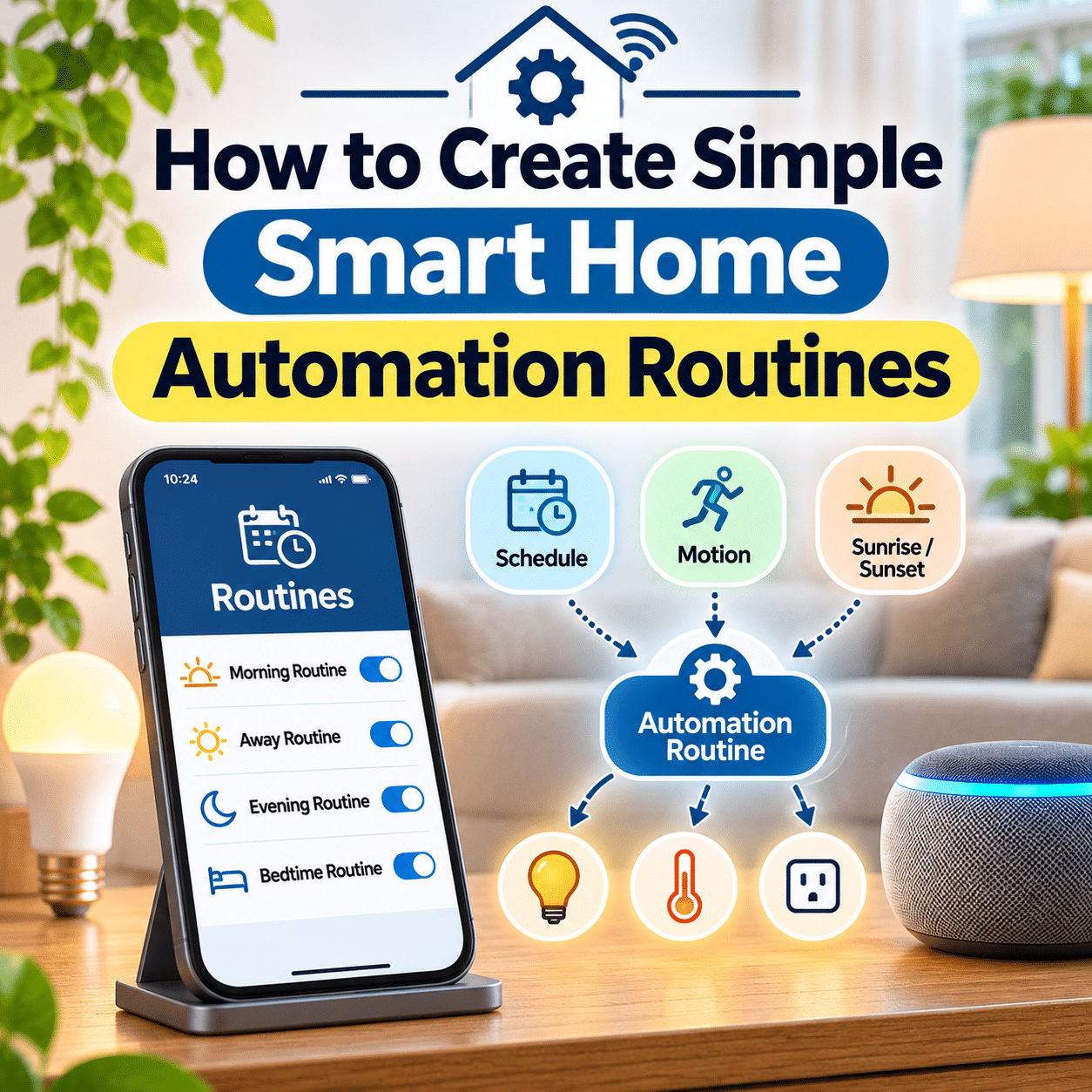
Smart home automation can make everyday life more convenient by allowing connected devices to perform useful tasks automatically. Instead of manually turning lights on and off, adjusting the temperature, or checking whether certain devices are running, you can create routines that respond to schedules, sensors, and everyday household activities.
For beginners, home automation may sound complicated. Terms such as triggers, conditions, actions, scenes, and smart home ecosystems can make the process seem more technical than it actually needs to be.
Fortunately, many useful automations require only a few compatible devices and a simple setup process. A smart light can turn on at sunset, a hallway sensor can activate gentle nighttime lighting, or a compatible thermostat can follow a daily schedule.
The key is to begin with small, practical routines that solve real problems.
A successful smart home does not need dozens of automations. A handful of dependable routines can improve convenience, support energy-conscious habits, and create a more comfortable living environment.
This guide explains how to create simple smart home automation routines, understand the essential components, choose suitable devices, build beginner-friendly schedules, troubleshoot common problems, and expand your system gradually.
Whether you are setting up your first smart plug or organizing a growing collection of connected devices, the goal is to make your home easier to manage without introducing unnecessary complexity.
1. What Is a Smart Home Automation Routine?
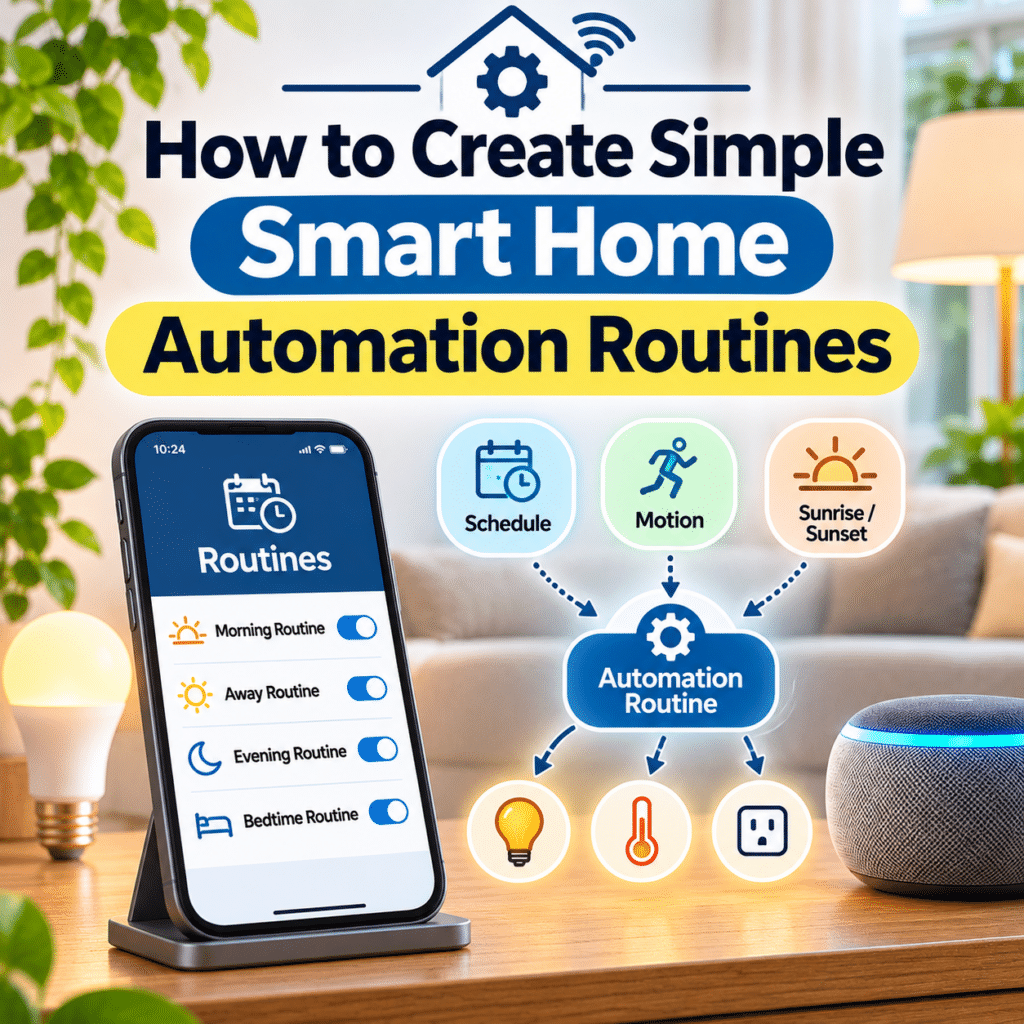
A smart home automation routine is a set of instructions that tells compatible connected devices to perform actions when specific events or conditions occur.
For example, a routine might automatically turn on a living room lamp every evening.
Another routine could dim bedroom lights at a scheduled time.
More advanced routines may respond to motion, temperature, door sensors, or supported presence detection.
A basic automation typically follows this structure:
Trigger → Optional Condition → Action
For example:
- Trigger: Sunset occurs.
- Condition: The automation is enabled.
- Action: Turn on the living room lamp.
This simple structure forms the foundation of many smart home automations.
Once you understand it, creating additional routines becomes much easier.
2. Understand the Difference Between Smart Controls and Automation
Smart controls allow you to operate connected devices manually.
Automation allows devices to perform actions based on predefined rules.
For example, using a smartphone to turn on a smart bulb is a form of smart control.
Scheduling that bulb to turn on automatically every evening is automation.
| Smart Control | Smart Automation |
|---|---|
| Turn on a lamp through an app | Lamp turns on at sunset |
| Adjust brightness manually | Brightness changes at bedtime |
| Turn off a smart plug remotely | Plug switches off on a schedule |
| Check a motion sensor | Motion activates hallway lighting |
| Adjust a thermostat through an app | Temperature follows a daily schedule |
Both functions are useful.
Manual control provides flexibility, while automation reduces repetitive tasks.
A well-designed smart home should support both.
3. Learn the Three Main Parts of an Automation
Most beginner-friendly automations involve triggers, conditions, and actions.
Triggers
A trigger is the event that starts an automation.
Examples include:
- A specific time.
- Sunrise or sunset.
- Motion detection.
- A door opening.
- A temperature threshold.
- A supported presence event.
- A device changing state.
Conditions
A condition determines whether an automation should proceed.
For example, a motion-activated hallway light may operate only after sunset.
Conditions prevent unnecessary or inappropriate actions.
Actions
An action is what the system does after the trigger occurs and the required conditions are satisfied.
Examples include:
- Turning on a light.
- Adjusting brightness.
- Changing a thermostat setting.
- Activating a compatible scene.
- Sending a notification.
- Turning off a selected smart plug.
Not every platform supports every trigger, condition, or action.
Always check the capabilities of your specific devices and automation system.
4. Understand Smart Home Scenes and Routines
Scenes and routines are related but serve different purposes.
A scene typically defines a collection of device settings.
A routine or automation determines when and how actions should occur.
For example, a Relaxing Evening scene might set several lights to warm, low brightness.
A routine could activate that scene automatically at a scheduled time.
| Feature | Scene | Routine |
|---|---|---|
| Main purpose | Apply predefined device settings | Perform actions based on rules |
| Typical activation | Manual or automation-triggered | Time, sensor, event, or supported condition |
| Example | Dim three lights together | Activate dim lighting at sunset |
| Complexity | Usually simple | Ranges from simple to advanced |
| Best use | Convenient grouped control | Reducing repetitive household tasks |
For beginners, learning to create scenes before combining them with automations can simplify the process.
5. Identify Everyday Tasks Worth Automating
Before creating a routine, think about activities you repeat regularly.
Useful automation opportunities often involve predictable actions.
Ask yourself:
- Do I turn on the same lights every evening?
- Do I frequently forget to switch off decorative lighting?
- Would nighttime hallway lighting be helpful?
- Do I want a more comfortable morning atmosphere?
- Could a temperature schedule reduce unnecessary heating or cooling?
- Are there nonessential devices that should follow a predictable schedule?
Write down a few routines that would genuinely improve daily life.
Avoid automating tasks simply because the technology allows it.
The best automation solves a real problem without creating new inconvenience.
6. Start With One Simple Routine
A common beginner mistake is creating too many automations at once.
This makes troubleshooting difficult because several routines may affect the same devices.
Instead, begin with one low-risk automation.
For example:
Goal: Turn on a living room lamp at 6:30 PM.
Trigger: 6:30 PM every day.
Action: Turn on the smart lamp.
This routine is easy to understand, configure, and test.
Once it works reliably, you can add a second routine to turn the lamp off at a suitable time.
Gradual expansion helps you learn how your system behaves.
7. Choose a Compatible Smart Home Platform
Automation capabilities depend on your smart home ecosystem.
Common platforms include:
- Amazon Alexa.
- Google Home.
- Apple Home.
- Samsung SmartThings.
- Compatible manufacturer-specific applications.
These platforms may offer different automation editors, supported triggers, device integrations, and controller requirements.
For example, a motion sensor may support automation through its manufacturer’s app but offer fewer options in another platform.
Before building routines, verify that the devices involved are supported by your chosen system.
Also check whether particular automations require a compatible hub, home controller, internet connection, or additional permissions.
8. Check Device Compatibility Before Creating Routines
A device may be controllable through an application without supporting every automation feature.
For example, a smart light may support on/off commands but not expose all of its color effects to another ecosystem.
A sensor may report motion in one application but not provide that event to a different automation platform.
Before creating a routine, confirm:
- The device is connected and responding.
- The automation platform recognizes it.
- The required trigger is available.
- The intended action is supported.
- Any necessary hub or controller is online.
- Required permissions are enabled.
- The device’s firmware is reasonably current.
Compatibility should be verified for the exact device model and integration.
9. Understand Local and Cloud-Based Automations
Some routines run locally through compatible home controllers.
Others depend on internet-connected services.
Local automation
A local automation may continue working when the internet connection is unavailable, provided the required local devices, network, and controller remain operational.
Potential advantages include:
- Reduced dependence on cloud services.
- Faster responses in some situations.
- Greater resilience during internet interruptions.
- More direct communication between compatible devices.
Cloud-based automation
Cloud automations may support integrations and services that are not available locally.
However, they can be affected by internet outages or service interruptions.
Many smart home systems combine local and cloud functionality.
For important routines, understand which components are required and what happens if connectivity is interrupted.
10. Create a Basic Time-Based Automation
Time-based routines are among the easiest to configure.
They use a clock or schedule as the trigger.
Example: Turn on a lamp every evening
- Open your smart home application.
- Navigate to the routines or automation section.
- Select the option to create a new routine.
- Choose a time-based trigger.
- Set the desired time.
- Select the days when the routine should run.
- Add an action to turn on the lamp.
- Save the routine.
- Test it using an appropriate temporary time if needed.
- Restore the intended schedule.
Time-based routines work well for predictable household activities.
However, they should not be used to operate equipment that is unsafe to run unattended.
11. Use Sunrise and Sunset Triggers
Sunrise and sunset triggers allow routines to adjust automatically with changing daylight hours.
For example, outdoor lighting may turn on around sunset rather than at a fixed clock time.
A routine might use:
- Trigger: Sunset.
- Action: Turn on selected outdoor lights.
Some platforms allow an offset, such as activating lights shortly before sunset.
Sunrise and sunset schedules generally depend on location information.
Confirm that your smart home platform uses the correct location and time zone.
These triggers can be especially useful for lighting because natural daylight changes throughout the year.
12. Create a Simple Morning Lighting Routine
A morning routine can help make the beginning of the day feel more comfortable.
For example:
Trigger: 7:00 AM on weekdays.
Actions:
- Turn on bedroom lighting at low brightness.
- Adjust compatible bulbs to a comfortable color temperature.
- Activate a selected living room light.
If your system supports gradual transitions, you may be able to increase brightness over several minutes.
Avoid assuming that bright lighting at a fixed time will suit everyone.
Consider different schedules for weekdays, weekends, and household members.
A useful morning routine should be easy to pause or modify.
13. Create an Evening Relaxation Routine
Evening routines can help establish a comfortable atmosphere after a busy day.
A simple routine might include:
- Dimming living room lights.
- Changing compatible bulbs to warm white.
- Turning on a decorative lamp.
- Activating a predefined relaxation scene.
For example:
Trigger: 8:00 PM.
Action: Activate the Evening Relaxation scene.
Avoid turning off lights automatically in rooms where someone may still be working, cooking, or moving around.
A routine should improve comfort without unexpectedly interrupting normal activities.
14. Build a Bedtime Lighting Routine
A bedtime routine can reduce the need to adjust multiple lights manually.
For example:
Trigger: 10:30 PM.
Actions:
- Dim bedroom lighting.
- Turn off selected decorative lights.
- Set a bedside lamp to low brightness.
You may also create a separate manual Good Night scene that turns off additional lights when you are actually ready for bed.
This approach is often more flexible than automatically switching off every light at a fixed time.
Household schedules change, and bedtime routines should accommodate those changes.
15. Use Motion Sensors for Automatic Lighting
Motion sensors can activate lights when movement is detected.
This is useful in areas where hands-free lighting improves convenience.
Examples include:
- Hallways.
- Closets.
- Laundry rooms.
- Entryways.
- Storage rooms.
A basic routine might use:
Trigger: Motion detected.
Action: Turn on the hallway light.
A second automation or supported timeout can turn the light off after a period without detected activity.
Be aware that motion sensors may not detect people who remain still.
For rooms where occupants sit quietly, longer timeouts or compatible occupancy sensors may be more appropriate.
16. Create Gentle Nighttime Hallway Lighting
Bright lighting can feel uncomfortable during nighttime movement.
A low-brightness motion routine may provide a more suitable solution.
Example configuration:
- Trigger: Hallway motion detected.
- Condition: Between 11:00 PM and 6:00 AM.
- Action: Turn on hallway lighting at low brightness.
- End behavior: Turn off after a suitable period without detected activity.
Use an appropriate brightness level for safe movement.
Do not reduce lighting so much that stairs, obstacles, or changes in floor level become difficult to see.
Safety should take priority over creating a particular lighting atmosphere.
17. Automate Closet and Storage Lighting
Closets and storage spaces are good locations for simple automation.
A motion sensor or compatible door contact sensor can activate lighting when the space is used.
For example:
Trigger: Closet door opens.
Action: Turn on closet lighting.
Second trigger: Closet door closes.
Action: Turn off the light.
This works best when the sensor reliably detects the door’s position.
Test alignment and battery condition.
For enclosed storage areas, use lighting equipment suitable for the installation environment.
18. Use Door and Window Sensors in Routines
Contact sensors detect whether a door or window is open or closed.
They can support useful automations without requiring complex equipment.
Examples include:
- Turning on entryway lighting when a door opens.
- Sending a notification when a selected door remains open.
- Adjusting compatible climate settings when a window is open.
- Activating a reminder for a storage door left open.
For example:
Trigger: Balcony door remains open for a specified period.
Action: Send a notification.
This type of routine can be helpful without automatically controlling safety-critical equipment.
Check whether your platform supports duration-based triggers.
19. Create Simple Entryway Lighting Routines
Entryway automation can make arriving home more convenient.
A routine might activate a light when a compatible door sensor detects that the door has opened.
However, opening a door does not necessarily mean someone is arriving.
A person may be leaving instead.
For a more refined setup, a supported presence condition or additional sensor may help distinguish situations.
For beginners, a simple low-risk entryway light is often sufficient.
Avoid using uncertain presence detection as the sole basis for unlocking exterior doors or changing security settings.
20. Understand Presence-Based Automations
Presence-based routines respond to whether a person or device is detected as being home or away.
Some systems use smartphone location, connected device status, or compatible occupancy technology.
Potential applications include:
- Adjusting selected lighting.
- Changing supported thermostat settings.
- Sending reminders.
- Activating nonessential household scenes.
However, presence detection is not always perfectly reliable.
Phones may lose connectivity, location permissions may change, and household members may arrive or leave at different times.
Test presence-based routines carefully.
Avoid allowing uncertain presence signals to control safety-critical actions without appropriate safeguards.
21. Create a Practical Leaving-Home Routine
A leaving-home routine can help reduce unnecessary equipment operation.
A simple manual scene might:
- Turn off selected lights.
- Switch off decorative lighting.
- Adjust a compatible thermostat.
- Turn off approved nonessential smart plugs.
Using a manual Leaving Home scene can be more predictable than relying entirely on location detection.
Do not automatically disconnect refrigerators, essential networking equipment, medical devices, or other appliances that require continuous operation.
Also avoid assuming a routine has secured the property without verifying the actual state of locks and other security equipment.
22. Create a Welcome-Home Routine
A welcome-home routine can prepare a comfortable environment when someone returns.
Possible actions include:
- Turning on entryway lighting.
- Activating a living room scene.
- Adjusting compatible climate settings.
- Turning on selected decorative lights.
A simple trigger might be a supported presence event or a manual button.
For households with multiple occupants, consider whether a routine should activate when the first person arrives or whenever any person returns.
Avoid repeatedly changing device settings in ways that disturb people already at home.
23. Automate Smart Plugs Safely
Smart plugs can provide convenient scheduling for compatible electrical equipment.
Useful applications may include:
- Table lamps.
- Decorative lighting.
- Selected low-power accessories.
- Devices specifically designed to resume safely when power is restored.
For example:
Trigger: 7:00 PM.
Action: Turn on a decorative lamp connected to a compatible smart plug.
Before creating a routine, check the smart plug’s electrical rating and the connected device’s operating instructions.
Do not use ordinary smart plugs to automatically operate unattended heating appliances or equipment that could become hazardous when switched unexpectedly.
24. Create Energy-Conscious Lighting Routines
Automation can help reduce unnecessary lighting use.
For example, a routine may turn off decorative lights late at night.
Another may switch off closet lighting after a period without detected activity.
Useful approaches include:
- Scheduling nonessential lighting.
- Using occupancy-based controls where reliable.
- Adjusting brightness according to activity.
- Avoiding unnecessary daytime lighting.
- Providing convenient manual overrides.
Energy savings depend on the equipment, usage patterns, and automation design.
A poorly designed routine can increase electricity consumption rather than reduce it.
Focus on eliminating unnecessary operation.
25. Use Smart Thermostat Schedules
Compatible smart thermostats can support automated temperature adjustments.
For example, a thermostat may follow different settings during occupied and unoccupied periods.
A basic schedule might include:
- Comfortable settings during normal household activity.
- Energy-conscious settings during predictable absences.
- Appropriate nighttime settings.
The most suitable temperatures depend on climate, equipment, household preferences, and individual needs.
Avoid making extreme temperature changes without understanding your heating or cooling system.
Some HVAC equipment operates most efficiently with relatively stable settings.
Follow the manufacturer’s guidance and consider professional advice for complex systems.
26. Understand Temperature-Based Triggers
Certain smart home platforms allow automations to respond to temperature measurements.
For example:
Trigger: A room temperature crosses a selected threshold.
Action: Send a notification or adjust compatible equipment.
However, temperature sensors may have measurement limitations.
Placement near windows, direct sunlight, heating equipment, or drafts can affect readings.
Some systems also require careful configuration to prevent rapid repeated switching when temperatures fluctuate around a threshold.
Where supported, hysteresis, minimum runtime, or appropriate threshold separation can help reduce unnecessary cycling.
Do not use general-purpose smart plugs to control heating or cooling equipment unless the equipment and switching arrangement are explicitly suitable for that use.
27. Use Humidity Sensors for Practical Notifications
Humidity sensors can provide information about indoor conditions.
Depending on the system, they may support alerts or compatible ventilation controls.
For example:
Trigger: Humidity rises above a selected level.
Action: Send a notification.
A notification can remind you to check ventilation or investigate moisture conditions.
Automatic fan control requires compatible equipment and an appropriate installation.
Humidity measurements can vary with sensor placement and accuracy.
Avoid relying on a single inexpensive sensor as the sole protection against serious moisture problems.
28. Create Smart Curtain and Blind Routines
Compatible motorized curtains or blinds can be included in daily routines.
Examples include:
- Opening blinds at a scheduled morning time.
- Closing them in the evening.
- Adjusting selected shades during periods of strong sunlight.
For example:
Trigger: Sunset.
Action: Close compatible living room blinds.
Before enabling automatic movement, ensure the equipment is installed correctly and has suitable safety features.
Pay particular attention to moving mechanisms, children, pets, and possible obstructions.
Follow manufacturer instructions for safe operation.
29. Create Work-from-Home Lighting Routines
A home office can benefit from simple lighting scenes.
For example, a Work Mode scene might:
- Turn on desk lighting.
- Set compatible bulbs to a suitable brightness.
- Reduce distracting decorative lighting.
A scheduled routine could activate the scene at the beginning of a typical workday.
However, work schedules often change.
Consider using a manual button or voice command when flexibility is more important than a fixed schedule.
A well-designed workspace routine should support concentration without making lighting difficult to adjust.
30. Create a Reading or Relaxation Scene
A reading scene can make a favorite corner more comfortable.
Possible settings include:
- Turning on a reading lamp.
- Adjusting brightness.
- Setting compatible bulbs to a comfortable color temperature.
- Dimming unrelated decorative lights.
This scene can be activated manually or through a supported routine.
Avoid overly complicated triggers.
For activities that begin at unpredictable times, a manual scene may be more practical than a fully automatic schedule.
31. Use Smart Buttons for Simple Routine Control
Smart buttons provide a physical way to activate supported scenes and automations.
Depending on the product, a button may support:
- Single press.
- Double press.
- Long press.
- Multiple programmable actions.
For example:
Single press: Activate Reading Mode.
Double press: Turn off selected living room lights.
A physical button can be useful for household members who prefer not to use smartphone applications or voice assistants.
Check device compatibility and whether a hub is required.
Place buttons where they are easy to reach and clearly understood.
32. Create Voice-Activated Routines
Compatible smart speakers and voice assistants can activate routines through spoken commands.
For example, a command such as “Good evening” might activate a predefined lighting scene.
Voice routines can be useful when your hands are occupied.
However, voice recognition is not always perfect.
Background noise, similar device names, and internet interruptions may affect performance.
Avoid using casual voice phrases to trigger sensitive or potentially hazardous actions.
Choose distinctive routine names and retain manual alternatives.
33. Combine Multiple Actions Into One Routine
Once basic automations work reliably, you can combine several compatible actions.
For example, an Evening Comfort routine might:
- Dim the living room lights.
- Turn on a decorative lamp.
- Adjust compatible blinds.
- Activate a selected lighting scene.
This reduces the need to control each device individually.
However, more actions introduce more potential failure points.
If one device becomes unavailable, the routine may complete only partially.
Test each action separately before combining them.
34. Avoid Conflicting Automations
Conflicting routines occur when different automations attempt to control the same device in incompatible ways.
For example:
- One routine turns a lamp on at 7:00 PM.
- Another routine turns it off when motion is not detected.
- A third routine changes its brightness at 7:05 PM.
The result may be confusing or unpredictable.
To reduce conflicts:
- Review all routines affecting a device.
- Use clear automation names.
- Avoid unnecessary overlapping schedules.
- Understand how conditions interact.
- Test changes one at a time.
- Remove outdated routines.
A simple automation structure is easier to maintain.
35. Add Conditions to Make Routines More Useful
Conditions help automations respond more appropriately.
For example, a hallway light should not necessarily activate at full brightness every time motion occurs.
A more thoughtful routine might use:
Trigger: Motion detected.
Condition: It is nighttime.
Action: Turn on the light at low brightness.
Another routine could use:
Trigger: Motion detected.
Condition: It is daytime.
Action: No action.
Some platforms support multiple conditions, while others have more limited automation editors.
Begin with one useful condition before experimenting with complex logic.
36. Understand Delays, Timers, and Duration Settings
Some automation systems support delays and duration-based actions.
These features can make routines more practical.
For example:
Trigger: Motion detected.
Action: Turn on a light.
Additional behavior: Turn it off after a period without detected motion.
Be careful when using a fixed delay.
A simple instruction to turn off a light five minutes after motion is first detected may switch it off while someone is still present.
Where supported, a timer that resets when new motion occurs or an occupancy-based condition can provide better behavior.
Test the routine during normal household use.
37. Design Automations With Manual Overrides
Automation should not remove household flexibility.
People may want different lighting, temperature, or device settings on different days.
Useful override options include:
- Physical switches.
- Smart buttons.
- Manual scenes.
- Application controls.
- Temporary automation disabling.
- Compatible voice commands.
For example, a scheduled lighting routine should not repeatedly override a manually selected setting when someone is hosting guests.
Consider whether the automation needs a pause function or a condition that respects manual changes.
A comfortable smart home allows people to remain in control.
38. Troubleshoot Smart Home Automation Problems
Even simple routines may occasionally fail.
| Problem | Possible Cause | Practical Solution |
|---|---|---|
| Routine does not start | Incorrect trigger or disabled automation | Review trigger and enable settings |
| Routine runs at wrong time | Incorrect time zone or schedule | Check location, time zone, and clock settings |
| Sensor routine responds inconsistently | Sensor placement or connectivity | Check position, battery, and network |
| Some actions fail | Device offline or unsupported command | Test each device separately |
| Lights turn off unexpectedly | Conflicting routines or unsuitable timeout | Review overlapping automations |
| Sunset routine behaves incorrectly | Incorrect location settings | Verify location and offset |
| Presence routine triggers unexpectedly | Inaccurate location or occupancy detection | Review permissions and add safeguards |
| Routine stops during internet outage | Cloud dependency | Check local automation options |
When troubleshooting, begin with the simplest explanation.
Verify that the device works manually before changing the automation.
Then check the trigger, conditions, actions, and controller connectivity.
39. Maintain and Review Your Automation Routines
Smart home routines benefit from occasional review.
Household schedules change, devices are replaced, and new automations may overlap with older ones.
Weekly checks
- Confirm frequently used routines operate correctly.
- Review unexpected device behavior.
- Check important sensor battery levels.
- Investigate repeated failures.
Monthly checks
- Review automation schedules.
- Remove unused routines.
- Check device firmware.
- Verify time and location settings.
- Test manual overrides.
- Review household access permissions.
Periodic reviews
- Reassess whether routines remain useful.
- Check compatibility after platform updates.
- Review cloud and local dependencies.
- Simplify overly complicated automations.
- Test important behavior after router or controller changes.
Maintenance helps prevent a smart home from becoming unnecessarily complicated.
40. Expand Your Smart Home Automation Gradually
Once you understand simple routines, you can explore more advanced possibilities.
A practical progression might include:
Stage 1: Scheduled lighting
Create basic on/off schedules.
Stage 2: Scenes
Group compatible device settings.
Stage 3: Sensor-based routines
Introduce motion and contact sensors.
Stage 4: Conditional automation
Add time-of-day or occupancy conditions.
Stage 5: Multi-device routines
Coordinate several devices through one automation.
Stage 6: Advanced control
Explore supported local automation, more sophisticated sensors, and additional integrations.
At every stage, prioritize reliability and practical value.
The goal is not to automate everything.
It is to automate the right things.
Step-by-Step Guide: Create Your First Smart Home Automation Routine
This beginner-friendly walkthrough demonstrates how to create a simple evening lighting routine.
Step 1: Choose a practical goal
Decide what you want the routine to accomplish.
Example: Automatically turn on a living room lamp in the evening.
Step 2: Confirm device compatibility
Make sure the lamp or smart plug is connected to your chosen smart home platform.
Step 3: Test manual control
Turn the lamp on and off through the application.
Confirm that it responds reliably.
Step 4: Open the automation editor
Navigate to the routines or automation section of your smart home application.
Step 5: Create a new routine
Select the option to add an automation.
Step 6: Choose a trigger
Select a time-based trigger.
For example, choose 6:30 PM.
Step 7: Select the active days
Choose whether the routine should run every day or only on selected days.
Step 8: Add the action
Select the living room lamp and choose the Turn On action.
Step 9: Add optional settings
If supported, choose a comfortable brightness level.
Step 10: Give the routine a clear name
For example: Evening Living Room Lamp.
Step 11: Save the routine
Review the configuration before saving.
Step 12: Test the automation
Use the platform’s test function or temporarily select a nearby trigger time.
Step 13: Confirm normal operation
Verify that the lamp activates as expected.
Step 14: Restore the intended schedule
If you changed the time for testing, return it to the original setting.
Step 15: Use the routine for several days
Observe whether the schedule matches your actual habits.
Step 16: Make adjustments
Change the time, brightness, or active days if necessary.
Step 17: Add a complementary routine
Once the first routine works reliably, consider a separate schedule to turn the lamp off.
Step 18: Review for conflicts
Check that no other automation unexpectedly overrides the lamp.
Step 19: Preserve manual control
Make sure the lamp can still be operated conveniently when needed.
Step 20: Expand only when ready
Use what you learned to create another practical routine.
Practical Smart Home Automation Checklist
Use this checklist when planning, creating, and maintaining automation routines.
Planning
- Identify an everyday task worth automating.
- Choose a low-risk first routine.
- Confirm the routine provides practical value.
- Select compatible devices.
- Decide whether manual control is more appropriate.
Device Preparation
- Connect devices to the required network or controller.
- Verify ecosystem compatibility.
- Update firmware when appropriate.
- Test manual controls.
- Check sensor placement and battery levels.
Automation Setup
- Choose a clear trigger.
- Add necessary conditions.
- Select the intended actions.
- Review active days and times.
- Confirm time zone and location settings.
- Give the routine a descriptive name.
- Save the configuration.
Testing
- Test the trigger.
- Confirm conditions behave correctly.
- Verify every action.
- Check for conflicting routines.
- Test manual overrides.
- Observe the routine during normal use.
Safety and Reliability
- Avoid unsafe unattended appliance operation.
- Preserve essential manual controls.
- Understand internet and power outage behavior.
- Avoid relying solely on uncertain presence detection for security actions.
- Review household access permissions.
- Confirm automations do not interfere with essential equipment.
Ongoing Maintenance
- Review frequently used routines.
- Remove outdated automations.
- Check firmware and application updates.
- Adjust schedules when household habits change.
- Investigate repeated failures.
- Keep the overall system manageable.
Frequently Asked Questions About Smart Home Automation Routines
1. What is the easiest smart home automation for beginners?
A scheduled lighting routine is one of the easiest options.
For example, you can configure a compatible smart bulb to turn on at a specific time each evening.
It requires a simple trigger and one action.
2. Do I need a smart home hub to create automations?
Not always.
Some Wi-Fi devices support routines through their manufacturer’s applications or compatible smart home platforms.
Other devices and automation features require a hub or controller.
Check your equipment’s requirements.
3. Can smart home automations work without internet access?
Some can.
Locally processed routines may continue operating when the internet is unavailable, provided the necessary local devices and controllers remain functional.
Cloud-dependent routines may stop working during an outage.
4. What is the difference between a scene and an automation?
A scene applies predefined settings to one or more devices.
An automation uses a trigger and optional conditions to perform actions, which may include activating a scene.
5. Can I create automations with devices from different brands?
Yes, when the devices and automation platform support the necessary integrations.
However, not every feature is available across every ecosystem.
Verify compatibility before purchasing equipment.
6. Can I schedule smart lights to turn on at sunset?
Many smart home platforms support sunrise and sunset triggers.
The system generally needs accurate location and time zone information.
Available options depend on the platform.
7. How do motion sensor automations work?
A motion sensor detects movement and sends an event to a compatible controller or automation system.
The system can then perform an action, such as turning on a light.
Additional conditions can limit when the action occurs.
8. Why does my automation sometimes fail?
Possible causes include disconnected devices, incorrect triggers, unsupported actions, sensor problems, conflicting routines, or internet-dependent services.
Test each component separately to identify the issue.
9. Can smart home routines help save electricity?
They may help reduce unnecessary energy use by turning off nonessential devices or adjusting compatible equipment.
Actual savings depend on household behavior, equipment, and automation settings.
10. Is it safe to automate household appliances?
It depends on the appliance and the control method.
Only automate equipment that is designed or explicitly approved for the intended operation.
Avoid unattended operation of appliances that could create fire, overheating, or other safety hazards.
11. Can I activate a routine with a voice command?
Many compatible voice assistants support voice-activated routines.
The available actions and integrations depend on the platform and connected devices.
12. Can different household members use the same routines?
Often, yes.
Shared home platforms may allow authorized household members to control devices and activate scenes.
Permissions and automation access vary by ecosystem.
13. What happens if two automations control the same device?
The device may respond to whichever commands are executed according to the platform’s behavior.
Conflicting routines can create unexpected results.
Review schedules and conditions to reduce overlap.
14. How many smart home routines should I create?
There is no ideal number.
Begin with a few useful routines and expand only when they improve everyday activities.
Reliability and clarity matter more than quantity.
15. What should I automate after learning basic lighting routines?
Motion-activated lighting, door sensor notifications, compatible climate schedules, and simple multi-device scenes are reasonable next steps.
Choose routines based on actual household needs and the capabilities of your equipment.
Final Thoughts
Creating simple smart home automation routines is an approachable way to make connected technology more useful in everyday life.
The most effective routines begin with familiar activities, such as turning on lights in the evening, adjusting a comfortable lighting scene, or receiving a notification when a selected door remains open.
By understanding triggers, conditions, and actions, beginners can build automations that are easy to configure and maintain.
Start with one reliable routine, test it carefully, and observe how it fits your daily habits before adding more complexity.
As your smart home expands, remember that automation should remain predictable, secure, and easy to override.
Avoid unnecessary routines, conflicting schedules, and unsafe unattended equipment operation.
A thoughtful combination of manual controls, simple scenes, and dependable automations can create a home that responds naturally to everyday needs.
The smartest home automation is not the most complicated—it is the routine that quietly makes everyday life easier, more comfortable, and more convenient.